Home/Blog/How to Use a Digital Signage Template?
Cloud Digital Signage

How to Use a Digital Signage Template?

By signagetube · November 3, 2019 · 6 min read
using digital signage templates

[et_pb_section fb_built=”1″ _builder_version=”4.27.5″ _module_preset=”default” global_colors_info=”{}”][et_pb_row _builder_version=”4.16″ global_colors_info=”{}”][et_pb_column type=”4_4″ _builder_version=”4.16″ custom_padding=”|||” global_colors_info=”{}” custom_padding__hover=”|||”][et_pb_text _builder_version=”4.16″ global_colors_info=”{}”]

When you are signed up for a SignageTube subscription, then you get access to our digital signage templates library. This is a collection of more than 100 digital signage presentation templates, in the Microsoft PowerPoint format.

[/et_pb_text][et_pb_text _builder_version=”4.16″ global_colors_info=”{}”]

Download your Digital Signage Template

[/et_pb_text][et_pb_text _builder_version=”4.16″ global_colors_info=”{}”]You can access this digital signage library from your account page. This account link can be found from the top menu of the SignageTube website.
[/et_pb_text][et_pb_image src=”https://signagetube.com/wp-content/uploads/use-digital-signage-templates-my-account.jpg” show_in_lightbox=”on” _builder_version=”4.27.5″ global_colors_info=”{}”][/et_pb_image][et_pb_text _builder_version=”4.16″ global_colors_info=”{}”]Log on to your SignageTube account with your username and password.
[/et_pb_text][et_pb_image src=”https://signagetube.com/wp-content/uploads/use-digital-signage-templates-log-on.jpg” show_in_lightbox=”on” _builder_version=”4.16″ global_colors_info=”{}”][/et_pb_image][et_pb_text _builder_version=”4.16″ global_colors_info=”{}”]Click the Downloads link from the left menu of the SignageTube account.
[/et_pb_text][et_pb_image src=”https://signagetube.com/wp-content/uploads/use-digital-signage-templates-logged-on.jpg” show_in_lightbox=”on” _builder_version=”4.16″ global_colors_info=”{}”][/et_pb_image][et_pb_text _builder_version=”4.16″ global_colors_info=”{}”]

Scroll down on the download pages till you see the digital signage template categories. You have categories like:

  • Bank
  • Beauty
  • Company
  • Education
  • Events
  • Fashion
  • Food
  • Health
  • Hotel
  • Instructions
  • Jewelry
  • Job application
  • Optician
  • Perfume
  • Product promotion
  • Real estate
  • Services
  • Specialty
  • Travel
  • Vehicles

These are the categories that we have at our digital signage library at this moment of writing. We will be added more digital signage templates to the existing categories, as well that we will be adding more categories in the future.

[/et_pb_text][et_pb_image src=”https://signagetube.com/wp-content/uploads/use-digital-signage-templates-categories.jpg” show_in_lightbox=”on” _builder_version=”4.16″ global_colors_info=”{}”][/et_pb_image][et_pb_text _builder_version=”4.16″ global_colors_info=”{}”]Select the category that you would like to use, and find its presentations.
[/et_pb_text][et_pb_image src=”https://signagetube.com/wp-content/uploads/use-digital-signage-presentations-of-a-category.jpg” show_in_lightbox=”on” _builder_version=”4.16″ global_colors_info=”{}”][/et_pb_image][et_pb_text _builder_version=”4.16″ global_colors_info=”{}”]Click the template that you want to download and a new web page opens. From there, click the download button to download your digital signage template in Microsoft PowerPoint format so that you can open and edit the presentation with Microsoft PowerPoint on your computer.

It will ask you to save or open the presentation. The easiest way is to choose open.
[/et_pb_text][et_pb_image src=”https://signagetube.com/wp-content/uploads/use-digital-signage-download-template.jpg” show_in_lightbox=”on” _builder_version=”4.16″ global_colors_info=”{}”][/et_pb_image][et_pb_divider show_divider=”off” _builder_version=”4.16″ global_colors_info=”{}”][/et_pb_divider][et_pb_text _builder_version=”4.16″ global_colors_info=”{}”]

How to Replace an Image?

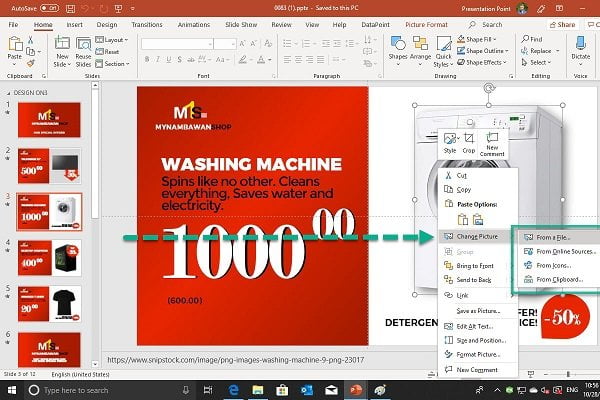
[/et_pb_text][et_pb_text _builder_version=”4.16″ global_colors_info=”{}”]A template is just a template and it was not written specifically for your shop or office. So most likely, you will have to replace images or photos. Select the picture that you want to change and right click it. Choose Change Picture from the popup menu and choose to change from a file, from online sources, from icons or from your clipboard.
[/et_pb_text][et_pb_image src=”https://signagetube.com/wp-content/uploads/how-to-use-digital-signage-templates.jpg” show_in_lightbox=”on” _builder_version=”4.16″ global_colors_info=”{}”][/et_pb_image][et_pb_text _builder_version=”4.16″ global_colors_info=”{}”]

There you can choose where the picture comes from.

  • Your computer
  • Free pictures from the internet
  • Icons
  • Clipboard

You can browse the images on your own computer, or look for an image online. Let choose From Online Sources… This will open a browser where you can type in your search terms. For example here: ironing board. It will show you relevant images that you can choose from.

[/et_pb_text][et_pb_image src=”https://signagetube.com/wp-content/uploads/digital-signage-replace-image-by-image.jpg” _builder_version=”4.16″ global_colors_info=”{}”][/et_pb_image][et_pb_text _builder_version=”4.16″ global_colors_info=”{}”]

When you have what you want, just click the Insert button and PowerPoint will replace that existing image from your template.

[/et_pb_text][et_pb_image src=”https://signagetube.com/wp-content/uploads/digital-signage-image-replaced.jpg” _builder_version=”4.16″ global_colors_info=”{}”][/et_pb_image][et_pb_divider show_divider=”off” _builder_version=”4.16″ global_colors_info=”{}”][/et_pb_divider][et_pb_text _builder_version=”4.16″ global_colors_info=”{}”]

How to Replace a Text?

[/et_pb_text][et_pb_text _builder_version=”4.16″ global_colors_info=”{}”]Without a doubt, you will have to keep the content of your digital signage presentation up-to-date. Change product descriptions, change promotions, change prices.

To edit a textbox on your digital signage slide, just select the textbox with the text that you want to replace.
[/et_pb_text][et_pb_image src=”https://signagetube.com/wp-content/uploads/digital-signage-templates-replace-text.jpg” show_in_lightbox=”on” _builder_version=”4.16″ global_colors_info=”{}”][/et_pb_image][et_pb_text _builder_version=”4.16″ global_colors_info=”{}”]Then start typing in the new text.
[/et_pb_text][et_pb_image src=”https://signagetube.com/wp-content/uploads/digital-signage-templates-text-replaced.jpg” _builder_version=”4.16″ global_colors_info=”{}”][/et_pb_image][et_pb_text _builder_version=”4.16″ global_colors_info=”{}”]

Make all the text changes that you need to do. Sometimes it can be hard to precisely select the text box that you want to update. Sometimes multiple textboxes are used in the same area of your slide or grouped together. A good tool to help you select the textbox that you want is the Selection Pane.

To open the Selection Pane in PowerPoint, select a textbox. Then click the Shape Format option of the PowerPoint ribbon and click the Selection Pane option from the Arrange group.

[/et_pb_text][et_pb_image src=”https://signagetube.com/wp-content/uploads/digital-signage-templates-handy-selection-pane-in-powerpoint.jpg” _builder_version=”4.16″ global_colors_info=”{}”][/et_pb_image][et_pb_text _builder_version=”4.16″ global_colors_info=”{}”]

At the Selection Pane on the right of your PowerPoint application you can now see a full list of all the shapes of the current slide. Simply select the shape name from the list and the shapes that were hard to select before, can be all selected now.

And another tip on the PowerPoint Selection Pane: now that you see and know the name of a given shape, simply click a second time on the name of the shape at the Selection Pane and give it a meaningful name. That will help you find your textbox even faster next time.

[/et_pb_text][/et_pb_column][/et_pb_row][/et_pb_section]

Ready to try it? Start free in minutes, no credit card. Create your free account →

Put your screens to work

Turn any TV into professional digital signage, built from the PowerPoint you already know.

SignageTube
Privacy Overview

This website uses cookies so that we can provide you with the best user experience possible. Cookie information is stored in your browser and performs functions such as recognising you when you return to our website and helping our team to understand which sections of the website you find most interesting and useful.