 SignageTube
Data Pages put your business data on screen: appointments, arrivals, production figures or prices straight from the systems you already use. When the information changes, your screens change too. No retyping, no exporting, no new slides.
Change the data, the screen follows. No retyping, no uploading slides.
A Data Page is a screen design that reads your data for you. Think of an airport departures board: nobody types the flights onto it, the board reads them from the airline's system. A Data Page does the same for your business, with your appointments, orders, queues or figures.
It is dynamic digital signage: you decide once what to show and how it should look, and SignageTube keeps the screen up to date every time it refreshes the source.
Your data travels from where it lives, to the part you picked, to the screen. Here is what each step means.
Where your data lives. Your IT person links SignageTube to the system once, for example a database or an XML or JSON feed. The login details stay safely in the connection settings.
What you want to show. Browse the records, pick the columns you need, then filter and sort them and choose how often to refresh.
How it looks on screen. Choose a layout, then set labels, colors and alignment so it reads well from across the room.
One Data Table can power several Data Pages, each with its own layout. The reception screen and the meeting room screen can share one table.
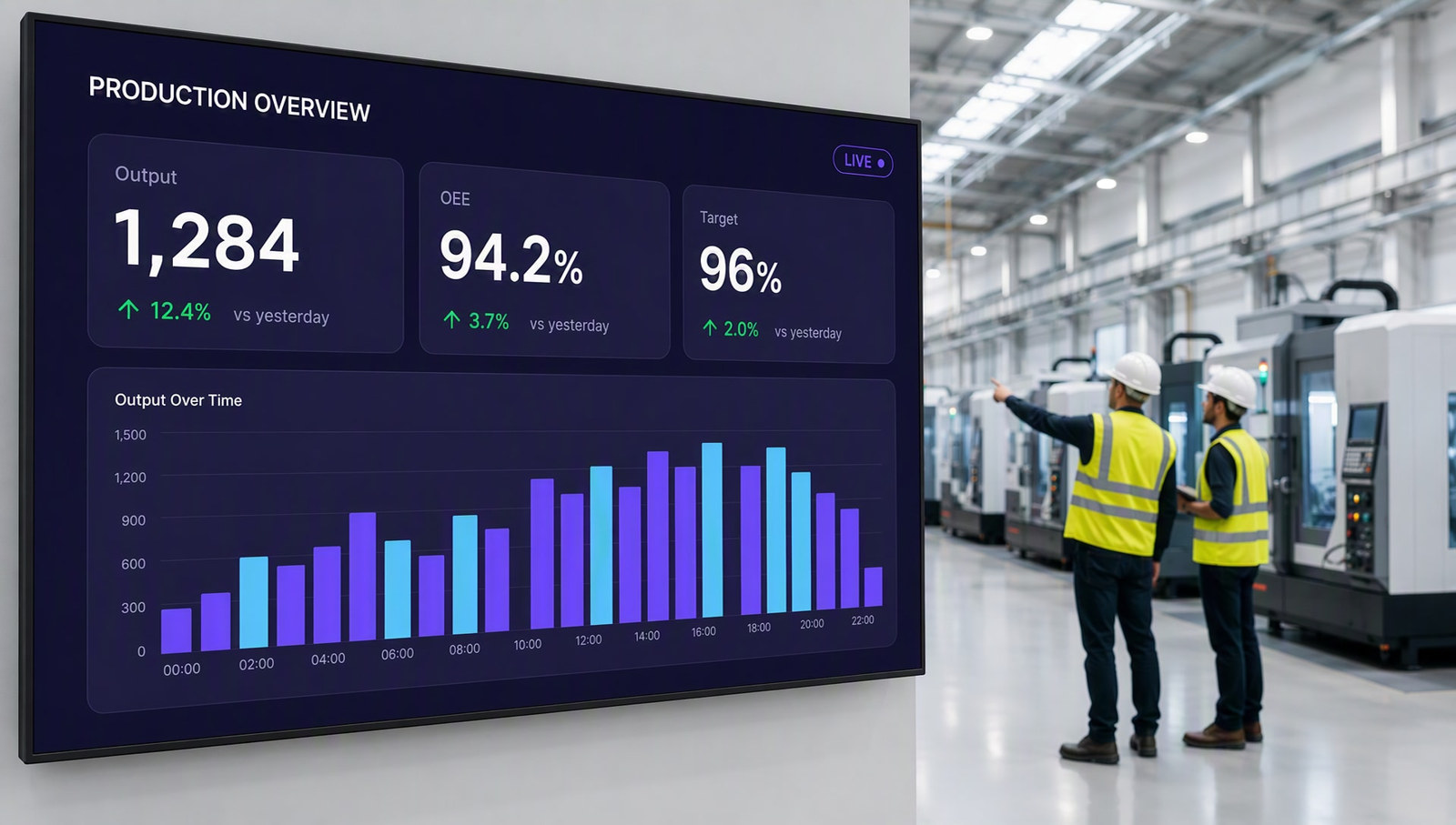
A real example: a factory that wants each production line's output on the shop floor screen.
An administrator creates a connection to the production database and sets up access. Credentials stay in the connection settings, separate from the page design.
Create a Data Table: pick the columns Line, Output and Target, filter on Plant = Hall 2, sort by line and refresh every few minutes. Relative time filters such as "today" or "this shift" work too.
Choose a layout, then adjust labels, number formats, colors and alignment so the figures read well from a distance. Show a fixed set of rows, or rotate through a longer list.
Check it in the full screen preview, add the Data Page to a playlist, and schedule it next to your safety video, PDFs and PowerPoint. From then on, the screen updates itself.
Use Data Pages when your screen content comes from structured information that keeps changing. Typical examples:
| Situation | What you could display | See an example |
|---|---|---|
| Reception and hospitality | Appointment lists, meetings or visitor information | Meeting rooms → |
| Transport and travel | Arrivals, departures and service information | Directory boards → |
| Retail | Product lists, prices or availability | In store signage → |
| Operations | Work queues, job statuses or production figures | Production boards → |
| Offices and teams | Department figures, progress summaries or internal information | Office screens → |
These examples need a suitable data source that SignageTube can reach.
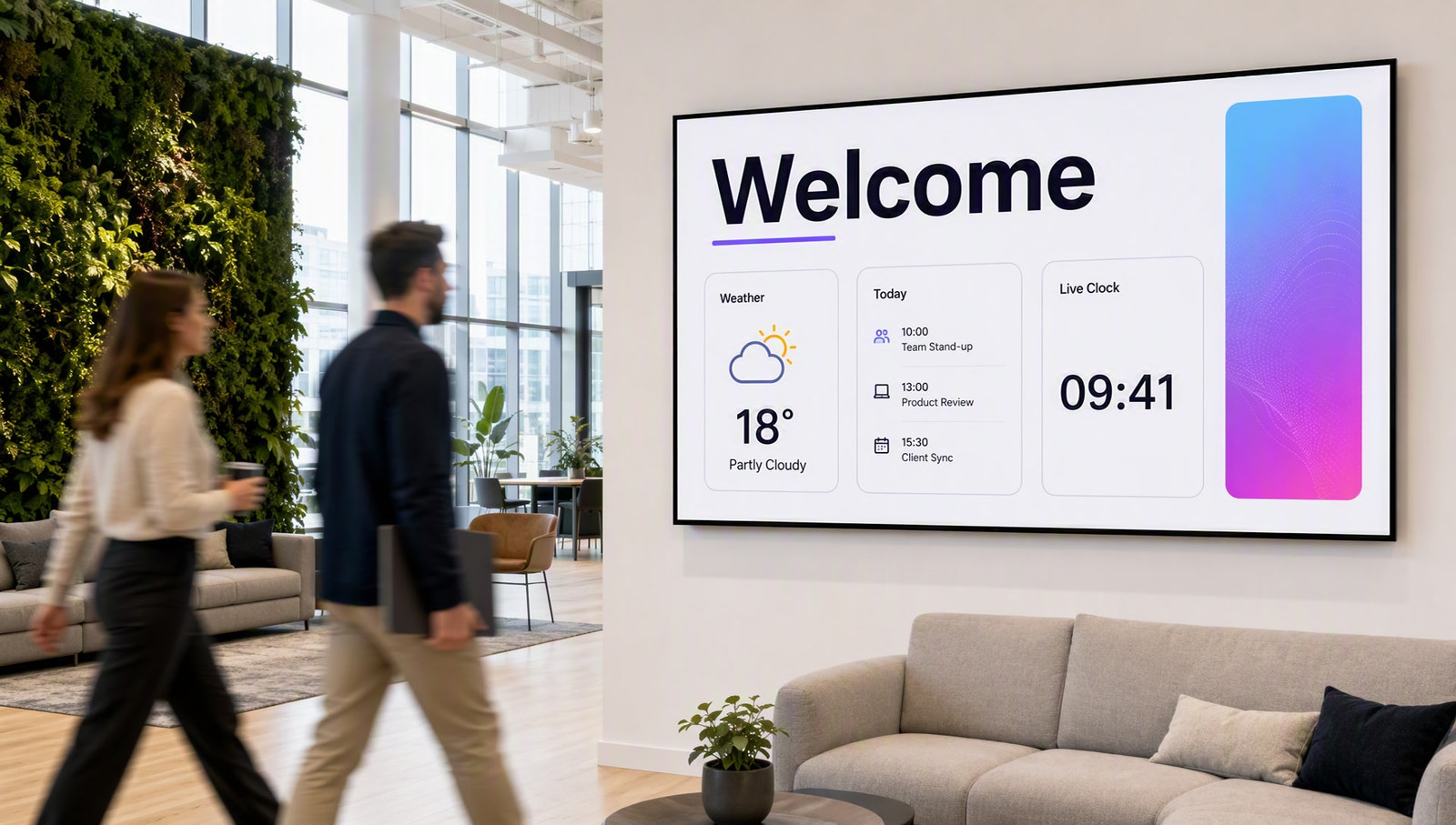
Appointment lists, meetings or visitor information.
Meeting room displays →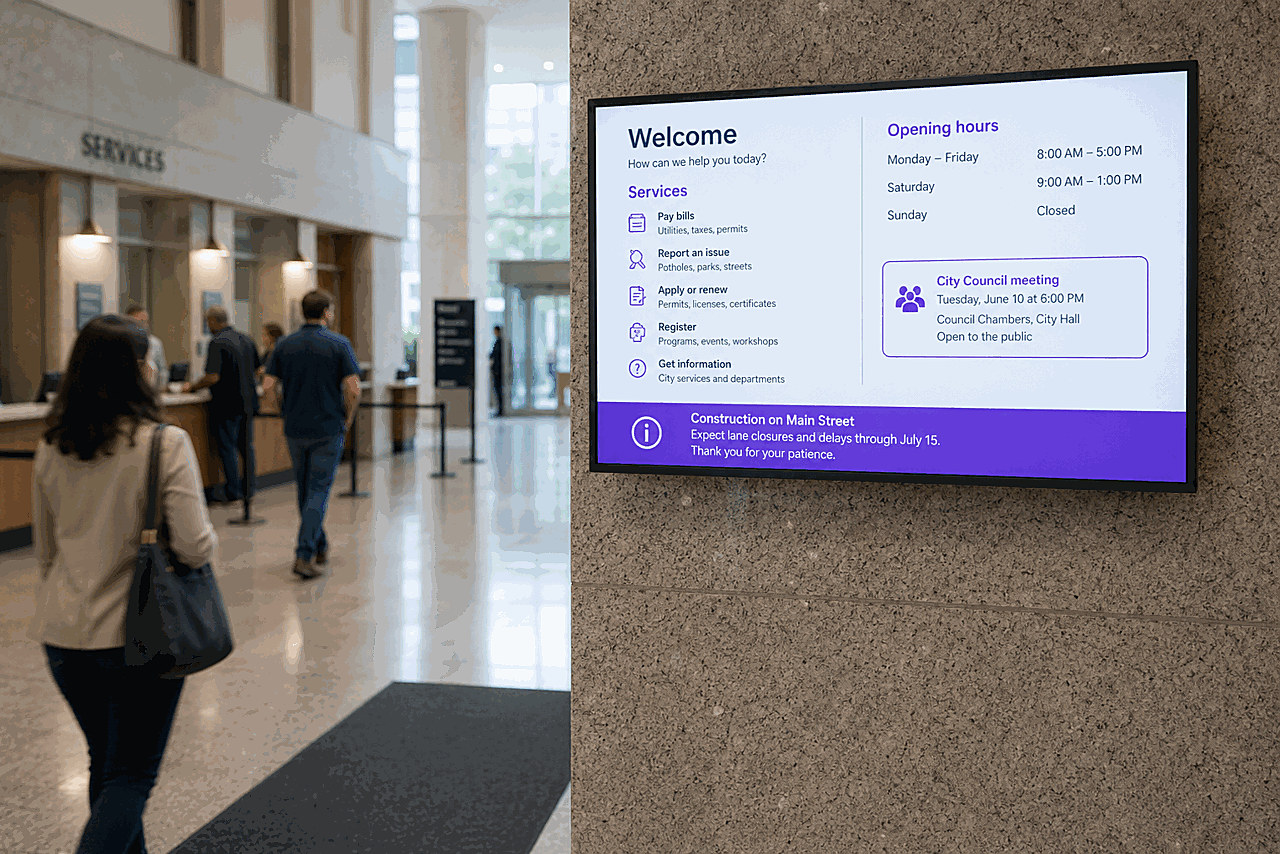
Arrivals, departures and service information.
Digital directory boards →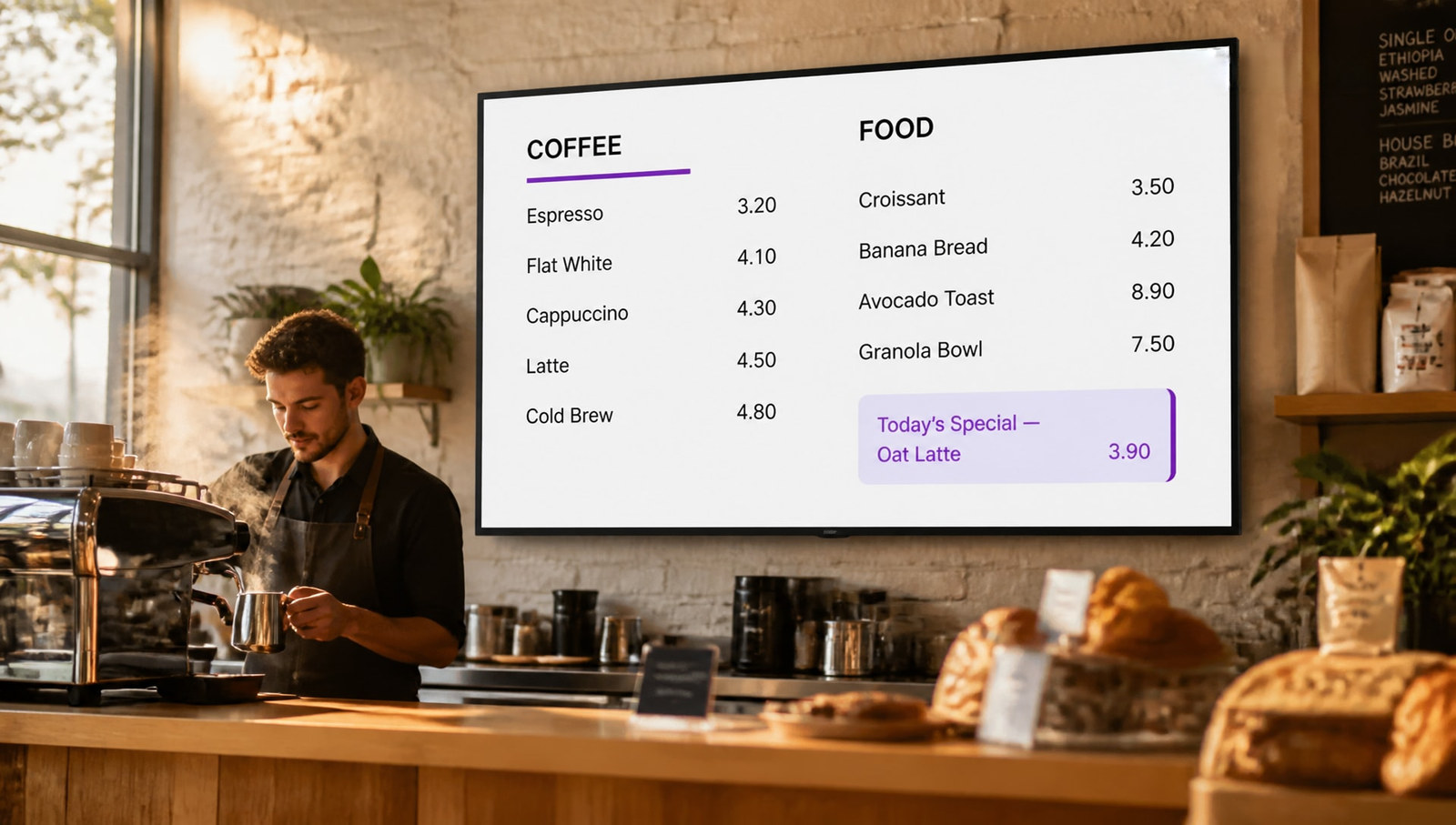
Product lists, prices or availability.
Digital menu boards →Work queues, job statuses or production figures.
Factory KPI dashboards →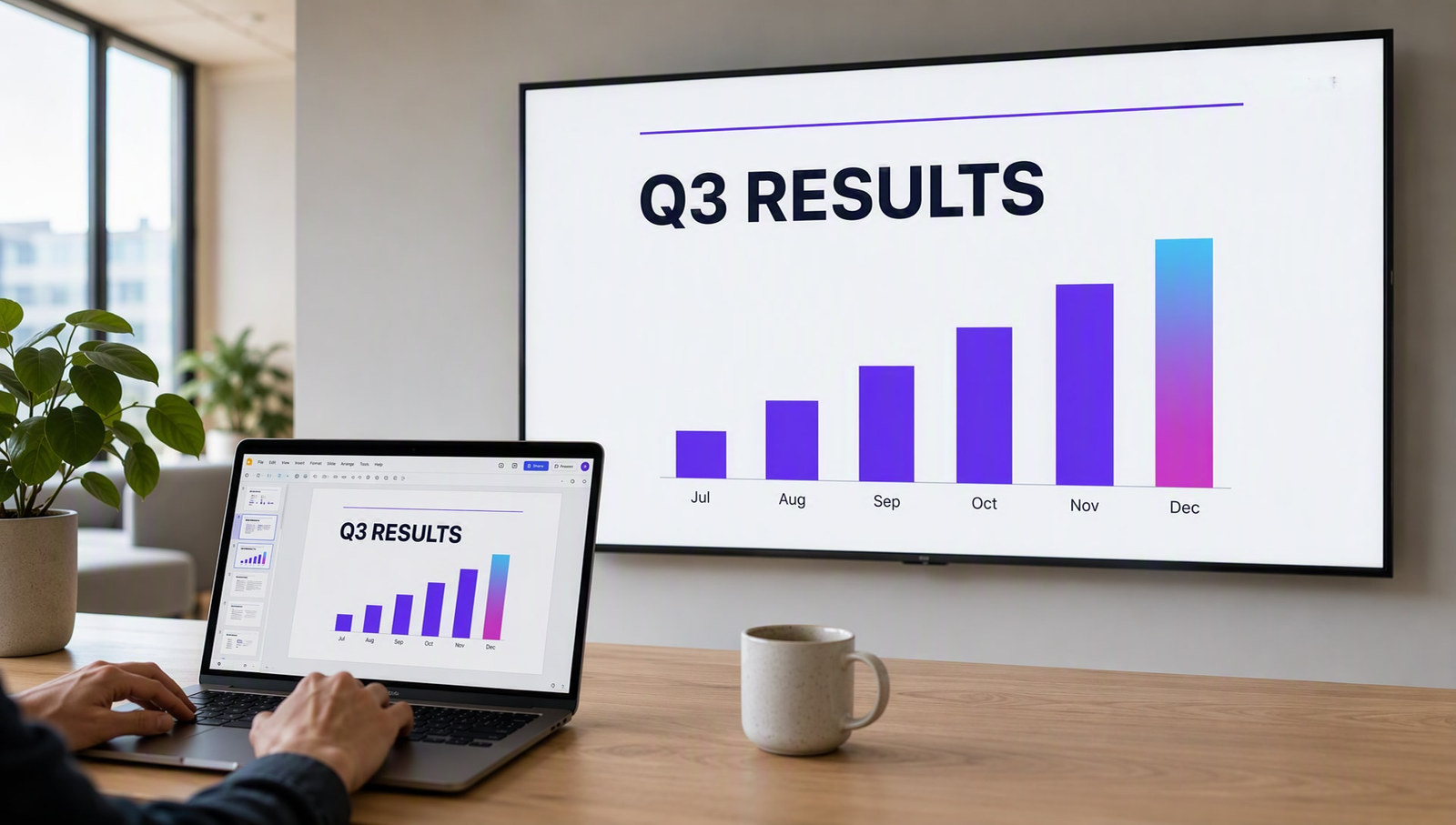
Department figures, progress summaries or internal information.
Office information screens →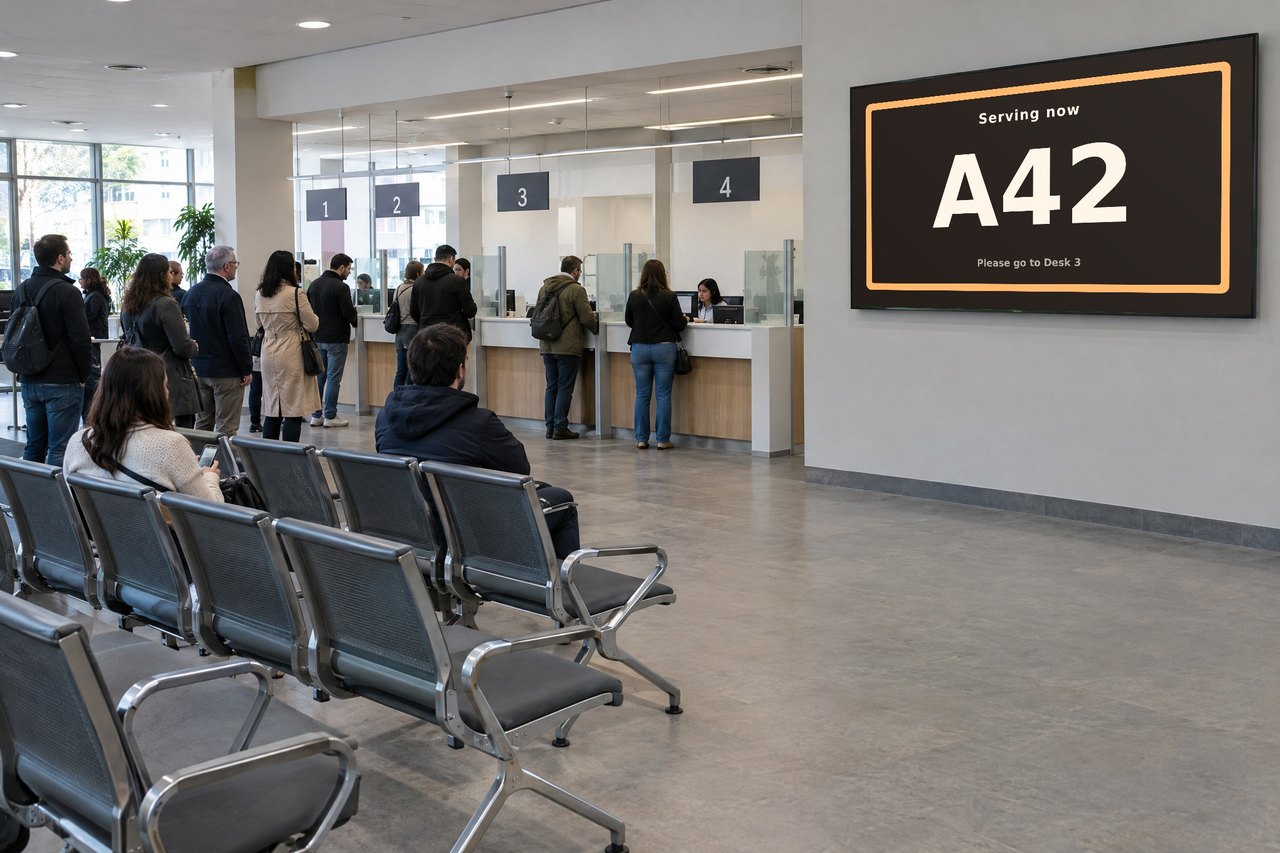
Queue numbers, waiting times and which desk to go to.
Queue management displays →No more copying numbers into slides or replacing uploaded files every time something changes.
Every screen shows the same information from the same Data Table, so reception and the canteen never disagree.
Filter by location, department, status or time, so each screen shows only what its viewers need.
Prepare a Data Table once and use it in different layouts without connecting the source again.
Show structured information as clear signage, not a crowded spreadsheet or a screenshot of a business application.
Administrators manage the connections. Permissions decide who can view or manage each Data Page.
Output, targets, job status and downtime per line, without someone updating a slide each shift.
Today's visitors, meeting room bookings and team figures, always current.
Service desk queues, opening hours and department information across many sites.
Prices, stock and product information straight from your product list.
Choose Live Pages for ready made content. Choose Data Pages for your own connected data. For content that rarely changes, a file is enough.
Lists and tables from your own systems, refreshed automatically.
Start an Enterprise trial →1,300+ ready made screens: weather, news, clocks, menus and more. You fill them in.
See Live Pages →Already design in PowerPoint? Link your slides to Excel, databases and 20+ sources.
Live data signage →Images, videos, PDF and PowerPoint for content that rarely changes.
Supported file types →Data Pages are available with Enterprise and during an active free trial, subject to user permissions. How fast updates appear depends on the refresh interval you set, your data source and the connection.
Try Data Pages free for 15 days with an Enterprise trial. No credit card.
Pick the edition you want to try for 15 days. No credit card, just your name and email.
Images, video, web pages, PowerPoint and Live Pages on any TV. The easiest place to start.
Start Starter trial →Real PowerPoint on Windows, a report of what played (Proof of Play) and a Control Room for all your screens.
Start Professional trial →Live data from Excel, databases and 20+ sources, screen health alerts and switching screens on and off.
Start Enterprise trial →Not sure? Start with Starter. You can move up any time.
Both come with a 15 day free trial. No credit card, just your name and email.