 SignageTube
Android Digital Signage That Starts by Itself After Every Reboot

Your digital signage screen shouldn’t need someone with a remote every morning. After a restart or a power cut, the screen should go straight back to work. And if it can’t start, it should tell you why.
That’s what SignageTube Launch on Boot does. It’s a small Android app that opens your signage player automatically after every reboot.
In short: install the app, pick your player, turn on Start on boot, and you’re done. If you like, add weekly opening hours too. Launch on Boot doesn’t replace your player. It makes sure the right player opens at the right time.
Works without Google Play
Many Android players, TV boxes and commercial displays don’t have the Google Play Store. That’s why we offer Launch on Boot as a direct APK download. You install it next to your SignageTube player and get much more control over how the screen starts. On a Google TV device you can also get the SignageTube player straight from Google Play.
Download SignageTube Launch on Boot for Android (APK)
How to install the APK on an Android TV
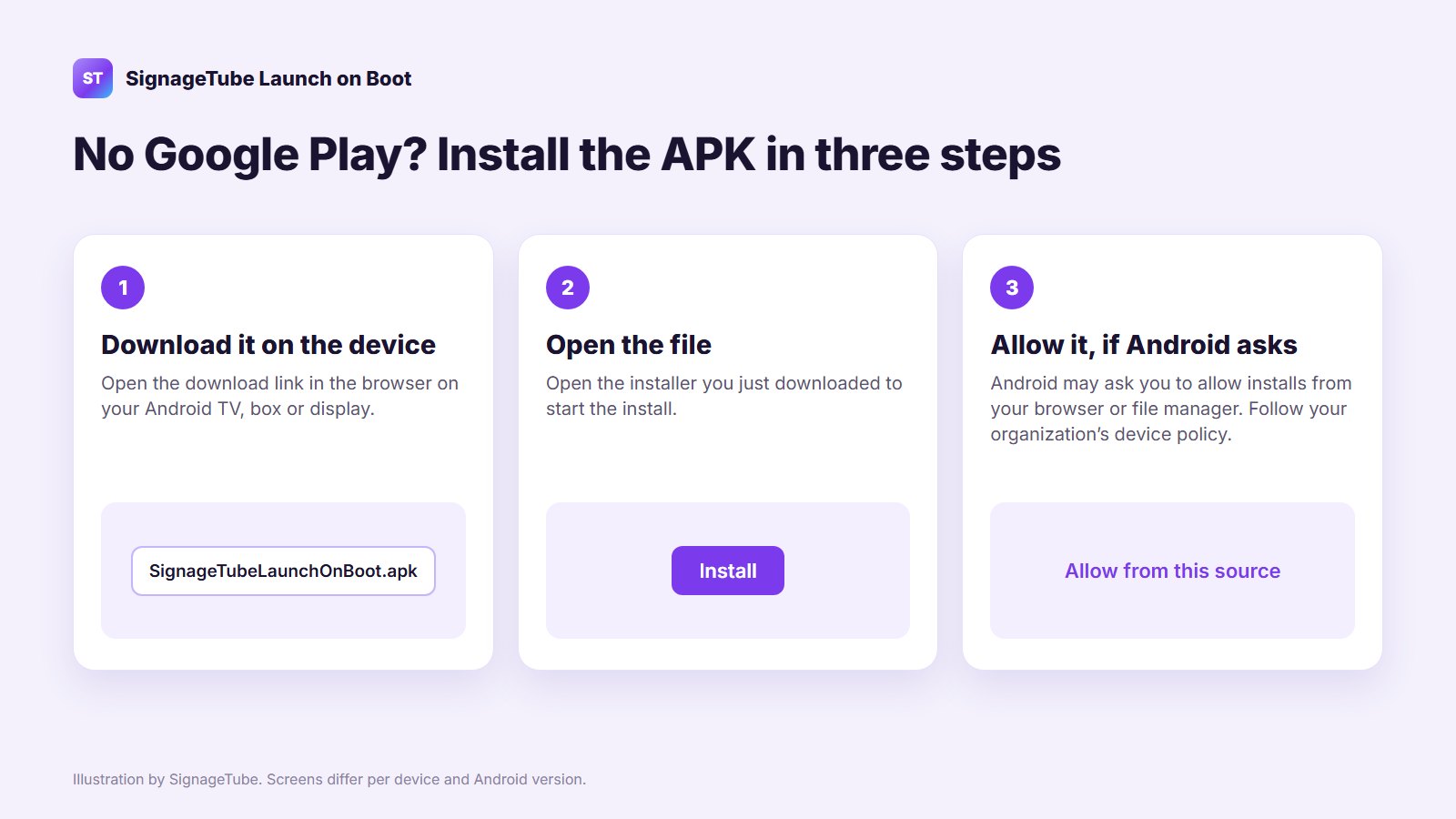
- Open the download link above in the browser on the Android device itself.
- Open the file you downloaded to start the install.
- If Android asks, allow installs from your browser or file manager. Follow your organization’s device policy.
Pick the player this screen should open
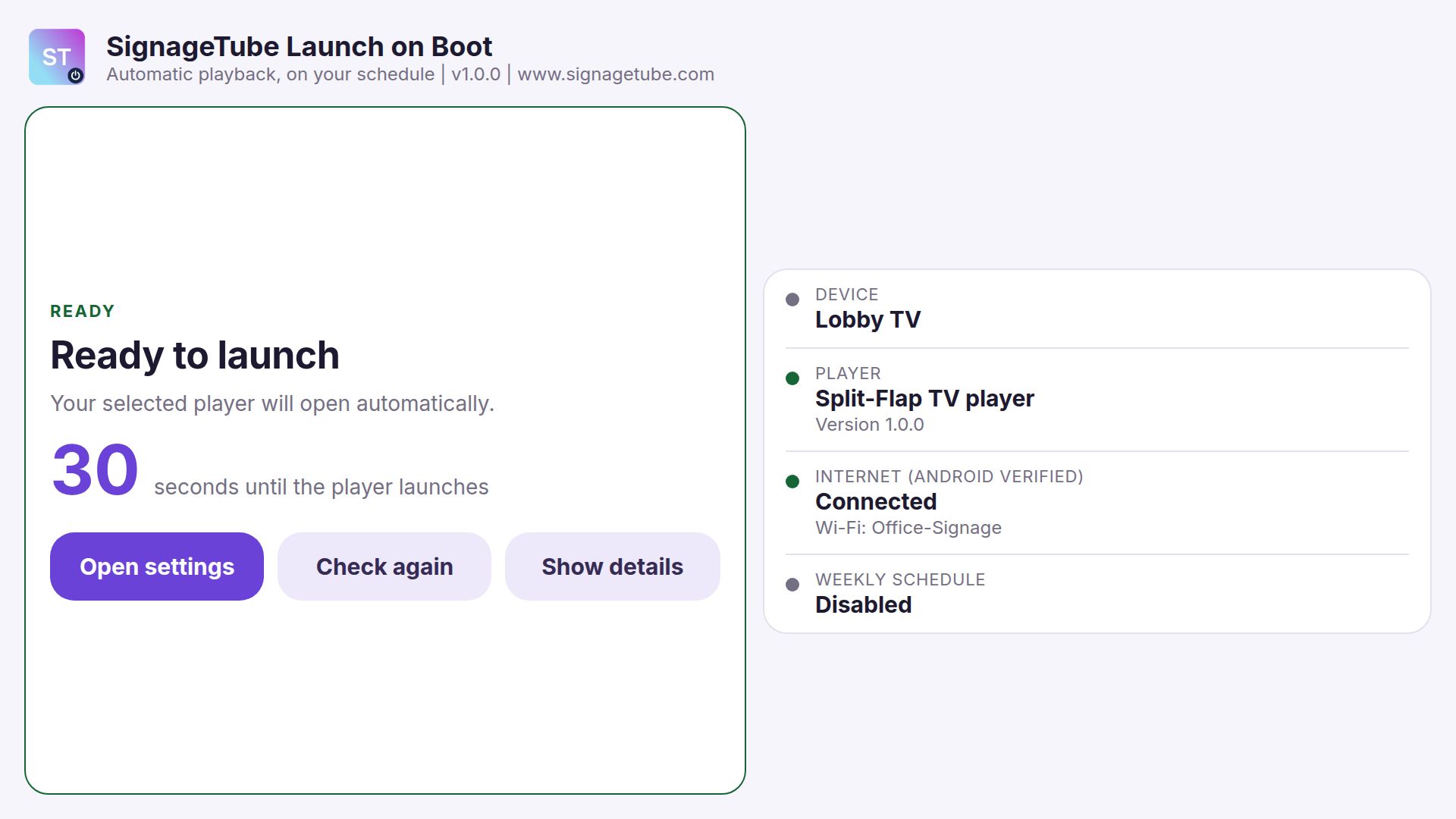
You can choose one of three players:
- SignageTube player (v1)
- SignageTube player (v2)
- Split-Flap TV player
Install and set up your player first. Then select it in Launch on Boot and turn on Start on boot.
What if no player is selected, or the player was uninstalled? Then Launch on Boot shows a screen that explains the problem. It won’t keep trying to open an app that isn’t there.
What you see before the player opens
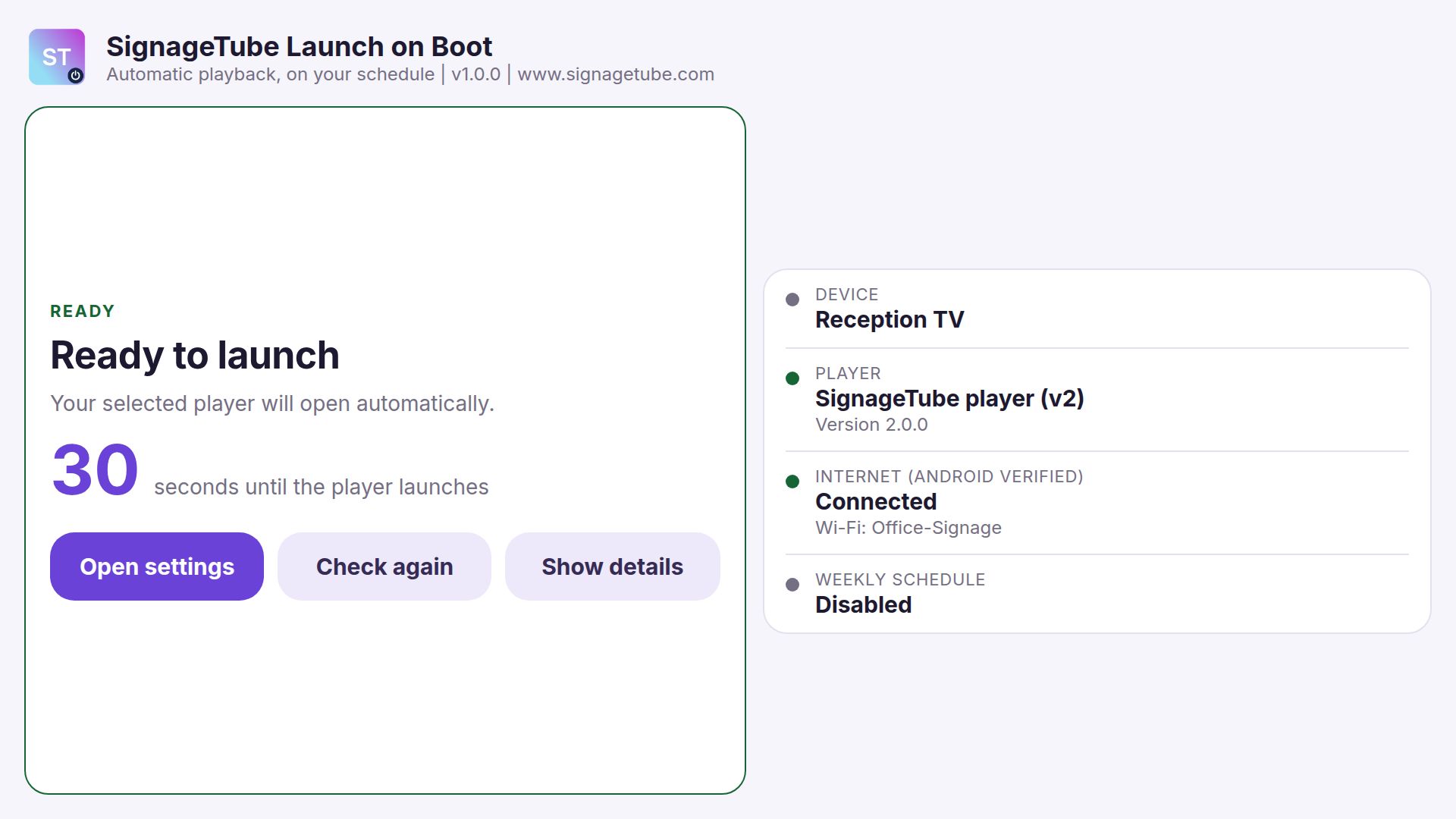
The startup screen shows only what you need:
- Device name: so you know which screen you’re looking at. If Android doesn’t share a name, you’ll see the device model instead, when available.
- Player and version: the player that will open, and which version is installed.
- Connection: whether you’re online, and the name of the Wi-Fi network.
- Weekly schedule: whether opening hours are on, and when the next run is.
When everything checks out, a 30 second countdown starts. That gives you time to tap Open settings if you want to change something.
Want the technical details, like launch permissions, exact alarm access or the device clock? Tap Show details.
Set opening hours once, then change single days
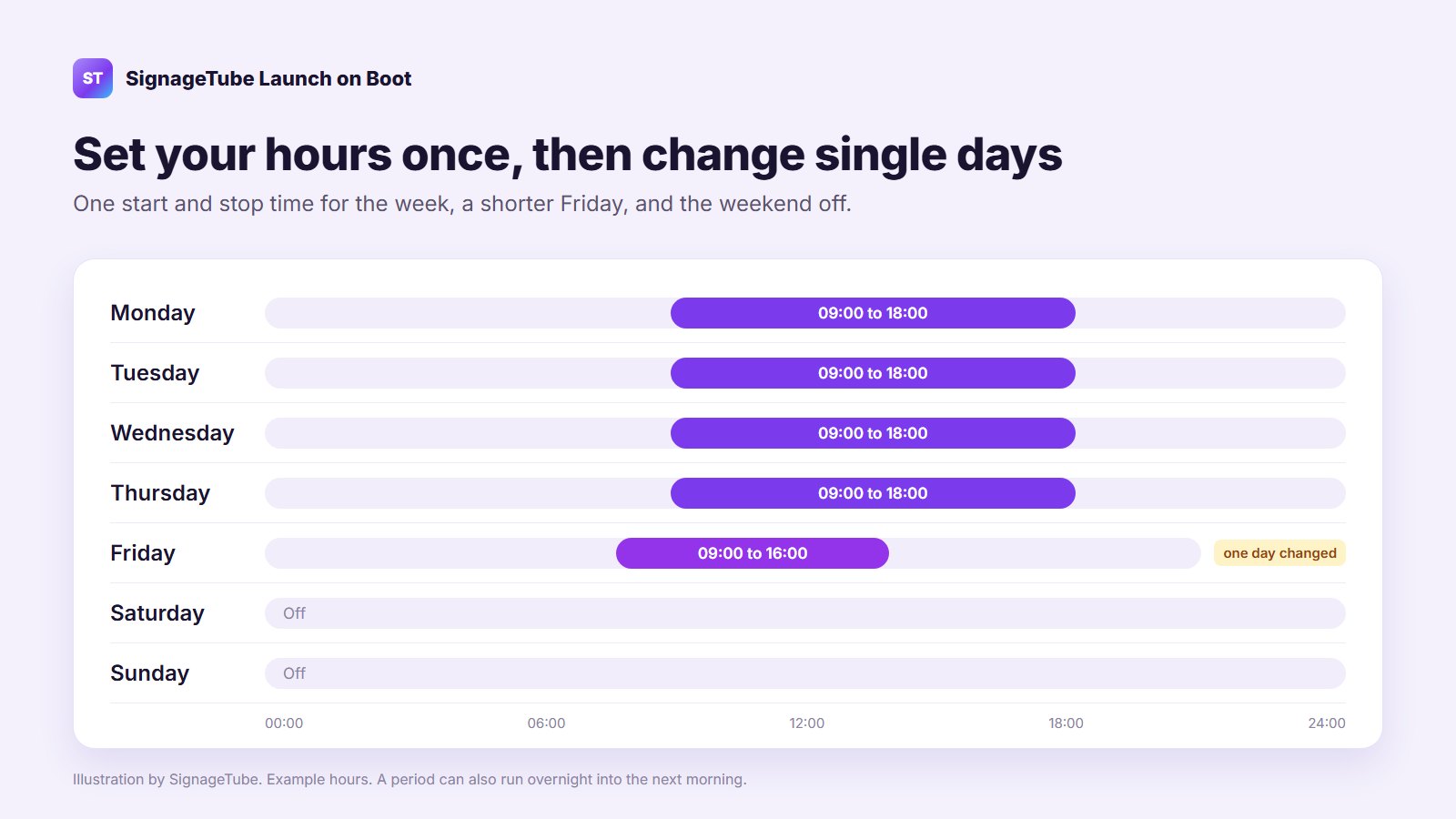
Should your screen only run during business hours? Turn on the weekly schedule. Pick one start and stop time for your chosen weekdays, then change single days where you need to.
For example: 09:00 to 18:00 Monday to Friday, a shorter Friday from 09:00 to 16:00, and the weekend off. A period can even run overnight and finish the next morning.
One thing to know: the schedule is weekly. It doesn’t have exceptions for single dates or holidays.
What happens before opening time
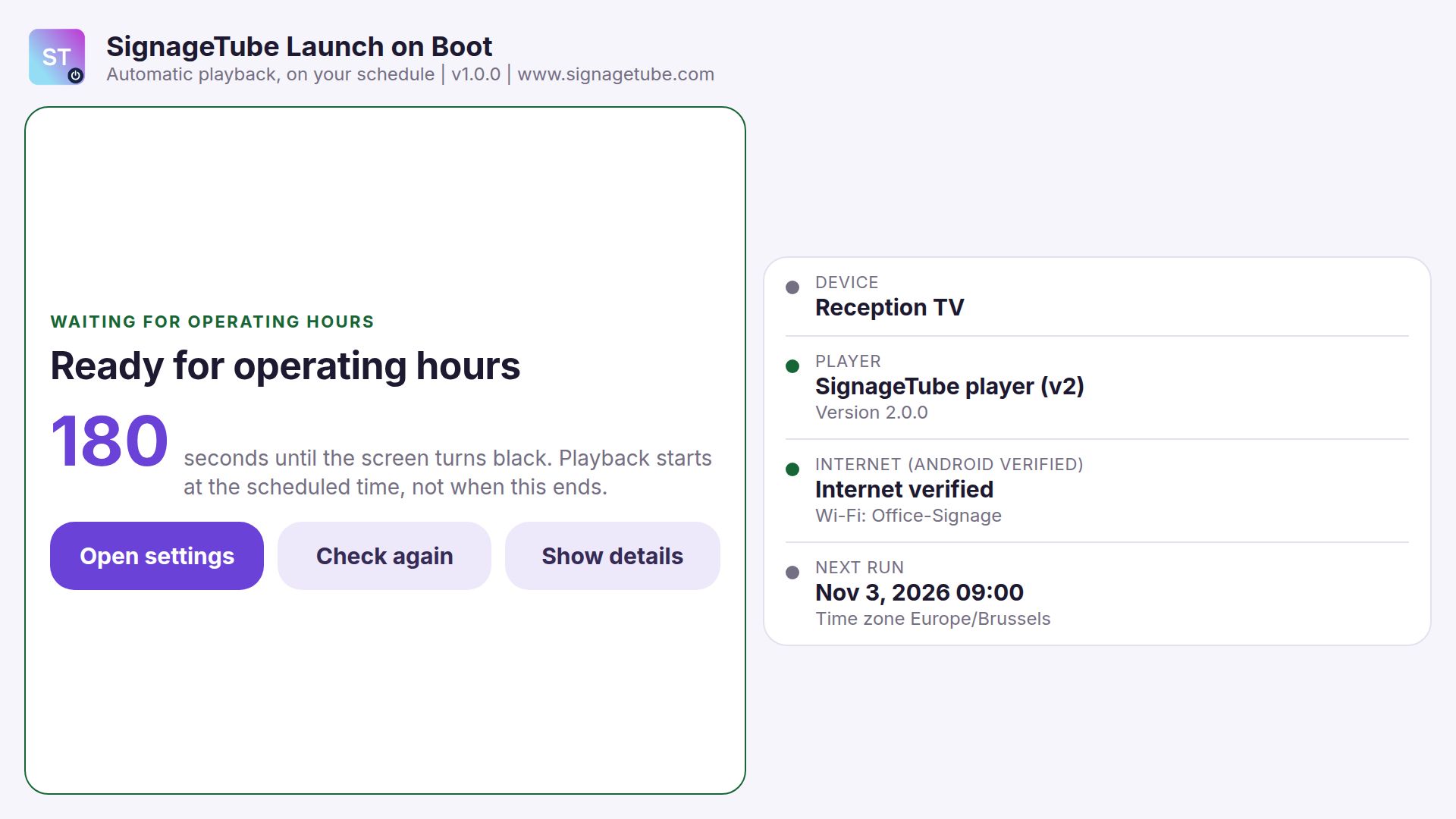
What if the screen starts before your opening hours? It shouldn’t look broken. With the schedule on, Launch on Boot shows a waiting screen with the player, the connection, and the date and time of the next start.
Then a 180 second countdown starts. At zero, the screen goes black. This countdown is for the waiting screen only. Your player still starts at the scheduled time.
If the schedule is off, you won’t see this waiting screen at all.
Wi-Fi isn’t the same as internet
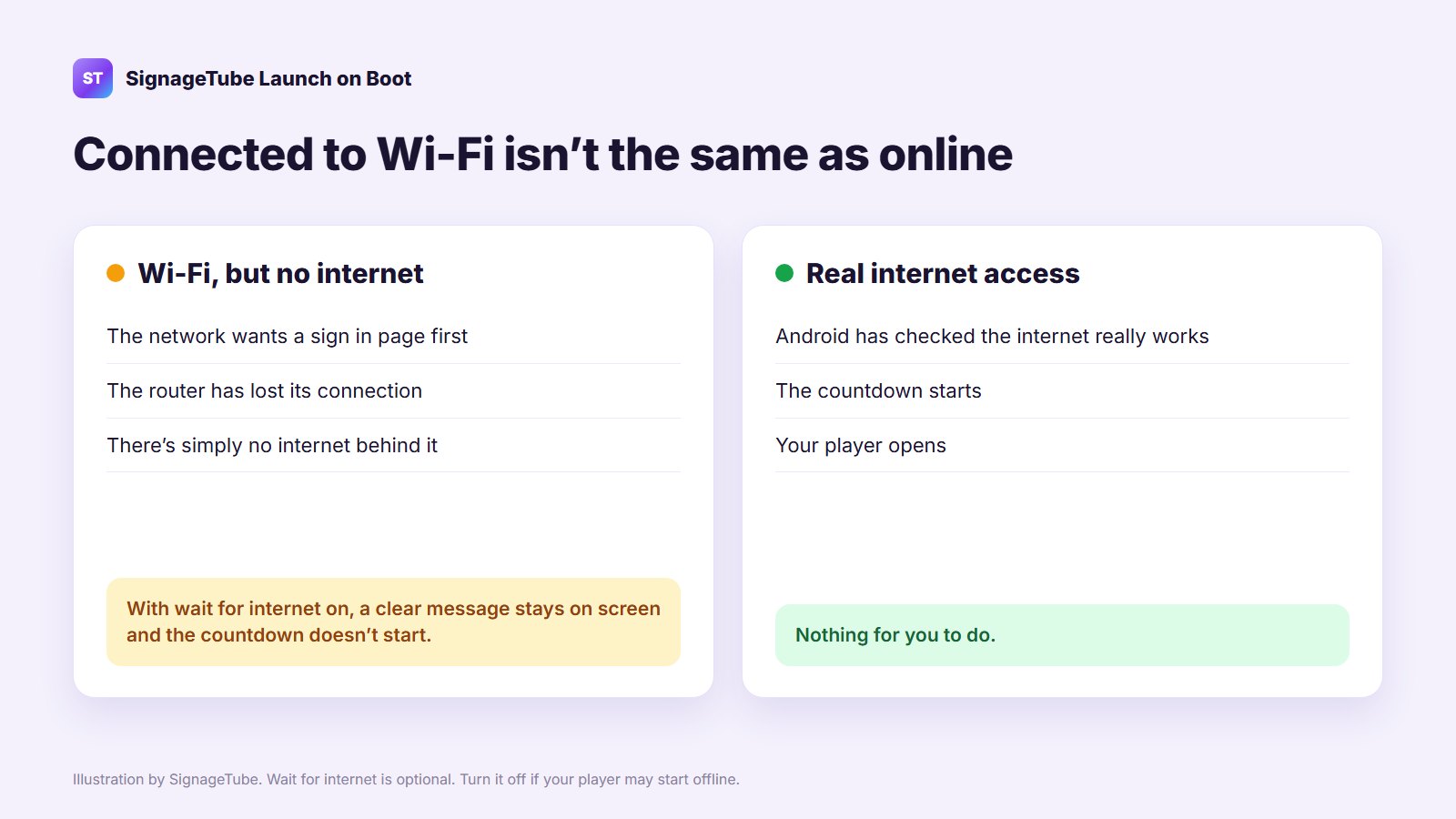
A device can be on Wi-Fi and still have no internet. Maybe the network needs a sign in page, the router lost its connection, or there’s simply no internet behind it.
Turn on wait for internet and Launch on Boot waits until Android confirms the internet really works. Until then, a clear message stays on screen and the countdown doesn’t start. If your player is fine starting offline, turn this option off.
To show the Wi-Fi name, Android may ask for Location permission, with Location turned on. The app only uses it to read the network name, not your GPS position. It’s optional, and playback works without it.
Change settings later, or start the player now
Open Launch on Boot again any time to change your settings, or tap Open settings during the countdown.
In settings you’ll also find Run now. It opens your saved player right away, even outside your opening hours. Save any schedule changes before you test. If wait for internet is on, Run now still waits for internet.
Checklist for your first install
- Install and set up your SignageTube or Split-Flap TV player.
- Install Launch on Boot and open it once to finish setup.
- Select your player and turn on Start on boot.
- Allow the launch permissions Android asks for. Also check any auto start or battery limits your device maker adds.
- Decide if the player should wait for internet.
- If you want, set and save your weekly hours. Check the date, time and time zone on the device.
- Tap Run now. Then reboot the device and check that your content really plays.
Plain Android player or Google TV: which should you choose?
Both run Android underneath. The difference is how much control you keep over the screen.
Google TV device
- Plus: automatic updates keep the system up to date and secure.
- Minus: you have to sign in with a Google account, so the screen isn’t anonymous.
- Minus: features are more limited, and a future Android release can remove a feature you rely on today. That has happened before.
- Minus: pop ups can appear on screen, like ads, warnings, or a message asking you to confirm a sign in on another device.
Plain Android player
- Plus: the same base Android, with much more control.
- Plus: it runs anonymously, without a Google account.
- Plus: no restrictions on which features you use.
- Minus: no automatic updates. When a new version of the player comes out, you roll it out to your players yourself.
Our advice: pick Google TV when hands off updates matter most. Pick a plain Android player when you want full control, no account and no surprises on screen. That’s exactly where Launch on Boot helps, because those players often come without Google Play.
Good to know about Android TVs and power
Not every Android TV or box handles apps starting in the background the same way. Some makers add their own limits. So always test the full journey, from boot to playback, on the exact hardware you’ll use. Still choosing hardware? Read how to pick a digital signage player for Android.
The black screen after hours belongs to the app. It’s not the TV switching off. The app can’t switch a TV back on that’s been powered off, and a black screen doesn’t mean the screen has stopped using power.
Last, a player that opens isn’t proof that your content is playing. The network, the player’s setup and its content still matter.
Quick answers
Can I use Android digital signage without Google Play? Yes. Download the Launch on Boot APK and install it directly on the device, next to your SignageTube player.
Will my screen start by itself after a power cut? Yes, when Start on boot is on and the device powers back up. After the reboot, Launch on Boot runs its checks and opens your player after a short countdown.
Does the black screen turn my TV off? No. It’s a black screen shown by the app. The TV stays on.
Which players does it work with? SignageTube player (v1), SignageTube player (v2) and the Split-Flap TV player.
Make startup one less thing to worry about
Launch on Boot gives every Android screen a clear startup routine: pick a player, check it’s ready, then start automatically or wait for opening time. And because it shows the device name, player version and connection, it’s also a big help when you troubleshoot.
New to SignageTube? See what SignageTube digital signage can do, check the file types your screens can play, compare the editions and prices, or try it free for 15 days.
- SignageTube Starter: content signage on any TV
- SignageTube Enterprise: live data on your screens
- Digital signage software: how to choose, and what matters
- Templates: 120+ ready made designs
- Live Pages: 1,300+ ready made screens, like weather, news and menus
- Pricing: simple per screen plans