 SignageTube
What Is Digital Signage? A Plain Guide for 2026
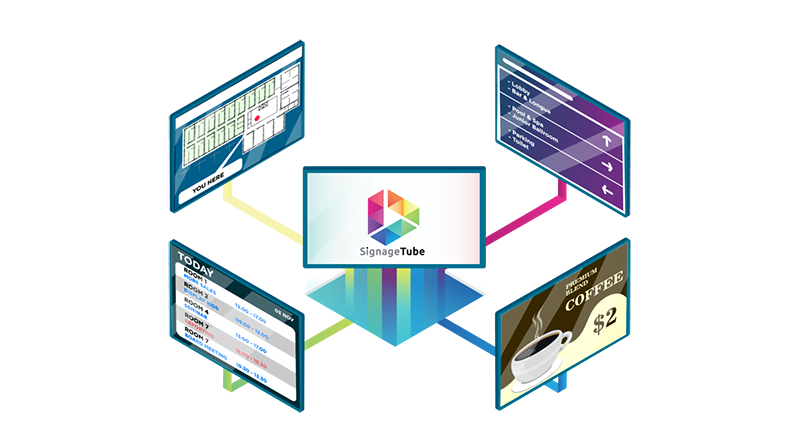
What is digital signage? Digital signage is a screen that shows information instead of a printed sign: a menu, a welcome message, a wait time, a timetable or a live sales figure. Behind the screen sits a small player device, and software lets you choose what plays, when and where, from any browser. Change the message once and every screen you choose follows.
That’s the whole idea. The rest of this guide explains the parts, how they work together, where digital signage is used, what it costs and how to start without a big project.
Digital signage definition
Digital signage is the use of screens, such as TVs, monitors, video walls or kiosks, to show content that can be changed remotely and scheduled in advance. The content can be images, video, slides, web pages or live data, and it usually plays in a loop called a playlist.
Three things separate digital signage from a TV playing a slideshow:
- Remote control. You change content from your desk, not by walking to the screen with a USB stick.
- Scheduling. Content plays at set times: breakfast menu until 11:00, lunch after.
- Many screens, one place. One account runs one screen or hundreds, across buildings and countries.
People search for the digital signage meaning in different words: electronic signage, digital displays, screen signage, digital notice boards. They all describe the same thing.
How digital signage works
Every digital signage system has four parts. If you understand these, you understand all of it.
| Part | What it is | Examples | What to look for |
|---|---|---|---|
| The screen | Where people see the content | A normal TV, a commercial display, a monitor, a video wall | Size for the viewing distance; brightness for sunny spots; rated for long hours if it runs all day |
| The player | A small computer that plays the content on the screen | An Android TV or Google TV device, a Windows PC, or a smart TV with the player app built in | Which file types it plays, whether it starts by itself after a power cut, whether it keeps playing offline |
| The content | What you show | Images, video, PowerPoint, PDF, web pages, templates, live data | Whether your team can make it with tools they already know |
| The software | Where you upload, schedule and manage everything | A cloud dashboard in your browser, or software on your own servers | Ease of use, scheduling, user roles, screen monitoring, price per screen |
The screen
Any screen with an HDMI input can be a digital sign. A consumer TV is fine for a few hours a day in an office or cafe. For screens that run all day, in a shop window or on a factory floor, a commercial display built for long hours lasts longer. Pick the size by distance: the further away people stand, the bigger the screen and the text need to be.
The player
The player is the brain behind the screen. It downloads content from the software and plays it, and many players keep playing what they’ve downloaded if the internet drops. With SignageTube the player is an Android TV or Google TV device, or a Windows PC connected to the TV. If your TV runs Android TV or Google TV, the player installs straight on the TV.
The content
Most signage loops mix a few kinds of content: photos and short videos, slides, web pages, and templates for things like weather, clocks, menus and queues. The best content is short, readable from a distance and changes often enough that people keep looking.
The software
The software is where you build playlists, schedule them and choose which screens show what. Cloud software runs in your browser, so you can update screens in another building or another country. Some organizations run the software on their own servers instead, so content and data stay inside their network.
Digital signage examples
You’ve seen digital signage today, even if you didn’t notice it. A few common examples:
- Menu boards in cafes and restaurants that switch from breakfast to lunch on their own. See digital menu boards.
- Waiting room screens in clinics with queue numbers, opening hours and health advice. See waiting room screens.
- Reception and welcome screens that greet visitors by name. See welcome screen templates.
- Directory boards beside the lifts. See digital directory boards.
- Production boards on a factory floor showing output against target. See production boards.
- School and church notice screens with announcements and timetables. See school digital signage.
- Shop window and in store screens with offers that change by the day. See in store digital signage.
For a sector by sector list, read what industries use digital signage.
Types of digital signage
| Type | Where you see it | Typical content |
|---|---|---|
| Informational screens | Offices, schools, public buildings | News, notices, events, weather |
| Menu boards | Cafes, restaurants, canteens | Menus, prices, specials |
| Wayfinding and directories | Lobbies, campuses, hospitals | Floors, rooms, directions |
| Queue and waiting screens | Clinics, banks, service desks | Now serving, wait times |
| Dashboards and KPI screens | Factories, warehouses, sales floors | Live targets, output, queues |
| Promotional screens | Shops, windows, showrooms | Offers, new products, brand video |
| Interactive kiosks | Lobbies, museums, stores | Touch menus, maps, self service |
| Video walls | Control rooms, flagship stores, events | Large visuals across several screens |
Digital signage benefits
- Change in minutes, not reprints. A new price or notice is an edit, not a print job.
- The right message at the right time. Schedule content by hour, day and screen.
- People actually look. Movement and fresh content catch the eye in a way a poster on the wall stops doing after a week.
- One message everywhere. Update every branch, floor or campus at once.
- Numbers that stay current. With live data, targets and figures update themselves, so nobody has to remember to.
- Fewer repeated questions. A wait time or directory on screen answers what people would otherwise ask the front desk.
Digital signage vs a TV with a USB stick
A USB stick in the back of a TV is the simplest form of digital signage, and for one screen that rarely changes it can be enough. It stops working well when you have more than one screen, when content changes weekly, or when the screen is somewhere you can’t easily reach. Every change means a trip to the screen, there’s no schedule, and you can’t see whether it’s still playing.
What you need to get started
- A screen with HDMI. The TV you already have is fine for a first test.
- A player. An Android TV or Google TV device, or a Windows PC. If you want PowerPoint to play exactly as built, with animations, use a Windows PC with Microsoft PowerPoint.
- An internet connection for the player to download content.
- Signage software. Install the player app, pair it with your account and publish your first playlist.
- Content. Start from a template, or upload the slides, images and videos you already have.
The step by step version is in our guide to turning any TV into a digital sign.
How much does digital signage cost?
There are three costs: the screen, the player and the software. You may already own the first two. Software is usually priced per screen, per month.
SignageTube, for example, has three editions, each with a 15 day free trial and no credit card:
| Edition | Best for | Price per screen |
|---|---|---|
| Starter | Cafes, shops, receptions and schools: images, video, PDF, web pages, PowerPoint played as a video, and 1,300+ ready made Live Pages | EUR 12 a month, or EUR 10 billed yearly |
| Professional | Teams that build screens in PowerPoint: real PowerPoint on Windows with animations, Proof of Play and a Control Room | EUR 25 a month, or EUR 22 billed yearly |
| Enterprise | Factories and sales floors with live numbers from Excel, databases and 20+ sources | EUR 40 a month, or EUR 36 billed yearly |
Custom runs any edition on your own servers, from 5 screens. See the pricing page for every feature side by side.
Common digital signage mistakes to avoid
- Too much on one slide. One message per slide, big text, high contrast. If you can’t read it from across the room in five seconds, it’s too much.
- Content that never changes. People stop looking at a screen that showed the same thing last month. Schedule something new every week.
- Buying hardware before deciding who runs it. Decide who updates the screens and how often, then pick software they’ll actually use.
- Typing numbers in by hand. Figures typed on Monday are wrong by Tuesday. If a screen shows numbers, connect it to the source.
- Ignoring the player. Make sure it starts by itself after a power cut and keeps playing if the network drops.
- Wrong orientation. Landscape suits menus and dashboards; portrait suits posters and directories. Design for the way the screen hangs.
Digital signage FAQ
What is digital signage in simple words?
A screen used as a sign. Instead of printing a poster, you show the message on a TV or display and change it from a computer whenever you want.
What is the definition of digital signage?
Digital signage is the use of digital screens to show content, such as images, video, slides, web pages or live data, that is managed remotely and scheduled with software.
How does digital signage work?
A player device behind the screen downloads content from signage software and plays it in a loop on schedule. You manage the content and the schedule from a browser.
What is digital signage used for?
Menus, welcome screens, notices, wait times, directories, timetables, promotions and live dashboards, in shops, offices, factories, schools, clinics and public buildings.
What do I need for digital signage?
A screen with HDMI, a player device (with SignageTube, an Android TV or Google TV device, or a Windows PC), an internet connection and signage software.
Can I use a normal TV for digital signage?
Yes. A normal TV works well for a few hours a day. For screens that run all day, a commercial display is built for longer hours.
Can digital signage show real time information?
Yes. Weather, clocks and news headlines are common. With SignageTube Enterprise, slides can also show live figures from Excel, databases and 20+ sources that update on their own.
Is digital signage expensive to maintain?
Usually not. Software is a monthly or yearly fee per screen, and a good player runs for years. The real cost is the time spent updating content, which is why ease of use matters most.
The fastest way to understand digital signage is to try it. Put your first slide on a TV you already have. Start a free 15 day trial of SignageTube, no credit card needed.
- SignageTube Starter: content signage on any TV
- SignageTube Enterprise: live data on your screens
- Digital signage software: how to choose, and what matters
- Templates: 120+ ready made designs
- Live Pages: 1,300+ ready made screens, like weather, news and menus
- Pricing: simple per screen plans