 SignageTube
Digital Signage Player for Android: Turn Any Screen into a PowerPoint-Ready Display
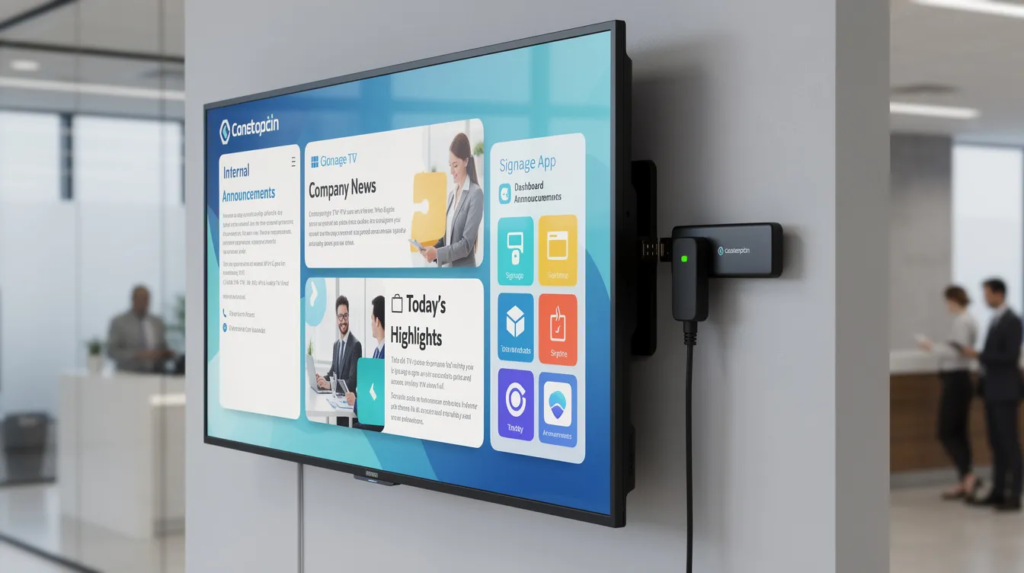
Are you a small or mid-sized business owner, IT manager, or marketing team leader looking to modernize your communications and engage audiences more effectively in 2026? This guide is designed specifically for you. Digital signage players for Android have become the go-to solution for businesses seeking affordable, flexible, and scalable ways to transform ordinary screens into dynamic business displays. Whether you manage a retail chain, restaurant, school, healthcare facility, or corporate office, Android-based digital signage players offer a cost-effective alternative to proprietary systems, making it easier than ever to deploy, manage, and update content across multiple locations.
This comprehensive guide will help you choose and use the right Android digital signage player for your business displays. We’ll cover definitions, key features, setup steps, and why native PowerPoint support through SignageTube is a game-changer for internal communications and marketing.
Android digital signage players are recognized for their reliability in delivering smooth 4K media playback, and Android systems typically experience fewer crashes and intrusive updates than Windows systems. These players are optimized for performance and efficiency in digital signage applications, ensuring smooth operation and high-quality 4K content delivery.
Why Android Digital Signage Players Matter in 2026
In 2026, the relevance of Android digital signage players continues to grow due to their affordability, hardware variety, and robust software ecosystem. Businesses are increasingly seeking solutions that allow for remote management, easy content updates, and compatibility with a wide range of media formats. Android players meet these needs by supporting a vast app ecosystem, enabling remote screen management from anywhere, and offering intuitive drag-and-drop interfaces for content scheduling and updates. This makes them ideal for organizations that need to communicate quickly and effectively across multiple locations without the high costs or technical barriers of legacy systems.
Key Benefits: Remote Management, App Ecosystem, and Easy Content Control
Many Android digital signage players allow for remote management of screens from anywhere using a web portal or mobile app. This means IT managers and marketing teams can update content, monitor device status, and troubleshoot issues without being on-site. Android players support a vast app ecosystem for diverse content types, including webpages, videos, social media feeds, and more, ensuring your displays remain engaging and relevant. Additionally, Android digital signage players often feature easy content management with drag-and-drop interfaces and support for various file types, making it simple for users of all skill levels to create and schedule content.
What Is a Digital Signage Player for Android?
An Android digital signage player is the combination of hardware and software that receives content from the cloud and displays it on any HDMI screen. Businesses use these players to run promotional content, announcements, and informational displays without manual intervention.
The digital signage player itself consists of:
- Hardware: Android boxes, TV sticks, tablets, smart TVs, or system-on-chip (SoC) modules embedded in commercial display panels. The Android device can be a stick, box, or smart TV.
- Software: Digital signage apps that pull scheduled playlists of videos, images, and web content from a cloud platform.
When we say “for Android,” we mean devices running Android OS versions typically from Android 8.0 through 13.0, though Android digital signage players typically require a minimum Android OS version of 6.0 or higher for optimal performance. This includes media player devices like TV sticks, Android tablets, smart TVs with Android variants, and dedicated signage hardware. AbleSign works with any Android device, including commercial displays that have Android built-in.
Android players facilitate local playback by caching media content, ensuring display continuity even if the internet connection is lost. These players can support both wireless and Ethernet connections for flexible network integration.
Common use cases include:
|
Industry |
Application |
|---|---|
|
Quick-service restaurants |
Menu boards displaying rotating daily specials |
|
Schools and universities |
Digital noticeboards for events and schedules |
|
Healthcare facilities |
Waiting-room screens with health tips and appointment reminders |
|
Retail and malls |
Promotion screens pushing flash sales and product highlights |
|
A key advantage of Android players is their low cost and flexibility compared with proprietary hardware from the 2018–2024 era. Where those legacy systems often cost $300–$1000 per unit and locked users into vendor-specific ecosystems, Android alternatives offer open compatibility with the google play store and cloud platforms. |
|
SignageTube serves as a dedicated platform built specifically to connect with Android players and stream content—including native PowerPoint files—directly to your screens.
Why Choose an Android-Based Digital Signage Player?
Since around 2020, Android digital signage has become the dominant platform for small and mid-sized signage networks. The combination of ubiquitous hardware, device-agnostic digital signage software, and straightforward deployment has driven explosive adoption.
Cost Advantages
The numbers speak clearly:
- Entry-level Android TV sticks: $40–$80
- Mid-range Android boxes with 4K support: $80–$120
- Proprietary signage players: $200–$500+
For a 20-screen network, that’s potentially $1,600 total versus $10,000 or more with proprietary solutions.
Hardware Variety
You can choose from multiple device types:
- Android TV sticks (compact, plug-and-play)
- Android mini PCs and media boxes
- SoC commercial displays from brands like Philips and Sony with embedded Android
- Repurposed Android tablets for interactive touchscreen applications
Easy Setup and Deployment
Getting started requires minimal technical expertise:
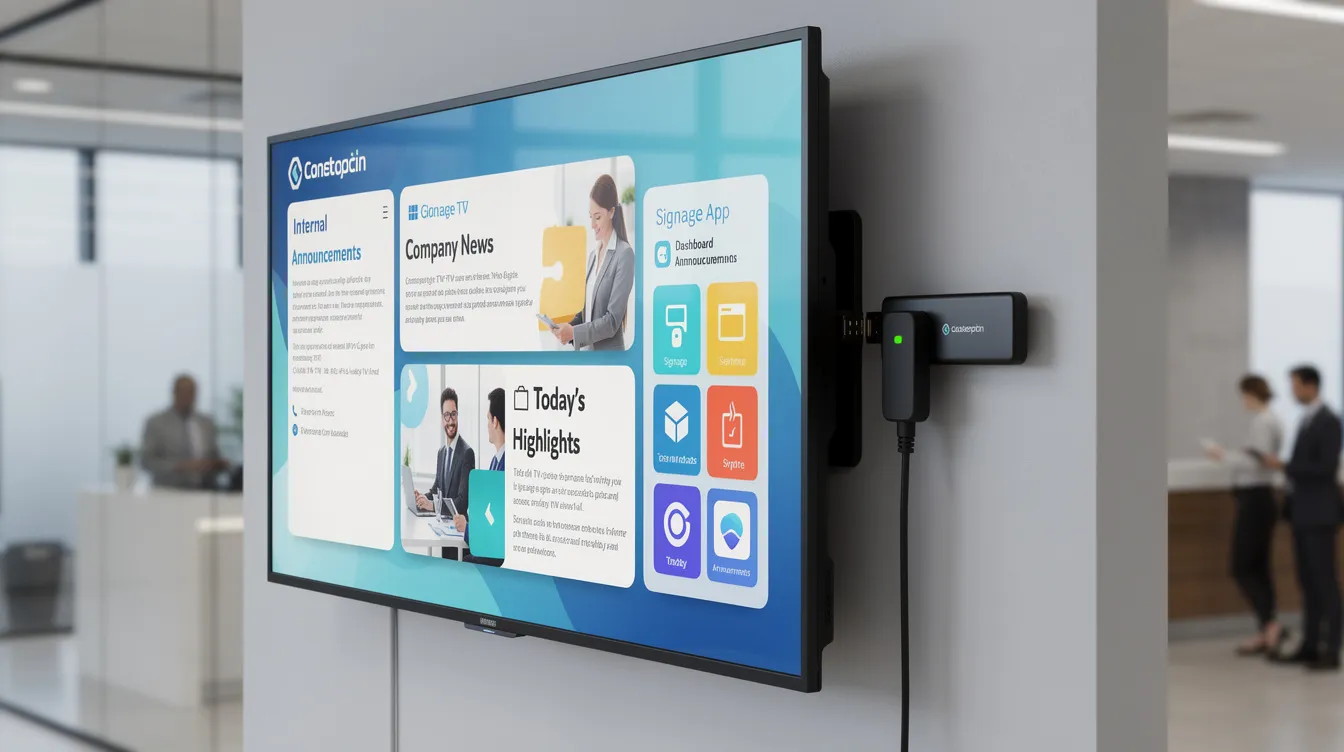
- Plug the Android player into any TV’s HDMI port.
- Connect to WiFi or Ethernet.
- Install the signage app from the Play Store or via app download.
- Link to your cloud platform.
The software ecosystem supports standard formats including MP4 videos, JPEG and PNG images, HTML5 content, and even social media feeds through web widgets.
With SignageTube, your Android players gain native PowerPoint support. This eliminates the tedious process of converting slides to video or images—a major time saver for marketing and HR teams handling internal communications.
Free Digital Signage Options
For businesses and organizations seeking a cost effective way to get started with digital signage, using PowerPoint for digital signage is an excellent entry point. Solutions like AbleSign provide essential features that allow users to create, upload, and manage digital signage content without upfront investment. With free digital signage software, small businesses can easily upload images and videos, arrange them into custom playlists, and schedule when each piece of content appears on their screens.
This approach is ideal for users who want to test digital signage in their environment before committing to a paid solution. The software typically offers a straightforward interface, making it simple to create engaging displays and manage content updates. Whether you’re showcasing promotional videos, sharing important announcements, or displaying branded images, free digital signage software gives you the flexibility to experiment and refine your messaging.
For small businesses, these free options are not only cost effective but also provide a low-risk way to explore the benefits of digital signage. As your needs grow, you can easily upgrade to more advanced digital signage software with expanded features, ensuring your digital signage network evolves alongside your business; make sure your chosen player includes multiple features you need to look for in a digital signage player so your digital signage network evolves alongside your business.
Key Features to Look for in an Android Digital Signage Player
Not all Android devices deliver reliable performance for 24/7 digital signage use. Here’s what to prioritize when selecting hardware.
Hardware Specifications
|
Component |
Minimum |
Recommended |
|---|---|---|
|
CPU |
Quad-core ARM |
Quad-core 2.0GHz+ |
|
RAM |
2 GB DDR4 |
4 GB DDR4 |
|
Storage |
16 GB eMMC |
32 GB eMMC |
|
Video Output |
HDMI 2.0, 1080p60 |
HDMI 2.1, 4K60 |
Connectivity Requirements
- Dual-band WiFi (2.4/5 GHz) for flexible placement
- Gigabit Ethernet port for stable corporate networks
- Bluetooth 5.0 for remote control and peripherals
Operating System
Choose devices running Android 8.0 or later (Android TV OS preferred) with regular security updates. This ensures compatibility with mobile device management tools and remote screen management capabilities.
Reliability Features
For unattended operation, look for:
- Auto-start on power loss: Device boots directly to signage app
- Kiosk mode: Locks the player device to prevent users from accessing other apps
- Watchdog/auto-reboot: Recovers from freezes automatically
- Offline playback: Continues displaying cached content during internet outages
Software Capabilities
Your digital signage software should support:
- Remote content updates and auto updates
- Content scheduling with hourly, daily, and weekly options
- Playlist control and multi-zone layouts
- Portrait mode and landscape orientation
- Management of multiple screens from a single dashboard
SignageTube Cloud’s Android player app leverages all these features while adding the ability to handle native PowerPoint files without conversion—processed server-side for smooth playback, and its cloud-based digital signage platform keeps content management centralized and efficient.
How Digital Signage Players for Android Work with the Cloud
Basic Workflow
- Upload: Add images, videos, and PowerPoint presentations to SignageTube
- Organize: Create playlists and assign content to specific screens or groups
- Distribute: The cloud pushes content to your Android players automatically
- Play: Devices download, cache locally, and display content on schedule
Continuous Syncing
Android players periodically check the cloud (typically every 1–5 minutes) for:
- New content files
- Schedule changes
- Layout modifications
- Emergency override messages
Content caches locally, so playback continues smoothly even if internet connectivity drops temporarily—most users report offline resilience up to 72 hours.
Role-Based Access
SignageTube supports full control through role-based permissions:
- Marketing admins design content and manage campaigns
- HR teams schedule announcements
- Local managers preview and approve location-specific messages
Practical examples:
- Update a lunch menu across 30 QSR locations in under 5 minutes
- Push safety alerts to all warehouse screens instantly
- Sync seasonal promotions across franchise networks with one click
For organizations using Microsoft 365 and PowerPoint, SignageTube Cloud’s direct .pptx upload capability means you can test changes immediately without export steps, while SignageTube Live real-time digital signage lets you connect those presentations to live data for always-current screens.
Native PowerPoint Playback: The SignageTube Advantage
Many teams still build all their visual communications in PowerPoint. The typical workflow—exporting slides to MP4 or PNG sequences—wastes time and degrades quality, even though using PowerPoint for digital signage with best practices can significantly improve slide design and on-screen impact. Native PowerPoint support solves this.
What Native Support Means
With SignageTube and its Android signage player app, you can fully exploit PowerPoint animations for dynamic digital signage:
- Upload .ppt and .pptx files directly
- Files process server-side, preserving animations, transitions, and timings
- Content streams to Android players without manual conversion
- Re-upload updated files anytime; changes propagate automatically
Real-World Workflow
- Marketing manager edits a 20-slide deck in PowerPoint 2021 or Microsoft 365
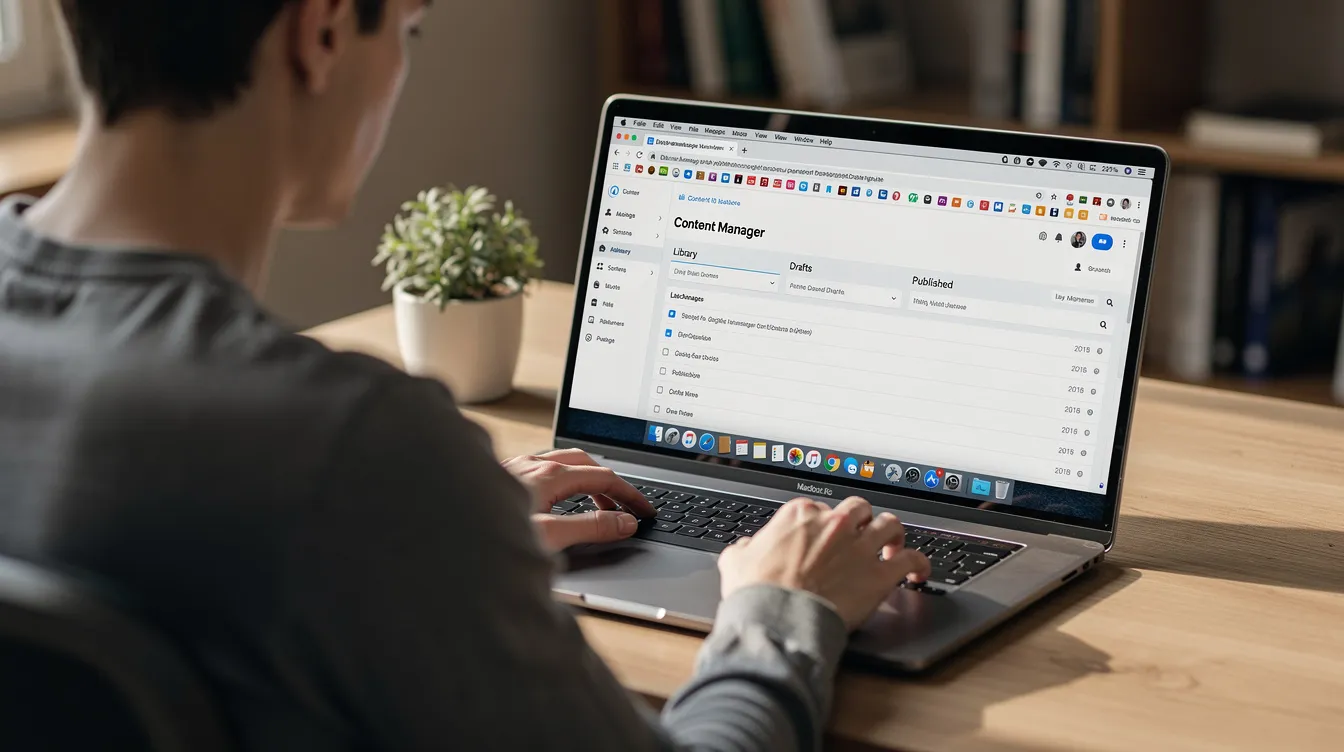
- Drags the .pptx file to SignageTube dashboard
- Cloud renders the presentation in 1–3 minutes
- Content plays across 10 branch screens within sync cycles
No re-exporting for every price change, promotion update, or HR announcement. Just upload and go.
Typical Use Cases
|
Department |
Application |
|---|---|
|
Corporate |
KPI dashboards, company announcements |
|
Education |
Lesson rotators, event schedules, google slides alternatives |
|
Healthcare |
Wayfinding information, health tips, power bi dashboards |
|
Franchise |
Seasonal campaign packs, standardized templates |
|
Many competing Android signage solutions require manual PPT-to-video conversion—a process that can take 30+ minutes per update and loses editability. SignageTube’s native pipeline removes that friction entirely, making it ideal for small businesses and enterprises alike. |
|
Step-by-Step: Setting Up an Android Digital Signage Player with SignageTube
This practical walkthrough covers setup for non-technical users managing 1–20 screens. The process takes about 15 minutes per device.
Step 1: Choose Your Android Hardware
- Select a device with:
- Android 8.0 or later
- At least 2 GB RAM
- Quad-core processor
- Popular options include Android TV sticks ($50–$80), Android boxes like the OptiStick digital signage player alternatives, or SoC displays with embedded Android.
Step 2: Prepare the Network
- Connect via Ethernet for mission-critical screens
- Use 5 GHz WiFi for flexibility
- Verify internet access displays correctly on screen
- Consider mounting brackets for permanent installations
Step 3: Install the SignageTube Player App
- Two installation methods:
- Google Play Store: Search for SignageTube and download directly
- Sideload APK: Download from the official SignageTube website, enable “Unknown Sources,” and install
Step 4: Register Your Device
- Open a browser on your computer
- Create or log into your SignageTube account (free digital signage software tier available for one screen)
- Enter the pairing code displayed on your Android screen
- The device registers automatically
Step 5: Upload Content
- Drag and drop into SignageTube:
- Videos (MP4, up to 500MB)
- Images (JPEG, PNG)
- PowerPoint files (.pptx, up to 50MB)
- Data from Google Drive or local storage
- Organize content into playlists by location or purpose
Step 6: Create Playback Schedules
- Define when content plays:
- Breakfast menu: 6:00 AM – 10:30 AM
- Lunch specials: 10:30 AM – 2:00 PM
- HR announcements: Mondays at 9:00 AM
- Assign schedules to specific players or groups
Step 7: Verify Playback
- Confirm your Android player:
- Downloads the new playlist
- Caches content locally
- Plays smoothly
- Continues playing if connectivity briefly drops
Step 8: Ongoing Management
- Log into SignageTube anytime to:
- Update PowerPoint files with new data
- Change slide content
- Push fresh playlists to all or selected screens
- Monitor device status through the OptiSigns portal alternatives
No USB stick updates required—everything syncs through the cloud.
Downloading Digital Signage Apps
Getting started with digital signage on your Android device is as simple as downloading an app from the Google Play Store. Popular digital signage apps, such as the OptiSigns app, are designed for quick installation and easy setup. To begin, just open the Play Store on your smart TV, Android digital signage player, or any compatible device, search for your preferred digital signage app, and tap “Install.” The app download process only takes a few moments with a stable internet connection.
Once installed, you can launch the app and start configuring your digital signage player. Most digital signage apps offer intuitive interfaces that let users create playlists, schedule content, and manage multiple screens from a single dashboard. Whether you’re displaying videos, images, or real-time data, these apps make it easy to organize and update your content as needed.
With the flexibility of Android, users can manage their digital signage network from anywhere, ensuring that every screen stays up to date. The ability to quickly download, install, and manage digital signage apps directly from the Play Store makes Android digital signage solutions accessible and scalable for businesses of all sizes.
Product Details
The OptiStick digital signage player is engineered for high-performance digital signage applications, combining compact design with robust hardware. Powered by a quad-core processor and equipped with 2GB DDR3 RAM and 16GB of storage, this signage player delivers smooth playback of 4K content, ensuring your screen always looks sharp and professional. Running on Android 11, the OptiStick supports all the latest digital signage apps and features, making it a versatile choice for any display setup.
Connectivity is a breeze with dual-band WiFi, Bluetooth, and Ethernet options, allowing you to easily connect your device to the internet and manage your digital signage content remotely. The HDMI output supports 4K at 60Hz HDR, providing vibrant visuals for any commercial display. The OptiStick is powered via USB Type-C, making installation simple and flexible for a variety of environments.
Fully compatible with OptiSigns software, the OptiStick digital signage player enables users to manage content, schedule playlists, and monitor screens from anywhere. Whether you’re updating a single screen or managing a network of displays, this device offers reliable performance and easy integration with your existing digital signage software and apps.
Best Practices and Tips for Managing Android Digital Signage Players
A bit of planning keeps your Android signage network reliable over months and years.
Hardware Placement
- Ensure 2–3 inches of ventilation around boxes and sticks
- Avoid direct sunlight and heat sources above 104°F
- Use short HDMI cables (under 6 feet) with ferrite beads
- Secure devices with velcro or mounting brackets
Network Reliability
- Use wired Ethernet for critical screens (reception, menu boards)
- Reserve WiFi for secondary locations
- Prioritize 5 GHz channels for less interference
- Target connection speeds above 50 Mbps for video walls
Content Design
- Use fonts at 24–32 pt minimum for distance readability
- Maintain high contrast (4.5:1 ratio per WCAG guidelines)
- Limit text to 5 lines or fewer per slide
- Design for the screen orientation—landscape or portrait mode
Scheduling Strategy
Align playlists with real-world events:
- Time-based promotions (happy hour, weekend specials)
- Holiday campaigns (Black Friday November 28–30, Christmas December 1–25)
- Weekly internal communications every Monday
Maintenance
- Configure weekly auto-reboot at 3:00 AM
- Enable auto updates for signage apps
- Monitor cache storage—clear if exceeding 80% capacity
- Check OptiSigns support resources or SignageTube documentation for troubleshooting
Security
- Lock devices into kiosk mode
- Disable remote control access to other apps
- Use MDM tools for enterprise deployments
- Keep Android OS updated with security patches
Centralize everything—videos, images, PowerPoints—in SignageTube to avoid USB stick chaos and ensure consistent content across every location, and explore our SignageTube digital signage blog articles for deeper strategy ideas and implementation tips.
Commercial Displays
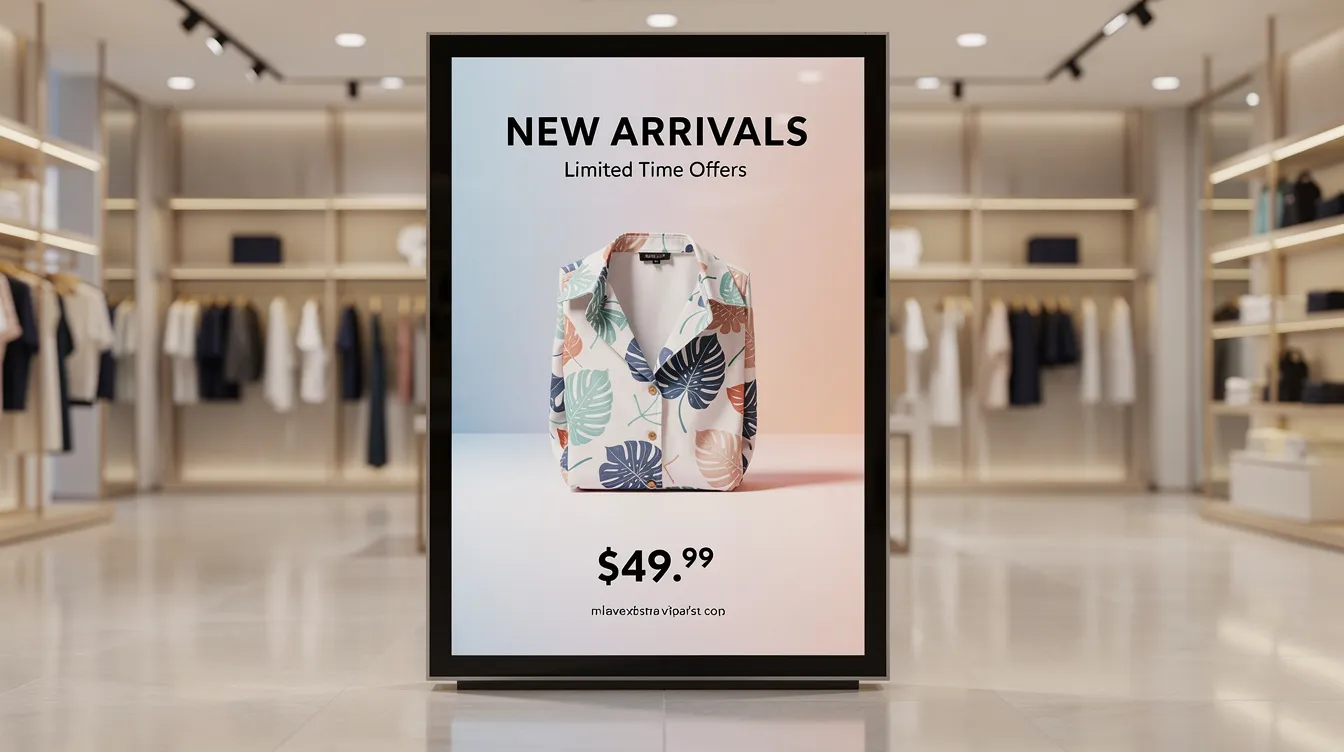
Commercial displays are purpose-built for digital signage, offering reliable performance and easy content management for businesses across industries. Many modern commercial displays, including smart TVs, come equipped with Android operating systems, allowing users to download and install digital signage apps directly from the Google Play Store. This seamless integration means you can quickly transform any display into a dynamic communication tool.
In retail, restaurants, and office environments, commercial displays are used to showcase menus, promotions, and internal communications, helping businesses engage customers and employees alike. With support for mobile device management, users can remotely update content, monitor screen health, and troubleshoot issues without needing to be on-site. This level of control ensures that your digital signage network remains up to date and delivers consistent messaging across all locations.
The combination of Android OS, access to the Play Store, and robust hardware makes commercial displays a smart investment for businesses seeking scalable, easy-to-manage digital signage solutions. Users benefit from the ability to download new apps, install updates, and manage their screens with minimal effort, ensuring reliable performance and maximum impact.
Internal Communications
Digital signage is a powerful tool for enhancing internal communications within any organization. By leveraging digital signage software and screen management features, businesses can display important announcements, company news, and real-time updates across multiple screens and locations. Solutions like the OptiStick digital signage player make it easy to create visually engaging content that captures employees’ attention and keeps everyone informed.
With advanced content scheduling and remote control capabilities, internal communications can be tailored to specific departments, teams, or locations. For example, HR can schedule employee recognition messages, IT can broadcast system maintenance alerts, and leadership can share company achievements—all managed from a central dashboard. This approach not only streamlines communication but also fosters a sense of community and shared purpose among employees.
Managing multiple screens is simple with modern digital signage software, allowing users to update content instantly and ensure consistent messaging throughout the organization. By integrating digital signage into your internal communications strategy, you can boost employee engagement, improve information flow, and create a more connected workplace.
Customer Support for Android Digital Signage Players
When deploying a digital signage network, reliable customer support can make all the difference in ensuring a smooth experience. The OptiStick digital signage player, built on the Android platform, is designed with user support in mind, making it easy for businesses to get the most out of their digital signage software and player device. Whether you’re new to digital signage or managing a growing network, having access to knowledgeable support helps you resolve issues quickly and keep your signage player running smoothly.
OptiStick users can easily access a range of support resources, including detailed online documentation, step-by-step FAQs, and direct contact options for the support team. This ensures that users at any technical level can find the help they need, whether it’s setting up a new device, troubleshooting a software issue, or optimizing their digital signage display.
Types of Support Available
The OptiSigns support team offers multiple channels to assist users with their digital signage needs. You can reach out via email, phone, or live chat for personalized help. The OptiSigns portal is a valuable hub, featuring tutorials, guides, and troubleshooting tips that cover everything from initial setup to advanced screen management. For users managing multiple screens, the portal makes it easy to control and monitor all your digital signage players from one place.
Additionally, the OptiSigns community forum allows users to connect with others, share best practices, and learn from real-world experiences. For more complex technical issues, the support team can provide remote control and screen sharing sessions, helping to diagnose and resolve problems directly on your signage player. This hands-on approach ensures that your digital signage network remains reliable and easy to manage, no matter how many screens or locations you oversee.
Importance of Responsive Assistance
Fast, knowledgeable support is essential for digital signage users who rely on their displays for communication, marketing, and internal messaging. With the OptiStick digital signage player, you can count on responsive assistance that minimizes downtime and keeps your content—whether it’s videos, images, or social media feeds—running smoothly. The support team is well-versed in the Android OS, Google Play Store, and a wide range of digital signage apps, so they can help you integrate other apps and features seamlessly.
This level of support ensures reliable performance, allowing users to focus on creating engaging digital signage content instead of troubleshooting technical issues. Whether you’re updating playlists, adding new apps from the Play Store, or managing content across multiple screens, you’ll have the guidance you need to keep your digital signage network operating at its best.
Evaluating Support Before You Buy
Before choosing a digital signage solution, it’s important to assess the quality and availability of customer support. Look for providers that offer comprehensive online resources, including documentation, tutorials, and direct contact options. Evaluate the responsiveness of the support team and their expertise in digital signage software, Android devices, and mobile device management.
The OptiStick digital signage player stands out with its robust support features and knowledgeable team, making it a cost effective choice for businesses seeking reliable digital signage, and you can reach the team directly via the SignageTube contact page whenever you need assistance. With support for Google Slides, Power BI dashboards, and a variety of templates, users can easily create, manage, and display data-driven content on any Android device. By choosing a solution with strong support, you ensure that your digital signage network remains easy to manage, scalable, and ready to adapt as your needs grow.
When an Android Digital Signage Player Is the Right Choice
Android players excel for small to mid-sized networks and cost effective deployments where flexibility matters more than specialized enterprise features.
Ideal Scenarios
- Franchises with 5–50 locations: Standardized content, easy content management, centralized control
- Schools and universities: Multiple noticeboards with varied schedules
- Churches and community centers: Lobby displays, event announcements
- SMEs: Reception screens, meeting room signage, website promotions
Cost vs. Capability
|
Solution Type |
Cost per Screen |
Best For |
|---|---|---|
|
Android + SignageTube |
$50–$120 |
Most users, 1–100 screens |
|
Proprietary players |
$200–$500+ |
Specialized AV requirements |
|
Enterprise AV-over-IP |
$1,000+ |
Large venue video walls |
|
For organizations already invested in PowerPoint through Microsoft 365 or Office 2019/2021, SignageTube’s native PowerPoint support on Android players provides a unique advantage no competitor matches. |
|
|
Test It Yourself
The best way to evaluate an Android digital signage player is hands-on:
- Grab an Android TV stick you already own
- Install SignageTube from the market
- Upload a real PowerPoint presentation
- Watch it play on screen within minutes
No lengthy contracts. No proprietary hardware purchases. Just practical, cost effective signage that works with the tools you already use.
Start your test today and see why native PowerPoint support changes everything for digital signage.
- SignageTube Starter – content signage on any TV
- SignageTube Enterprise – live data on your screens
- Digital signage software – how to choose, and what matters
- Templates – 120+ ready-made designs
- Pricing – simple per-screen plans