 SignageTube
Digital Signage: PowerPoint vs Canva with SignageTube
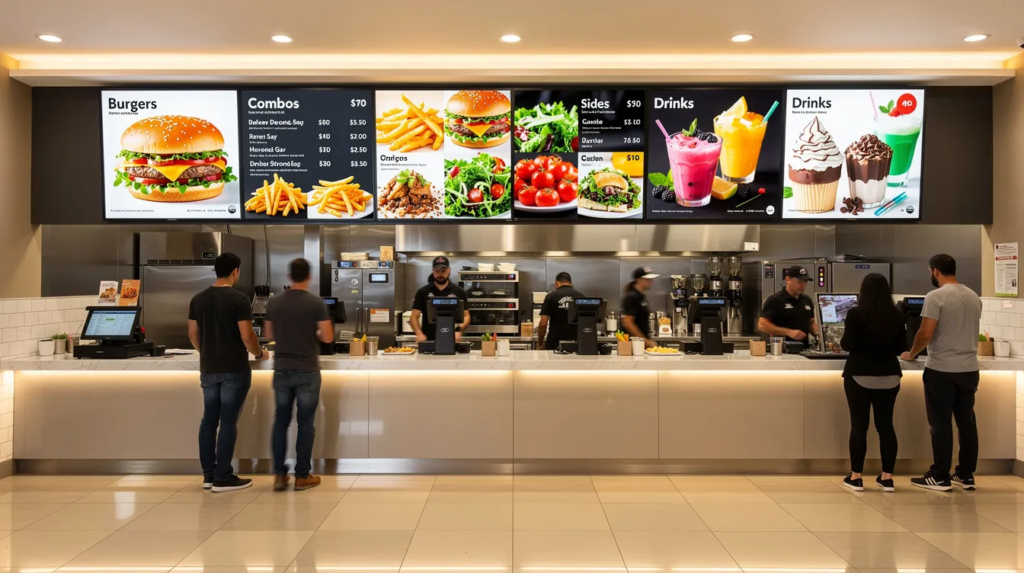
Digital Signage PowerPoint vs Canva: Which Works Better with SignageTube?
Digital signage PowerPoint vs Canva is a core question for organizations seeking the most effective way to create and manage digital signage content in 2026. This guide is for digital signage managers, IT staff, and marketing teams evaluating which design tool best fits their signage network. Choosing the right tool can save time, reduce costs, and ensure your digital signage content is effective and easy to maintain.
SignageTube is a cloud-based digital signage platform that enables organizations to manage and display content across multiple screens. Walk into any quick-service restaurant and you’ll see menu boards cycling through daily specials. Step into a hotel lobby and information screens display local events, weather, and check-in instructions. Corporate offices run employee communication screens showing KPIs, safety reminders, and HR announcements.
This article compares Microsoft PowerPoint and Canva specifically for creating digital signage content—not boardroom presentations, but screen-based communication that runs continuously across retail, hospitality, corporate, and educational environments, building on our broader guide to using PowerPoint for digital signage. The direct PowerPoint Canva comparison is essential for organizations choosing the right tool for digital signage. Effective presentation design is crucial in this context, as features like animations, transitions, and multimedia integration can significantly enhance the impact and clarity of digital signage content. The focus is on how each tool fits into a cloud-based platform like SignageTube.
Here’s the early verdict: both tools are useful, but for ongoing digital signage networks with multiple screens, scheduled playlists, and frequent updates, PowerPoint wins. This is especially true when combined with SignageTube’s PowerPoint-native workflow. The comparison is current for 2026 and written from SignageTube’s perspective as a SaaS digital signage provider. We’ll cover pricing, workflows, template suitability, animation behavior on signage players, multi-screen deployment, and long-term maintenance.
Both PowerPoint and Canva are evolving, with new features such as AI-powered tool capabilities that automate and streamline presentation creation for digital signage.
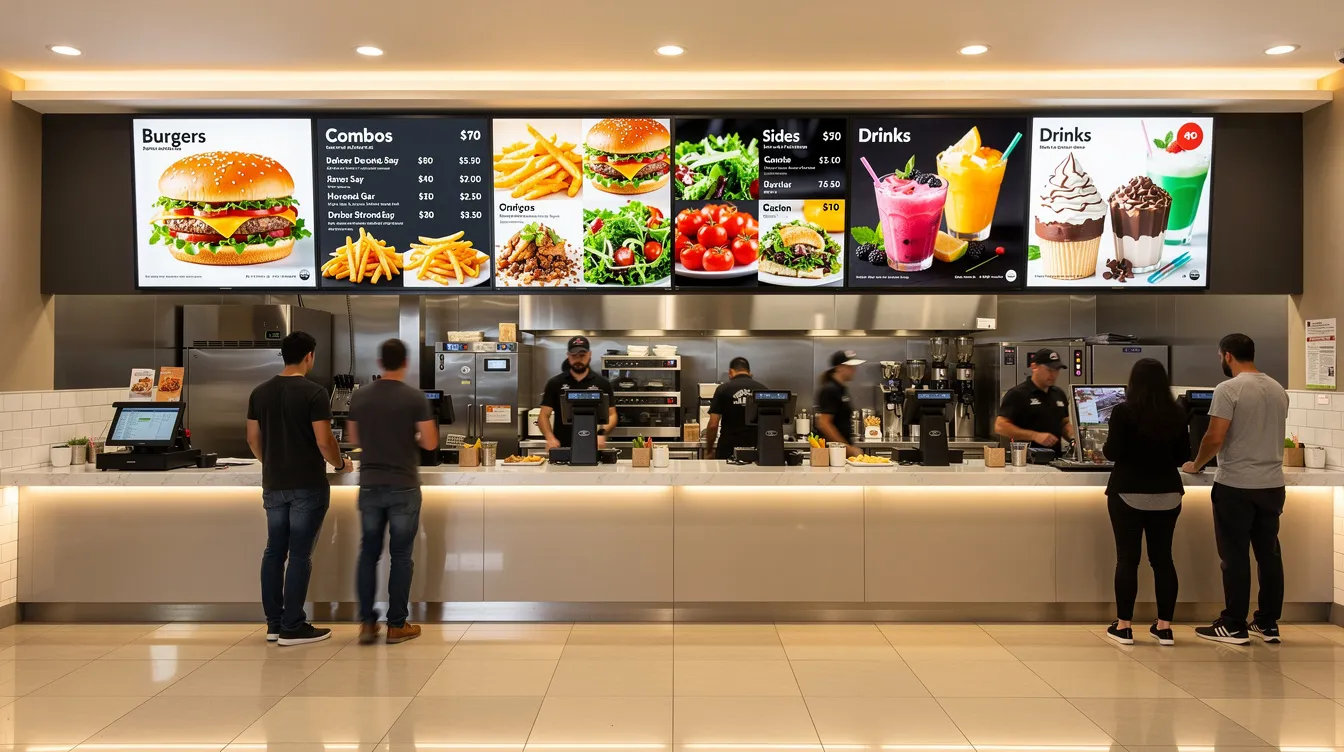
Summary Comparison: PowerPoint vs Canva for Digital Signage
Which is better for digital signage: PowerPoint or Canva? Both Canva and PowerPoint allow users to create presentations, but they cater to different user needs and preferences.<sup>1</sup> Canva is better suited for quick, visually appealing presentations, while PowerPoint is preferred for detailed, data-heavy presentations.<sup>2</sup>
|
Feature/Criteria |
PowerPoint |
Canva |
|---|---|---|
|
Platform Type |
Presentation design software |
Web-based graphic design platform |
|
Best For |
Detailed, data-heavy, frequently updated signage |
Quick, visually appealing, one-off campaigns |
|
Animation & Timing Control |
Advanced, granular |
Basic, limited |
|
Template Customization |
Strong, with slide masters |
Extensive, visually rich |
|
Offline Editing |
Yes |
No (requires internet) |
|
Collaboration |
Via Microsoft 365 tools |
Real-time, in-app |
|
Export Options |
.pptx, video, images |
MP4, PNG, JPG |
|
Integration with SignageTube |
Native .pptx support |
Export/import required |
|
Licensing/Ownership |
Included in Microsoft 365 |
Free/Pro/Teams plans |
Introduction to Digital Signage
Digital signage is transforming the way organizations communicate, using electronic displays like LED, LCD, and projection screens to deliver information, entertainment, and advertising in both public and private spaces. When it comes to creating presentations for digital signage, the goal is to deliver professional presentations that are visually engaging and easy to understand, even from a distance. This means carefully considering screen size, resolution, and viewing distance to ensure every message is clear and impactful.
Modern tools such as PowerPoint and Canva make creating presentations for digital signage more accessible than ever. Both platforms offer a wide variety of templates and design elements, allowing users to create professional presentations that capture attention and drive engagement. Integrating PowerPoint with digital signage software like SignageTube’s cloud-based digital signage solutions enables users to create, update, and manage engaging presentations remotely, ensuring content stays fresh and relevant across all screens. Whether you’re using Canva and PowerPoint together or relying on one platform, the right tools and templates help you create digital signage content that stands out and communicates effectively.
Quick Answer: When to Use PowerPoint vs Canva for Digital Signage
If you’re short on time, here’s the fast answer for busy readers.
Canva is strong for one-off, highly visual campaigns where a graphic designer creates a single promotional slide or social-media-style layout adapted to one screen. Canva presentations are easy to create, customize, and export, thanks to Canva’s user-friendly interface and collaborative features. The platform offers a wide variety of presentation templates, making it appealing for quick, visually engaging content. If your in-house design team already lives in Canva and you need a stunning hero image for a seasonal campaign, Canva takes the win for that specific use case. Canva is built for speed, catering to users who want to create visually appealing content without any design background.
PowerPoint is stronger for menu boards updated weekly, corporate info screens pulling in charts, KPI dashboards, safety or HR slides reused monthly, and any network where non-designers must update content quickly. The detailed control over animations, slide masters for brand consistency, and offline editing capabilities make it the practical choice for operational signage.
SignageTube is natively built around PowerPoint files. You can upload a .pptx file, schedule it into a playlist, and play it directly on Android, Windows, or Smart TV players without re-exporting to video or images. Organizations running more than a few screens, or needing multi-location consistency and fast updates, will generally be better served by a PowerPoint-first workflow integrated with SignageTube.
Core Difference: How PowerPoint and Canva Fit into a Digital Signage Workflow
Let’s define each tool in concrete terms.
Canva is a web-based graphic design platform, while PowerPoint is a presentation design software.<sup>1</sup> Canva is a complete graphic design tool that supports presentation-making as an extension.<sup>2</sup> Microsoft PowerPoint is desktop and online slide software included in Microsoft 365 subscriptions. Canva is a browser-based graphic design and presentation maker that emphasizes ease of use and a massive template library. Canva also offers Canva apps—additional tools within Canva that enhance design workflows, similar to Figma plugins, providing various integrations and functionalities. This contrasts with PowerPoint’s more limited add-ins.
When comparing PowerPoint and Canva, PowerPoint is primarily a dedicated presentation tool with robust features for data presentation, while Canva is a versatile graphic design platform that also supports presentations, making it ideal for more casual or visually-driven content creation; if you choose PowerPoint, it helps to follow a structured approach to building a PowerPoint presentation for digital signage.
PowerPoint Workflow Steps:
- Design slides in PowerPoint (desktop or web version)
- Save as .pptx
- Upload to SignageTube cloud dashboard
- Assign to playlists
- Schedule to multiple remote screens
No conversion steps are needed. When content changes, you edit the PowerPoint file and re-upload. The entire presentation updates across all assigned screens.
Canva Workflow Steps:
- Design in Canva (requires internet access)
- Export as MP4 video or PNG/JPG slides
- Upload those media files into SignageTube
- Assign to playlists
Canva presentations are known for their user-friendly interface, extensive template library, and flexible export options, making it easy to create and customize engaging content for digital signage.
Any text or price changes require editing in Canva, re-exporting, and replacing the media files in your playlists. If you need to use premium design elements or stock content, a Canva Pro license is required. Canva’s free version does not include access to premium content, such as the full library of stock photos, audio, and images.
A Concrete Example
Consider a 30-screen restaurant network that changes lunch prices every Monday. With a PowerPoint+SignageTube workflow, a store manager opens the .pptx file, changes the price in two text fields, saves, and uploads. Time: about 5 minutes.
With a Canva-based workflow, that same manager needs a Canva Pro license, must wait for the design to load (requiring a solid internet connection), export to MP4, then upload the new file and replace the old one in the playlist. Time: 15-20 minutes, assuming no connectivity issues.
The practical impact matters in locations with intermittent connectivity. PowerPoint Desktop lets users edit offline—say, on a back-office PC in a store—and sync when connectivity returns. Canva, being cloud-first, requires reliable internet access even for editing.
Templates & Layout: “Pretty Slides” vs “Screen-Ready Signage”
Most comparison articles focus on designing presentations for meetings. But digital signage has different layout constraints: viewing distance of 3-10 meters, dwell time of 5-30 seconds, and screen sizes of 55 inches or larger. The choice and quality of presentation templates are especially important for digital signage, as well-crafted templates can save time, enhance visual appeal, and ensure content is effective at a glance.
Canva Template Library
Canva offers a huge library of modern, colorful templates originally designed for social media, posters, and professional presentations. These work well for eye-catching campaigns or full-screen promotional slides. The free version provides decent options, while Canva Pro unlocks advanced brand kits and more visual elements.
PowerPoint Template Customization
PowerPoint provides predictable, grid-based layouts that adapt well to 16:9 landscape and 9:16 portrait orientations. More importantly, you can build organization-specific master templates for menu boards, employee announcements, and wayfinding displays.
Consider a 1920×1080 split-screen design with video on the left and rotating promos on the right. In PowerPoint, you can set guides, lock elements via slide masters, and reuse layouts across departments. This level of detailed control is harder to achieve in Canva without manual effort on each slide.
SignageTube provides ready-made PowerPoint signage templates—menus, lobby screens, corporate announcements—that customers can open directly in PowerPoint, customize with their text and images, and deploy without needing a design background. This means creating presentations for signage becomes accessible to anyone familiar with basic PowerPoint operations.

Design Flexibility for Signage: Animations, Timing, and Readability
What works in a boardroom presentation often fails on a 55-inch screen viewed from 5-10 meters away. Fancy animations and small text become liabilities rather than assets. In digital signage, effective presentation design relies on clear visuals, well-chosen animations, transitions, and multimedia integration to capture attention and communicate messages quickly.
Animation Controls Compared
|
Feature |
PowerPoint |
Canva |
|---|---|---|
|
Animation Options |
Extensive (entrance, exit, motion paths, etc.) |
Basic (fade, slide, simple transitions) |
|
Timing Control |
Fine-grained, per-object, per-slide |
Limited, preset durations |
|
Looping/Kiosk Mode |
Yes |
No |
|
Animation Pane |
Yes |
No |
Canva offers a variety of animations and transitions, although its selection is more limited compared to PowerPoint. PowerPoint is known for its extensive options for animations and transitions, allowing detailed control over timing and sequences, which can be crucial for impactful digital signage.
Charting and Data Visualization
|
Feature |
PowerPoint |
Canva |
|---|---|---|
|
Chart Types |
Advanced, Excel integration |
Basic (bar, pie, line) |
|
Data Integration |
Direct from Excel |
Manual entry |
|
Customization |
Extensive |
Limited |
Canva provides basic functionalities for designing charts and diagrams, including bar charts and pie charts, while PowerPoint allows for the creation of advanced charts and is backed by Excel for data analysis, making it suitable for data-driven presentations. PowerPoint also provides a more extensive range of chart types and customization options compared to Canva.
Readability Standards
For 1080p screens viewed at 3-5 meters, font sizes of 36-48 pt minimum for body text are essential. PowerPoint’s slide masters and theme fonts make it easier to enforce these standards across dozens of slides.
Canva templates, while beautiful, are often text-heavy and designed for web viewing or print at smaller scales. Many require manual adjustment for readability on large displays. They’re more suited to on-device presentations or PDFs than continuously looping signage where engaging presentations depend on instant comprehension.
Branding and Consistency in Digital Signage Content
Maintaining strong branding and consistency is a key part of effective digital signage content, and many organizations accelerate this by starting from ready‑made digital signage templates for any industry. A unified brand image—using the same colors, fonts, and logos across all screens—helps reinforce your organization’s identity and ensures your message is instantly recognizable.
Using Brand Kits in Canva
Canva’s brand kits feature is especially valuable for this purpose, allowing users to store and manage brand assets in one central location. With brand kits, teams can quickly access approved logos, color palettes, and fonts, making it easy to create on-brand content every time.
Collaboration Tools for Consistency
Collaboration tools in Canva further enhance this process by enabling teams to work together on digital signage projects, regardless of location. These tools ensure that everyone involved in content creation is aligned with brand guidelines and can contribute to a cohesive final product. By leveraging brand kits and collaboration tools, organizations can create digital signage content that not only looks professional but also maintains brand consistency across multiple displays and locations. This approach helps build trust with your audience and maximizes the impact of your digital signage strategy.
Creating & Updating Content at Scale: Who Will Maintain Your Screens?
After launch, non-designers—store managers, HR coordinators, school administrators—often own the day-to-day updates of digital signage networks, so it’s important to follow step‑by‑step best practices for using PowerPoint for digital signage. This reality shapes which tool makes more practical sense. Increasingly, AI-powered tool features are becoming common in digital signage solutions, helping automate updates and streamline content creation for users without design expertise.
When using Canva, users benefit from features that simplify the workflow. For example, Canva allows users to create presentations from existing documents using its Docs to Decks feature, saving time in the design process.
PowerPoint for Non-Designers
Almost all office staff have used PowerPoint for presentations. Training is minimal. Updates like changing a date, headline, or price in a SignageTube PowerPoint template can be done in minutes without any design expertise.
A Practical Scenario
Consider a regional retail chain with 80 screens. Marketing provides a PowerPoint master deck using slide masters for brand guidelines. Local managers only edit specific text fields—like local offers or pricing—and re-upload to SignageTube.
This workflow is feasible with PowerPoint. With a Canva-centric approach, managers would need Canva Pro licenses and training, or every update would require coordination with design staff, creating a bottleneck.
Canva Workflow Considerations
- Canva Pro licenses are required for premium features and assets.
- Reliable internet access is necessary for editing and exporting.
- Updates require re-exporting and replacing files in playlists.
- Training may be needed for non-designers unfamiliar with Canva.
File Ownership and Licensing
PowerPoint files (.pptx) are standard office documents that remain with the organization regardless of subscription status. Once created, they can be edited by anyone with PowerPoint access.
With Canva Teams or Canva Pro, advanced brand assets, fonts, and stock images may raise questions about ongoing access if subscriptions lapse. Organizations should verify commercial usage rights for Canva stock images deployed on signage.
SignageTube supports this scale with centralized playlists, per-site content targeting, user roles and permissions, and proof-of-play logging, and larger networks can benefit from SignageTube Enterprise for real-time digital signage. Native PowerPoint workflows plug directly into this structure.
Integrations, Devices, and Deployment with SignageTube
Your choice of design tool affects how content travels through your signage system—from designer’s desk to players on site, especially if you plan on using PowerPoint for stunning digital signage. Canva Apps, available within Canva, offer integrations and tools that can streamline content creation and publishing for digital signage. Many modern digital signage platforms have built-in Canva apps, allowing users to design and publish content directly to screens without extra steps.
SignageTube’s Device Ecosystem
SignageTube supports:
- Android media players
- Windows PCs
- Selected Smart TV platforms
All devices are managed from the same cloud dashboard, allowing mixed hardware deployments.
How PowerPoint Content Fits
Upload .pptx directly into SignageTube, schedule into playlists, and push to screens. Many customers standardize on .pptx to avoid unnecessary re-encoding. The files are compact (typically 2-5 MB for a 30-second loop) compared to MP4 exports (often 50+ MB).
Canva Integration Pattern
Canva designs must be exported as MP4 or images, then uploaded to SignageTube. This works fine technically but adds an extra step and increases file sizes for animated content, affecting bandwidth when pushing to remote players.
Typical Deployment Timeline
PowerPoint-native workflow:
Design → Approval → Upload .pptx to SignageTube → Playlist assignment → Remote player update
Canva-based workflow:
Design → Export to MP4/images → Approval → Upload media to SignageTube → Playlist assignment → Remote player update
The extra export step compounds across a network with 50+ screens, affecting update speed and staff time.

For teams still exploring what’s possible with a PowerPoint-first workflow, the broader SignageTube digital signage blog articles showcase real-world strategies, tutorials, and use cases across industries.
Cost, Licensing, and Practical Ownership
Design software cost is only one part of the total cost of ownership for a signage project. Staff time and operational agility are often bigger expenses.
PowerPoint Access in 2026
PowerPoint is included in common Microsoft 365 Business Standard and E3/E5 subscriptions used by most organizations. If your company already runs Microsoft products for email and documents, there’s no extra cost for using PowerPoint for signage content creation.
Integration with Microsoft Teams, OneDrive, and SharePoint means approval workflows, version control, and collaboration features are built into tools you already use.
Canva’s Model
Canva offers a free plan with limitations. Advanced brand kits, fonts, and many stock assets require paid Pro or Teams plans per user. For an organization with dozens of people potentially updating signage, these per-user costs add up.
The SignageTube Perspective
Reusing existing Microsoft 365 investments for digital signage content creation typically reduces extra subscription spend and training cost. Many SignageTube customers leverage their existing Microsoft ecosystem rather than adding another design platform to manage.
For media licensing, organizations should verify commercial usage rights for any stock images or magic media used in Canva. With PowerPoint, customers often rely on their own brand assets or corporate-approved stock sources integrated across Office applications.
PowerPoint’s Specific Advantages for Digital Signage with SignageTube
Here’s why PowerPoint tends to win for ongoing signage networks, especially when combined with SignageTube:
- Native .pptx support: SignageTube players interpret PowerPoint files directly. No conversion, no quality loss, no extra steps. This is a key part of why integrating PowerPoint with SignageTube creates such a streamlined workflow.
- Advanced animation and timing: The Animation Pane and Rehearse Timings features let designers create professional signage content with precise entrance, exit, and duration controls.
- Offline editing capability: Allows back-office staff to work without internet access and sync later. This backup-ready approach matters for locations with unreliable connectivity.
- Organization-wide familiarity: Minimal training required. Staff already know how to edit PowerPoint presentations, so updating signage becomes an extension of existing skills.
- Slide masters enforce brand consistency: Across dozens or hundreds of slides. Marketing defines the template; local managers edit only approved text fields.
- Easy reuse of corporate data: Copy-paste from Excel charts and Word documents. A KPI dashboard can pull quarterly sales data directly into a PowerPoint template.
- Compatibility with approval workflows: Via OneDrive/SharePoint. Stakeholders can review, comment, and approve before content goes live.
A Real-World Example
A school district uses SignageTube + PowerPoint to manage daily announcements across 12 campuses. Each morning, office staff update a shared deck with that day’s schedule changes, lunch menu, and event reminders. The .pptx file is uploaded to SignageTube and appears on all assigned screens within minutes.
This would be impractical with a Canva workflow requiring design coordination for each daily update. The PowerPoint approach requires no graphic designer involvement for routine content.
While Canva can still be used for specialized creative campaigns—like a seasonal promo slide from the marketing team—the backbone of the network is more robust when built on PowerPoint files controlled in-house.
Where Canva Still Fits in a PowerPoint-First Signage Strategy
SignageTube is not anti-Canva. Many customers use both tools in a complementary way, and there’s no need to choose all the features of one platform exclusively. For organizations that rely on PowerPoint for digital signage, integrating Canva presentations can be a flexible option for creative campaigns, allowing teams to leverage Canva’s user-friendly interface, diverse design elements, and export formats alongside their existing PowerPoint-first workflow.
In hybrid workflows, Canva apps can be integrated into the design process to further streamline content creation and enhance productivity. Canva’s collaboration capabilities allow multiple team members to edit the design simultaneously with zero lag. Since Canva operates in the cloud, it enables smooth real-time collaboration and instant content updates. Canva excels in real-time collaboration, allowing your team to work on a presentation simultaneously. With Canva Teams, multiple people can edit the document, collaborate, comment, and more. You can share your design link, enabling your team to jump in live, comment, and work on the same slide at the same time. These collaboration features are particularly helpful for teams working remotely or in hybrid settings. Additionally, Canva has a large library of audiovisual elements, including high-quality photos, videos, and music, which enhances presentation design.
High-Impact Hero Visuals
Use Canva for campaign key art, background images, or short promotional videos. These can be imported into PowerPoint templates or uploaded directly into SignageTube as media items.
Brand Asset Creation
Design teams can create visual elements in Canva—leveraging AI features like Magic Write and magic media—and export them as PNG/SVG for use inside PowerPoint. This combines Canva’s visual richness with PowerPoint’s timing control and SignageTube’s scheduling capabilities.
The Hybrid Approach
Marketing keeps their preferred design tool for creative work. Operations and local managers maintain a simple, familiar update workflow in PowerPoint. Adobe Express and third-party apps can also feed assets into this system when needed.
This pragmatic mix respects different team needs while maintaining operational efficiency. Google Slides users can also export to PowerPoint format when needed, though native PowerPoint workflows remain the most streamlined option.

How SignageTube Supports a PowerPoint-Centered Signage Workflow
SignageTube is a cloud-based digital signage platform optimized around PowerPoint content for organizations of all sizes—retail, restaurants, hotels, offices, schools, and non-profits.
Key Features
- Browser-based dashboard for uploading .pptx files and media from any device with a web browser.
- Playlist creation that combines multiple content items into scheduled rotations.
- Advanced scheduling by time-of-day and day-of-week, ensuring the right content plays at the right time.
- Per-location targeting so different sites can show different content from the same dashboard.
- User roles and permissions controlling who can edit, upload, and schedule content.
- Live monitoring showing real-time screen status across your network—verification successful indicators and performing security verification on player connections keep you informed.
- Proof-of-play reports documenting when content appeared, essential for advertisers and compliance requirements.
Getting Started
SignageTube’s PowerPoint template library includes menu boards, lobby information screens, and staff communication layouts. Non-designers can start quickly during a free SignageTube trial period.
SignageTube works with common player devices—Android boxes, Windows PCs, and some Smart TVs—allowing customers to leverage existing hardware while using a PowerPoint-first content strategy. The security service built into the platform protects against malicious bots and unauthorized access, with respond ray id logging for troubleshooting, and organizations with specific deployment questions can reach out via the SignageTube contact page.
Conclusion: Choosing the Right Design Tool for Your Signage Network
When comparing Canva vs PowerPoint for digital signage, the answer depends on your operational reality. Canva is excellent for creating stunning visuals and campaign assets with minimal effort. But PowerPoint is typically more practical for day-to-day digital signage in organizations.
For networks with multiple locations, frequent updates, and non-designer users, a PowerPoint+SignageTube workflow delivers better control, lower training overhead, and faster turnaround. The combination of customization options, presenter view for testing, speaker notes for documentation, and real time collaboration through SharePoint makes it a powerful tool for signage teams.
Keep Canva for specialist design work where needed. Standardize recurring signage content on PowerPoint templates managed through SignageTube. This full comparison shows that at first glance Canva seems easier, but for presentation making and live presentation on signage networks, PowerPoint’s advantages compound over time.
Ready to see the difference? Start a free SignageTube trial, upload an existing PowerPoint presentation, and watch how quickly it appears on your test screens compared to a Canva-based export workflow. SignageTube’s team can also help convert existing Canva-based designs into reusable PowerPoint signage templates for a smoother long-term strategy. Create, edit, and present your signage content the way advanced users demand—with full access to all the extra features that make PowerPoint the professional choice for digital signage in 2026.
- SignageTube Starter – content signage on any TV
- SignageTube Enterprise – live data on your screens
- Digital signage software – how to choose, and what matters
- Templates – 120+ ready-made designs
- Pricing – simple per-screen plans