Schools

A digital bulletin board for your school

Timetables, news, events and reminders on screens in the hallway and reception. Any staff member updates them in a minute, from any browser.

See pricing per screen
15 day free trial, no credit cardAny TV, Android TV or Windows
A digital bulletin board for your school
What to show

What to put on your screens

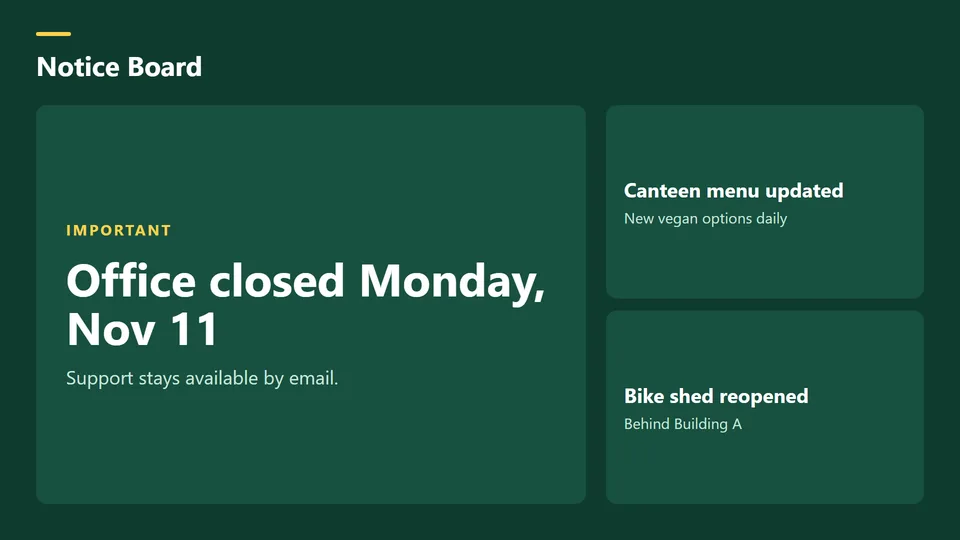
Start from a ready made Live Page, change the text, publish.

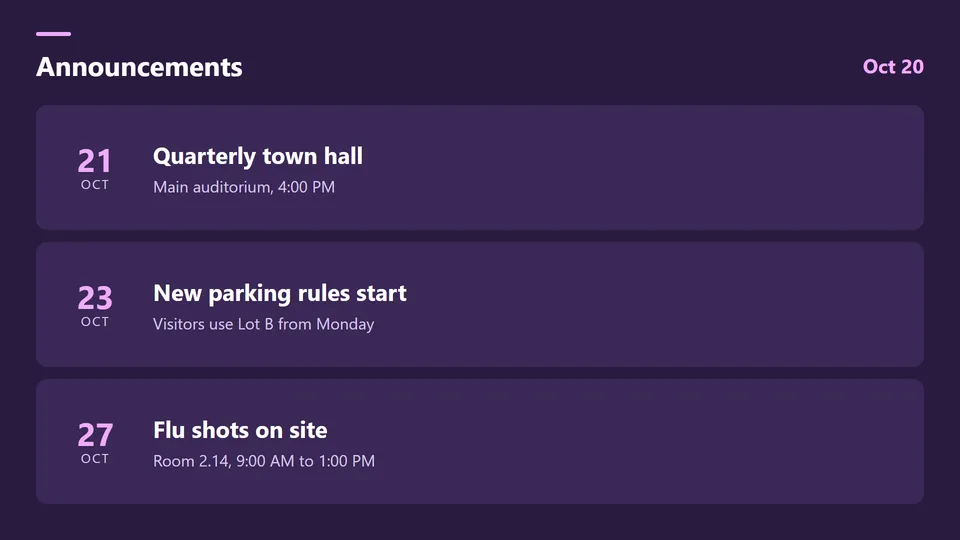
Announcements example screen
Announcements

Today's news for students and parents.

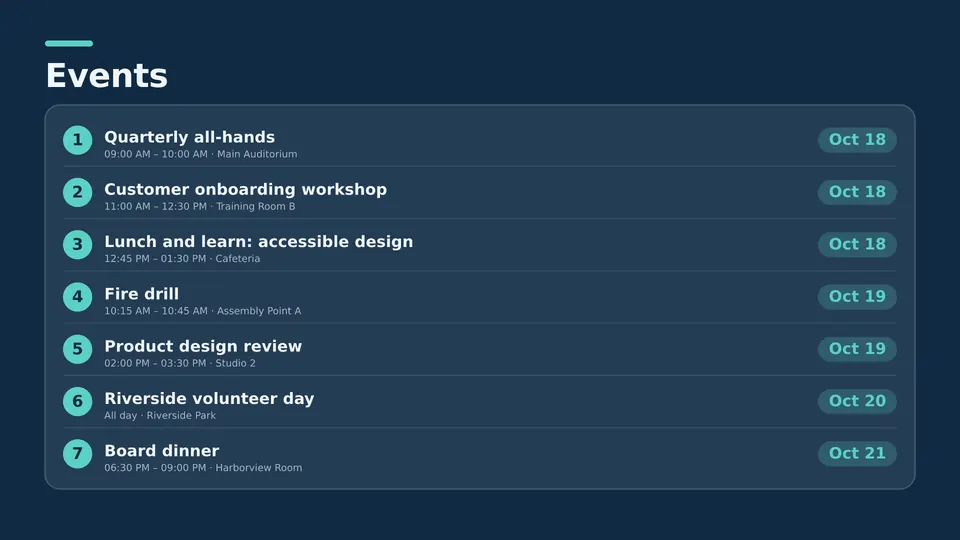
Events and exam days example screen
Events and exam days

What is coming up, scheduled ahead.

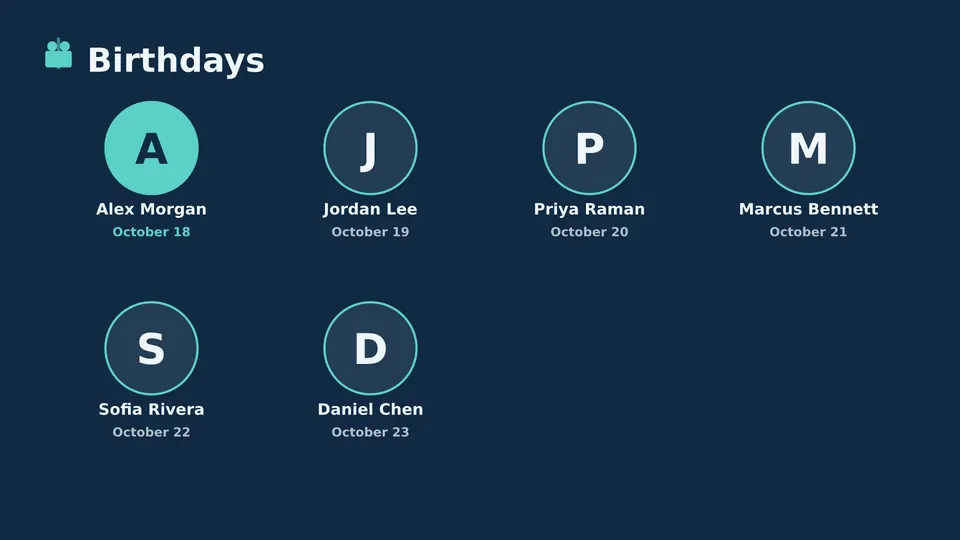
Birthdays and achievements example screen
Birthdays and achievements

Celebrate students and staff.

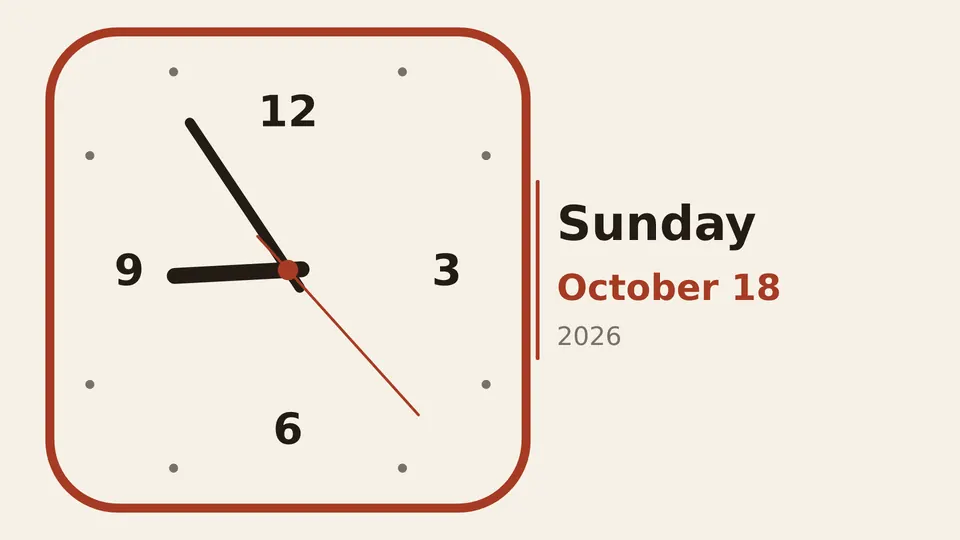
Clocks and countdowns example screen
Clocks and countdowns

Countdown to the next break or event.

Why screens beat paper here

Notice boards fill up with old flyers. School digital signage keeps every hallway current without printing.

  1. Pick a layoutA ready made Live Page, an image, a video or your PowerPoint.
  2. Fill it inType your text or connect your data.
  3. PublishTo one screen, a group or every site.
Which edition

What you need

Starter covers school screens on any TV. Professional plays presentations built in PowerPoint exactly as designed.

Starter
€€10 per screen / month, billed yearly
Professional
€€22 per screen / month, billed yearly

What is school digital signage?

School digital signage means screens in hallways, reception, canteens and staff rooms that show what students, staff and parents need to know today: news, timetable changes, events, exam days and reminders. It's a digital bulletin board, or electronic notice board, that any staff member updates from a browser instead of pinning up paper.

A digital notice board instead of the paper one

Paper notice boards fill up with old flyers and nobody knows what's current. An electronic notice board shows only what's live today, takes things down on the date you set, and reaches every hallway at once. You can still keep a paper board for posters, while the screen carries what changes.

What schools put on screen

WhereWhat to showWho updates it
Reception and entranceA welcome, visitor information, today's events, the clock and weatherOffice staff
HallwaysAnnouncements, room changes, exam days, countdowns to breaks and eventsOffice staff or year leads
CanteenMenu, clubs, sports results, birthdays and achievementsCatering, PE or student council
Staff roomStaff notices, cover, meetings, deadlinesSenior team
Sports hall or auditoriumScores, results, event programsPE or events team

How to set up school screens in five steps

  1. Start with two screens: reception and the busiest hallway.
  2. Add a player behind each TV: an Android TV or Google TV device, or a Windows PC.
  3. Pick ready made layouts for announcements, events, birthdays and countdowns, or upload your PowerPoint.
  4. Give staff access to the screens they look after, so each person updates only their own.
  5. Schedule ahead. Set when each item starts and stops, so exam reminders appear the week before and disappear after.

Who updates the screens?

The best school screens have one owner, usually the office manager, plus a few contributors with access to their own screens. Most school staff already make their slides in PowerPoint. Starter plays PowerPoint as a video; Professional plays it exactly as built, animations included, on a Windows PC.

What it costs

Starter covers school screens on any TV for EUR 12 a month per screen, or EUR 10 billed yearly. Professional, for presentations built in PowerPoint and played exactly as designed, is EUR 25 a month, or EUR 22 billed yearly. Schools and councils can pay by invoice or purchase order on annual plans. Every edition has a 15 day free trial, no credit card.

Send Now or Schedule? Two Ways to Update Your Screens

Send Now or Schedule? Two Ways to Update Your Screens
Read the transcript

There are two ways to put content on a screen: Send now, and Schedule. The send icon plays content on that display, starting from its next sync. Be careful: Clear current and future schedules is ticked by default. Untick it if you want to keep them. Tick Interrupt current playlist if it should play right away. Schedule is for content with dates and hours. Use it when something should start and stop by itself.

FAQ

Questions, answered

What is a digital bulletin board for schools?

A screen in a hallway or reception that replaces the paper notice board with news, events and reminders.

What is an electronic notice board?

Another name for a digital notice board: a screen that shows announcements and notices you update from a browser, with start and end dates for each item.

Can several teachers update the screens?

Yes. Give each person access to the screens they look after.

Can we schedule announcements?

Yes. Set when each item starts and stops.

Can we pay by invoice or purchase order?

Yes, on annual plans. Ask for a quote with your number of screens, send your purchase order and we send an invoice.

What do we need to start?

A TV, an Android TV device or Windows PC, and a web browser.

Related

Your first screen live today

15 days free, no credit card.

SignageTube
Privacy Overview

This website uses cookies so that we can provide you with the best user experience possible. Cookie information is stored in your browser and performs functions such as recognising you when you return to our website and helping our team to understand which sections of the website you find most interesting and useful.