 SignageTube
TV Digital Signage: How to Turn Any Screen into a Powerful Display
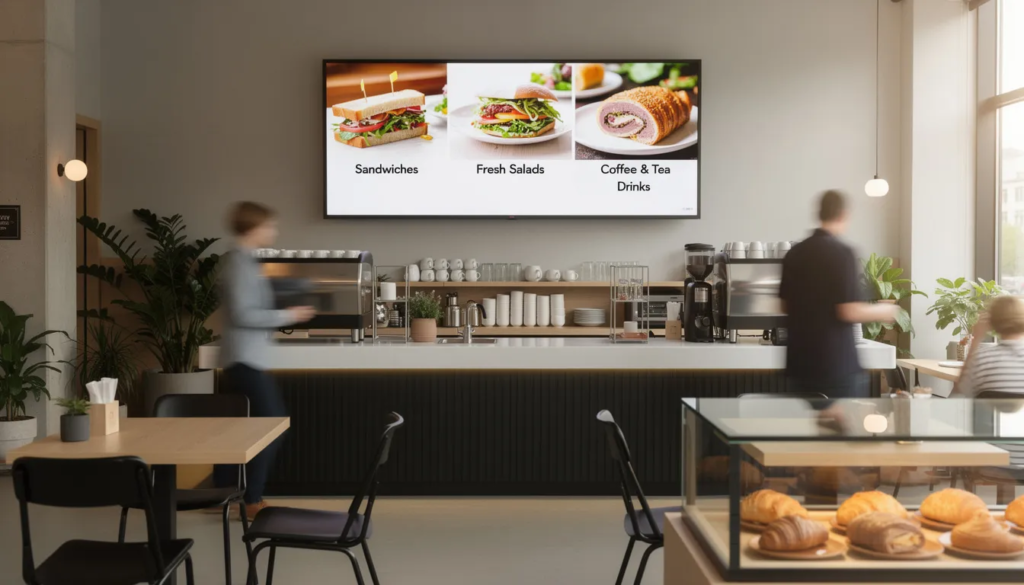
If you’ve ever walked into a café and seen a screen cycling through breakfast specials, or noticed a retail window playing eye-catching video content, you’ve seen TV digital signage in action. The good news? Setting up your own is far simpler—and more affordable—than most business owners realize.
This guide is for business owners, managers, and anyone interested in using TVs for digital signage in commercial or organizational settings. Digital signage can help businesses save money, engage customers, and streamline communication.
This guide walks you through everything you need to know about transforming ordinary TVs into dynamic communication tools, from choosing the right hardware to going live with your first playlist. TV digital signage can also be used to display advertisements, helping businesses promote their brands and share information effectively.
Key Takeaways
- Any modern TV with HDMI connectivity (Samsung, LG, Sony, Fire TV, and others) can function as digital signage when paired with a media player or smart TV app—no specialized equipment required for basic setups.
- Consumer TVs work well for businesses running screens 6-10 hours daily in normal lighting conditions, while commercial displays become necessary for 24/7 operation or bright storefront windows.
- A complete setup—from unboxed TV to live content—can realistically be accomplished in under 30 minutes with minimal technical skill using cloud-based signage software.
- Restaurants, retail stores, offices, and schools all benefit from TV signage through reduced printing costs, easier content updates, and improved customer engagement.
- TV digital signage helps businesses save money by reducing ongoing printing costs and offering longer-lasting hardware compared to traditional signage, making it a cost-effective solution over time.
- The most common failures stem from running consumer TVs beyond their design limits, placing dim screens in sunny locations, and letting content become outdated—all preventable with basic planning.
What Is TV Digital Signage?
Digital signage is an electronic, centrally managed display system used to deliver targeted multimedia content to specific audiences in public or private spaces. It uses display technologies such as LCD, LED, and projection screens to show dynamic multimedia content including videos, images, text, and live data. Digital signage is powered by a Content Management System (CMS) that allows users to remotely update and schedule content across a network of screens in real-time.
TV digital signage refers to using regular televisions or commercial displays to show scheduled content—images, videos, web pages, or data feeds—in public or business spaces. Rather than a static poster that requires reprinting every time your prices change, a digital sign updates instantly from anywhere with an internet connection.
Any HDMI-equipped TV manufactured from roughly 2015 onward can be repurposed as signage hardware with the right player and software. This includes popular models from Samsung, LG, Sony Bravia, Toshiba Fire TV Edition, Insignia Fire TV Edition, and Amazon’s own Omni and 4-Series lines.
Typical use cases include:
- Digital menu boards in restaurants and cafés
- Promotional screens in retail stores and showrooms
- Waiting room information displays in healthcare clinics
- School and church announcement boards
- Corporate lobby dashboards and welcome screens
TV digital signage can also be used to provide entertainment, such as streaming videos or multimedia content, to enhance the customer experience in various business environments.
Consider a 55” Fire TV in a New York café: from 7-11 a.m., it cycles through breakfast promos and featured pastries. At 11:01 a.m., the playlist automatically switches to lunch sandwiches and combo deals. No staff intervention required—the schedule runs itself.
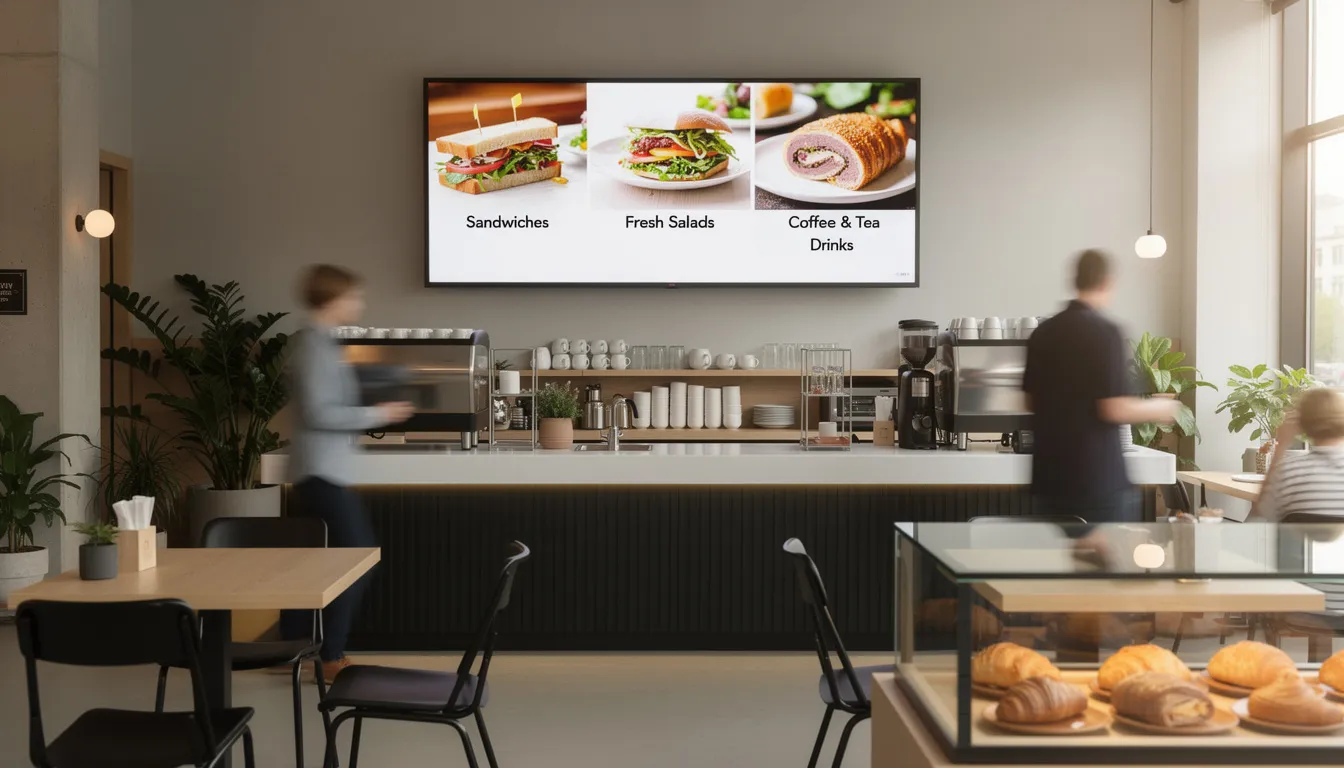
The shift from static posters to dynamic content means your messaging stays current, your promotions adapt to the time of day, and your brand looks more professional—all without reprinting a single laminated menu.
TV vs. Commercial Digital Signage Displays
One of the first decisions you’ll face is whether to use a consumer TV or invest in a purpose-built commercial signage display. Commercial TVs are specifically designed for signage and advertising, offering greater durability, mounting flexibility, and suitability for extended use in commercial settings compared to consumer-grade TVs. Both can work, but they’re engineered for very different environments, and understanding what TV you should use for cloud-based digital signage will help you choose hardware that’s compatible with your software platform.
Consumer TVs are cheaper and easier to find—you can pick one up at Best Buy or Amazon and have it mounted the same afternoon. Commercial signage displays cost more upfront but are built for extended operation in demanding business environments.
2024-2025 Price Comparison:
|
Feature |
Consumer TV (50-55”) |
Commercial Display (50-55”) |
|---|---|---|
|
Price Range |
$230–$350 |
$700–$1,200 |
|
Brightness |
250–400 nits |
700–2,500 nits |
|
Rated Hours |
4-6 hours/day |
16/7 or 24/7 |
|
Portrait Mode |
Not certified |
Certified |
|
Warranty |
Consumer use only |
Commercial use covered |
|
When consumer TVs work well: |
|
|
- Operating 6-10 hours daily
- Indoor placement without direct sunlight
- Cafés, salons, small offices, restaurants
- Budget under $400 per screen
When commercial displays become necessary:
- 18-24 hour daily operation
- Mall, airport, or transit hub deployment
- Bright window-facing locations
- Outdoor or semi-outdoor installations
Quick decision rule: If your budget is under $500 and you’ll run the screen less than 10 hours daily in normal lighting conditions, a consumer TV may serve you well. If you need 24/7 operation or visibility in a sunny storefront window, go commercial from the start.
Key Specs That Matter for TV Digital Signage
Not every TV performs equally as signage hardware. A few core specifications determine how your content looks, how long the equipment lasts, and whether customers can actually read what’s on screen. Before diving into technical criteria, it helps to understand the broader picture of what digital signage is and how it works so your hardware choices align with your overall strategy. Paying close attention to all the details when selecting a Smart TV for digital signage is essential to ensure you achieve the best results.
The specs worth checking:
- Brightness (nits): Determines readability in various lighting conditions
- Resolution: 1920×1080 (Full HD) or 3840×2160 (4K)
- Panel type and viewing angles: IPS panels maintain color from wider angles
- Connectivity options: HDMI ports, USB, Wi Fi, and Ethernet
- Operating hours rating: When available from manufacturer
Sample numbers to keep in mind:
- Brightness: 250-400 nits for indoor TVs; 700-2,500 nits for window-facing commercial displays
- Resolution: 1080p works well for menu boards and screens under 50”; 4K becomes valuable on larger 65”+ displays
Brand examples for context:
- Toshiba Fire TV Edition 43” FHD: Solid choice for digital menu boards in normal lighting
- Sony Bravia X90J 55” 4K HDR: Premium option for retail visuals where image quality matters
- Insignia Fire TV Edition: Budget-friendly entry point for basic signage
When evaluating any TV on Amazon or at a store, check these specs first. If the listing doesn’t mention brightness in nits, it’s likely a lower-end model designed for dim living rooms rather than commercial use.
Brightness and Viewing Conditions
Brightness, measured in nits, is arguably the single most important specification for signage readability. A screen that looks fine in a showroom can appear completely washed out when placed near windows or under strong overhead lighting.
Practical guidance by nit rating:
- Up to 300 nits: Suitable for dimmer interiors, offices, and rooms without windows
- 350-450 nits: Fine for most indoor retail and restaurants without direct sun exposure
- 700+ nits: Required for bright shop windows, sun-lit lobbies, or semi-outdoor areas (typically commercial signage only)
Before purchasing, test a TV in the store at its brightest picture setting. Stand 2-5 meters away—your typical customer viewing distance—and evaluate readability. If the screen struggles under showroom lights, it won’t improve in your actual space.
Don’t put a 250-nit living-room TV in a south-facing window on a July afternoon—it will look washed out and reflect poorly on your brand.
Reliability and Hours of Operation
Consumer televisions are engineered for approximately 4-6 hours of daily home use. Running such a TV as continuous business signage creates stress on the power supply, cooling systems, and panel itself.
Risks of running a basic TV 24/7:
- Panel overheating and accelerated component degradation
- Power supply stress leading to premature failure
- Image retention or burn-in from static content displayed for extended periods
Practical guidance:
- Consumer TVs can typically handle up to 8-10 hours of daily signage use safely
- For 16+ hours daily, consider commercial signage displays or higher-end models designed for extended operation
- Always implement power scheduling—use software features or smart plugs to automatically power screens off during closed hours
Power scheduling extends equipment lifespan dramatically and reduces energy costs. If your restaurant closes at 10 p.m. and opens at 6 a.m., there’s no reason for screens to run overnight.
Orientation, Mounting, and Connectivity
Most consumer TVs are designed for landscape (horizontal) orientation, with cooling vents positioned accordingly. Many menu boards and wayfinding signs, however, look better in portrait (vertical) mode.
Key considerations:
- Standard TVs rarely certify portrait mounting; rotating them vertical can affect cooling and void warranties
- Commercial signage displays are engineered and rated for both orientations
- Portrait mounting changes airflow patterns, potentially causing overheating issues on consumer models
Recommended mounting setup:
- Use VESA-compatible wall mounts rated for your TV’s weight
- Position screens at or slightly above eye level (1.5-1.7 meters for standing viewers)
- Implement proper cable management to hide media players and power adapters
- Maintain safe distance from kitchens, steam, or damp areas
Connectivity requirements:
- At least one free HDMI port for your media player
- Stable Wi Fi or Ethernet connection (Ethernet strongly preferred for reliability)
- Optional USB port for offline playback or initial setup
Label your HDMI port and cables clearly. When staff changes or maintenance occurs, anyone should be able to identify which input runs the signage without guessing.
Hardware Options for TV Digital Signage
You can turn almost any 1080p or 4K TV into functional signage by pairing it with either a smart TV app or an external media player. The approach you choose depends on your existing hardware, technical comfort level, and scaling plans. If your primary goal is to promote products or services, it’s worth exploring how to place advertising on television screens so your hardware and content tools support dynamic ad campaigns. Selecting the right hardware solution enables your business to focus on core activities, without being distracted by technical challenges.
Primary options:
- Smart TV apps: Built-in platforms on Fire TV, Android TV, Google TV, or webOS
- External media players: Android boxes, Fire TV Sticks, Raspberry Pi, or mini-PCs
Reusing existing hardware—TVs you already own—is often the cheapest way to start. Dedicated players become more valuable when you need standardization across multiple locations or 24/7 reliability.
What different businesses commonly use in 2024-2025:
|
Business Type |
Typical Setup |
|---|---|
|
Small restaurants |
Fire TV Stick on a 50-55” Insignia or Toshiba Fire TV |
|
Offices |
Android TV or Chromecast with Google TV on existing conference room TVs |
|
Schools |
Raspberry Pi 4s connected via HDMI to older 1080p monitors |
|
Multi-location retail |
Commercial Android media players for centralized management |
Using Consumer Smart TVs as Signage Screens
Modern smart TVs from 2019-2024 can often run signage apps directly without additional hardware. Samsung Tizen, LG webOS, Sony Google TV, and Amazon Fire TV platforms all support apps that enable seamless integration with cloud-based content management systems.
Popular TV lines for signage:
- Toshiba Fire TV Edition (2023 and later): Built-in Fire TV with access to Amazon Appstore
- Insignia Fire TV Edition Smart TVs: Various screen sizes, frequently discounted
- Amazon Fire TV 4-Series and Omni Series: Budget-friendly 4K options with robust app support
Benefits of built-in smart TV platforms:
- Fewer devices and cables to manage
- Lower initial cost—no separate player purchase
- Easy app installation from Amazon Appstore or Google Play
- Quick setup for non-technical users
Limitations to keep in mind:
- Operating system updates typically stop after 3-5 years
- App performance may lag with heavy content or complex playlists
- Some platforms restrict enterprise management features
- Less standardized than dedicated hardware across locations
For a single location running straightforward content, built-in smart TV apps work well. For multi-site deployments requiring centralized control, dedicated players often make more sense.
External Media Players and DIY Signage Devices
External players become the preferred choice when you want to repurpose older non-smart TVs, need more processing power, or prefer standardized devices across many locations.
Common options:
|
Device Type |
Price Range |
Best For |
|---|---|---|
|
Fire TV Stick 4K |
$50-70 |
Simple single-screen setups |
|
Android boxes |
$80-150 |
Budget multi-location deployments |
|
Commercial Android players |
$200-400 |
Enterprise reliability requirements |
|
Raspberry Pi 4 |
$60-100 |
DIY/technical users seeking low cost |
|
Mini-PCs / Intel NUCs |
$300-600 |
Complex content or Windows-based systems |
|
Basic connection process: |
|
|
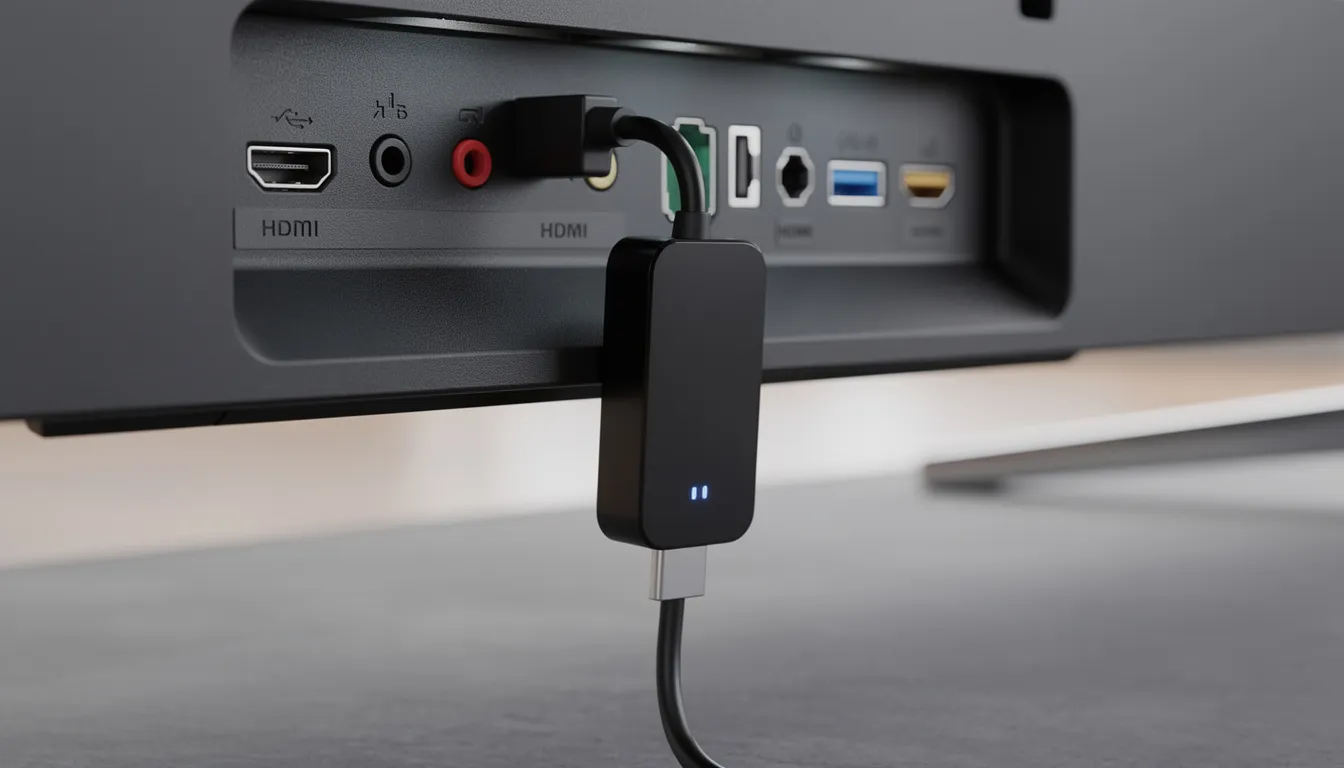
- Plug player into TV’s HDMI port
- Connect player to power source
- Join Wi Fi network or connect Ethernet cable
- Install signage software from app store or navigate to web player URL
For smooth 1080p and 4K video playback, ensure your device has at least 2 GB RAM and reliable flash storage. Cheaper devices with insufficient memory will stutter during video playback—a poor customer experience.
How to Set Up a TV for Digital Signage (Step by Step)
Most small businesses can go from boxed TV to live signage in under 30 minutes with minimal technical skill. The process is straightforward: mount the display, connect your player, install software, upload content, and go live. Rather than manually updating files or USB sticks, using software solutions for scheduling presentation-based displays ensures content is updated automatically and consistently across all your screens. Implementing TV digital signage can also boost productivity by streamlining communication and reducing the need for manual updates.
Setup sequence overview:
- Choose placement and mount the TV
- Connect media player or configure built-in smart platform
- Install and sign in to digital signage software
- Upload content and build a playlist
- Schedule and publish to the screen
Consider this scenario: A restaurant owner receives a 55” Fire TV at 9 a.m. By 11:30 a.m., the TV is mounted above the counter, connected to the shop’s Wi Fi, running signage software, and displaying the lunch menu—ready for the noon rush.
Step 1: Prepare and Mount Your TV
Placement considerations:
- Position at or slightly above eye level for standing viewers
- Ensure visibility from key customer areas (order counter, waiting area, entry door)
- Avoid direct sun glare when possible
- Keep away from kitchen steam, grease, and moisture
Mounting best practices:
- Use a VESA-compatible wall mount rated for your TV’s size and weight
- Secure all cables and hide them for a clean, professional appearance
- Connect to a surge protector or protected circuit
- Configure TV to auto-power-on after power loss if the feature is available
TV settings to adjust:
- Disable screen savers and eco modes that automatically dim the picture
- Turn off automatic channel scans and tuner features irrelevant to signage
- Set input to default to your HDMI port on startup
Label the HDMI port and cables clearly. Future staff or technicians will thank you when troubleshooting.
Step 2: Connect Your Player and Install Signage Software
For Fire TV Stick:
- Plug the stick into an available HDMI port
- Connect USB power cable to the stick and plug adapter into outlet
- Pair the remote and connect to Wi Fi
For Android boxes or Raspberry Pi:
- Connect HDMI cable from device to TV
- Connect power adapter
- Attach keyboard or mouse for initial setup if needed
- Join your network via Wi Fi or Ethernet
Ethernet connections provide better reliability than Wi Fi in busy environments. If your space experiences frequent Wi Fi congestion, plug in directly.
Installing signage software:
- Download the app from Amazon Appstore, Google Play, or the vendor’s website
- Or navigate to a specific URL if the platform uses a browser-based player
- Complete the account setup process
Most platforms display a unique 6-8 digit pairing code on first launch. You’ll enter this code in your cloud dashboard to link the physical screen to your account—this is how the platform knows which screen to update with which content.
Step 3: Create Playlists and Go Live
Log into your cloud dashboard from any laptop or phone. This is your command center for content management across all connected screens.
Building your first playlist:
- Upload images, videos, or link web content (live menus, Instagram feeds, YouTube playlists)
- Drag and drop items into desired playback order
- Set duration for each item (typically 10 seconds for images, full length for videos)
- Add transitions between slides for smoother viewing
Scheduling options:
- All-day loops: Content repeats continuously—simplest option
- Time-of-day schedules: Different playlists for breakfast, lunch, dinner, happy hour
- Day-of-week schedules: Weekday vs. weekend promotions
- Date-based campaigns: Holiday specials, limited-time offers, events
Publish your playlist to the linked TV and confirm on-site that content displays full screen and remains legible from normal viewing distance. Test for 10-15 minutes to catch any audio surprises, black bars, or cropped content before leaving the screen unattended.
Best Practices for TV Digital Signage Content
Even the best hardware won’t help if your content is cluttered, outdated, or impossible to read from across the room. Effective signage follows consistent design principles that prioritize clarity over complexity, building on the same fundamentals you’ll find in a broader digital signage guide for modern businesses.
High-impact fundamentals:
- Use large, readable fonts—bigger than you think necessary
- Maintain high contrast between text and backgrounds
- Keep messages short and scannable
- Apply consistent branding (logo, colors, typefaces) across all screens
- Update regularly to prevent stale promotions
Apply the 10-second test: if a passerby can’t understand the key message within 10 seconds of passive viewing, the slide is too busy. Customers aren’t studying your screen—they’re glancing while ordering, waiting, or walking past.
Designing for Readability and Impact
Font sizing guidelines:
- Headlines: At least 30-40 point equivalent on a 55” screen viewed from 3-4 meters
- Body text: Scale proportionally, but when in doubt, go bigger
- Consider viewing distance in your specific space
Typography recommendations:
- Use simple, bold sans-serif fonts (Open Sans, Roboto, Montserrat)
- Avoid decorative scripts and thin fonts that become illegible at distance
- Stick to 2-3 fonts maximum across your signage, and consider proven options from the best fonts for digital signage when choosing your typefaces.
Color contrast principles:
- Pair light text on dark backgrounds or vice versa
- Effective combinations: white on black, yellow on dark blue, dark text on light backgrounds
- Avoid low-contrast pastel combinations that wash out under ambient lighting
- Remember that approximately 8% of males experience color blindness—never rely on color alone to convey critical information
Content structure:
- Limit each slide to one primary message or offer
- Use bullet points rather than paragraphs
- Include clear calls-to-action: “Order at the bar,” “Scan to view full menu,” “Ask about today’s special”
Scheduling and Keeping Content Fresh
Simple scheduling strategies:
- Breakfast vs. lunch vs. dinner menus on specific time blocks
- Weekday vs. weekend pricing or events
- Seasonal campaigns tied to specific calendar dates using cloud-based scheduling software for presentation-style displays
Build a content calendar extending at least 3 months forward. Document when new promotions, events, or holidays should appear on screens. This prevents the embarrassment of displaying “Black Friday 2025” deals on December 15th.
Content maintenance practices:
- Retire outdated content immediately after promotions end
- Schedule weekly review sessions (Monday mornings work well) to verify accuracy
- Remove sold-out items, expired offers, and seasonal content promptly
Consider incorporating user-generated content or social feeds in moderation to keep displays fresh, but always use moderation tools to filter inappropriate posts before they reach your screens.
Test different versions of promotional slides and informally track which ones generate more customer questions or sales. This simple A/B testing approach helps you refine what actually works in your specific environment.
Advanced Features and Technologies for TV Digital Signage
Digital signage is rapidly advancing, offering businesses more ways than ever to connect with customers and create memorable experiences. Today’s digital signage solutions go far beyond simply displaying static images or looping videos—they’re equipped with powerful features that can transform any screen into a dynamic communication hub, especially when used as advertising screens within the digital signage ecosystem.
One of the most exciting developments is the integration of artificial intelligence (AI) into digital signage software. AI-powered signage can analyze customer behavior and preferences in real time, allowing businesses to deliver personalized content and targeted promotions. For example, a retail store might use AI to highlight products that are trending with certain demographics, or a restaurant could automatically adjust digital menu boards based on the time of day and customer flow. This level of personalization not only enhances the customer experience but also helps drive sales and increase engagement.
Seamless integration with other technologies is another game-changer. Modern digital signage platforms can connect with mobile devices, apps, and social media, enabling businesses to create immersive experiences that extend beyond the screen. Imagine a customer scanning a QR code on a digital menu board to access exclusive offers, or sharing their visit on social media directly from an in-store display. These integrations help brands boost visibility, gather valuable feedback, and keep customers engaged across multiple channels.
On the hardware side, commercial displays are now designed to meet the rigorous demands of business environments. High-brightness screens ensure content remains vivid and readable even in challenging lighting conditions, such as sunlit storefronts or brightly lit lobbies. Built-in Wi-Fi and advanced connectivity options make it easy to manage screens remotely, while enhanced security features protect both the device and the content being displayed. These commercial-grade displays are engineered for reliability, with robust components that can handle extended hours of operation and require minimal maintenance.
Choosing the right digital signage software is just as important as selecting the right hardware. There are many options on the market, from free digital signage software for single screens to comprehensive platforms that support multi-location management, advanced scheduling, and real-time analytics. Key features to look for include an intuitive interface, flexible content management, seamless integration with other business tools, and strong support and training resources. Scalability is also crucial—your signage solution should be able to grow with your business, whether you’re managing a single display or hundreds across multiple locations.
Advanced digital signage features aren’t just about technology—they’re about creating better experiences for your customers. Interactive digital menu boards can speed up ordering and reduce errors, while wayfinding maps help visitors navigate large spaces with ease. Dynamic content, such as live event updates or targeted promotions, keeps your messaging fresh and relevant. With the ability to manage and update content remotely, businesses can respond quickly to changing needs and opportunities, ensuring their screens always deliver maximum impact.
Ultimately, the latest advancements in digital signage are transforming how organizations communicate, promote, and engage. By leveraging cutting-edge features, seamless integration, and robust hardware, businesses can create immersive experiences that not only capture attention but also drive loyalty and growth—all while streamlining operations and reducing costs.
Real-World Use Cases for TV Digital Signage
Many organizations started with a single TV and expanded once they witnessed the impact on sales, communication, or customer experience. The same basic setup scales from a single-location café to multi-site chains by linking additional TVs and players to the same cloud dashboard.
Restaurants and Cafés
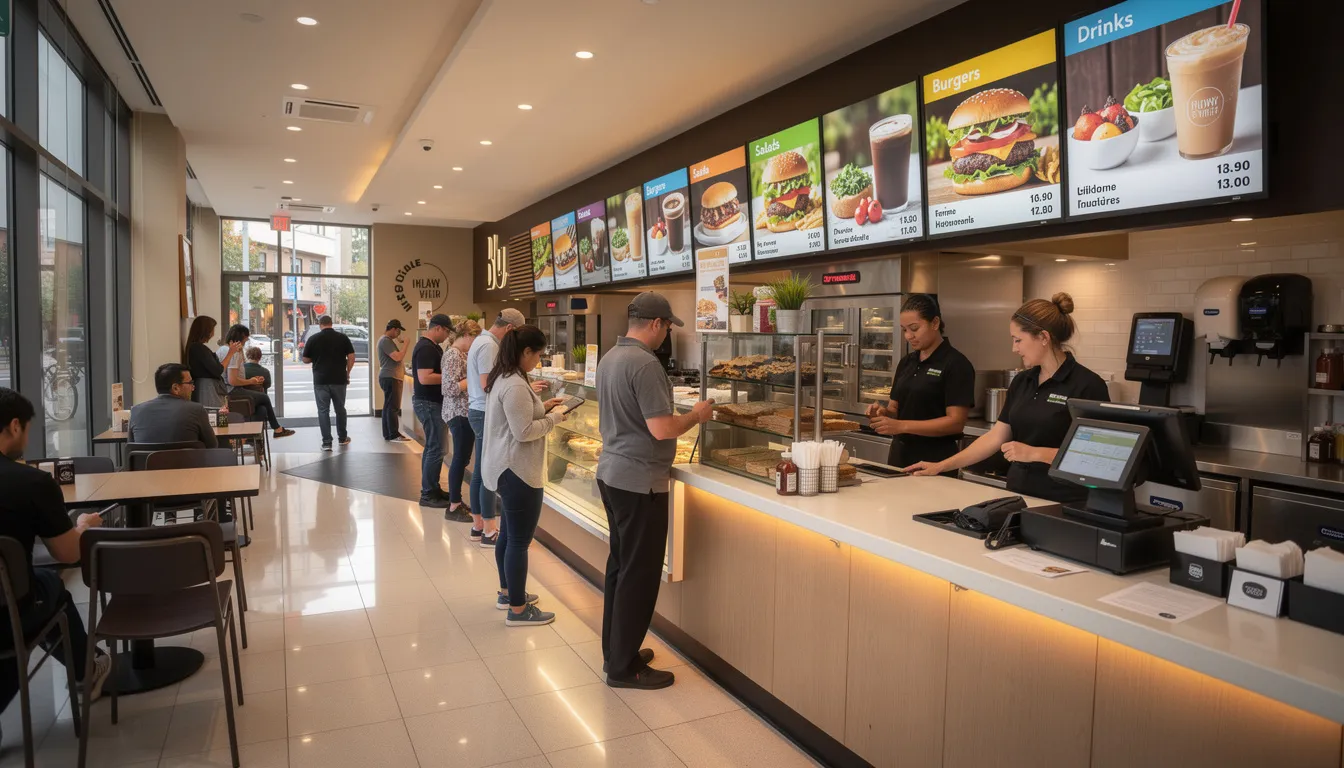
A quick-service restaurant might deploy two 50-55” TVs as digital menu boards above the counter, showing breakfast items until 10:30 a.m., lunch combos until 4 p.m., and dinner specials through closing. Coffee-focused venues can gain even more by switching to a digital coffee shop menu board that makes it easy to update seasonal drinks and featured blends.
A smaller café might use a 43” Fire TV near the entrance to highlight daily specials, display a loyalty program QR code, and promote upcoming live music events.
Example content loop:
- 20-second promo for a new menu item with appetizing images
- 10-second slide featuring loyalty app with QR code
- 30-second video showing food preparation
- 15-second slide with upcoming events
Benefits for food service:
- Instant price changes without reprinting menus
- Reduced printing costs and staff time
- Better upselling of sides, drinks, and add-ons through visual appeal
- Automatic schedule changes for breakfast-to-lunch-to-dinner transitions
Schedule content to change automatically at opening, lunch rush, and evening service. Staff no longer need to manually swap menu boards or remember to update pricing.
Retail Stores and Showrooms
A fashion boutique might use a 55” 4K TV in the front window to play branded lookbook videos and highlight current promotions—drawing foot traffic from passersby who might otherwise walk past.
An electronics store could deploy multiple TVs around the sales floor, each showing product comparisons, feature highlights, and financing offers relevant to the nearby merchandise.
Measurable benefits:
- Increased foot traffic from eye-catching window content
- Higher attachment rates on add-on products promoted on screen
- Consistent brand messaging across the entire store
- Easy seasonal updates without new printed materials
Use muted or silent video with subtitles so audio doesn’t clash with in-store music, announcements, or customer conversations. Pair in-store signage with QR codes for online catalog browsing or click-and-collect services.
Offices, Schools, and Healthcare
Corporate environments: A 65” TV in the lobby displays welcome messages for visitors, company milestones, safety metrics, and real-time performance dashboards. Employees passing through stay informed without checking email, and visitors immediately see reception area TV information displays that reinforce your brand and provide practical guidance.
Educational institutions: Schools and universities use hallway TVs for class schedules, event calendars, emergency alerts, and student recognition boards. Different schedules can display during different class periods automatically.
Healthcare settings: Waiting room TVs show queue information, wellness tips, doctor introductions, and insurance updates—creating a more informative experience than cable news channels. Research suggests this approach actually reduces perceived wait times and patient anxiety.
Key benefits across these environments:
- Improved internal communication
- Reduced perceived wait times
- More modern, organized atmosphere
- Emergency override capability for urgent messages
Include emergency override capabilities in your content management setup so urgent messages (severe weather, evacuation notices, security alerts) can instantly replace regular playlists when needed.
Costs, ROI, and When to Upgrade
TV digital signage can start under $500 for a complete single-screen setup. Total investment scales with the number of screens, hardware quality, and content complexity, and there are clear signals that it’s time to invest in digital signage if your printed materials are costly to maintain or failing to engage customers.
Typical cost components:
|
Component |
Budget Range |
|---|---|
|
TV hardware (43-55” consumer) |
$190–$350 |
|
Commercial signage display (50-55”) |
$700–$1,200 |
|
Media player (Fire TV Stick, Android box) |
$50–$200 |
|
Mounting hardware and cabling |
$50–$150 |
|
Professional installation (optional) |
$500–$1,500 |
|
Custom content design (optional) |
$1,000–$5,000 |
|
Many platforms offer free digital signage software tiers for single screens, with paid plans adding features for multi-location management, advanced scheduling, and support. |
|
|
ROI examples: |
|
- Upselling one extra item per hour through promotional displays
- Promoting higher-margin products that customers might otherwise overlook
- Eliminating printing costs for menus, posters, and promotional materials
- Saving staff time on manual price updates and sign changes
Signs it’s time to upgrade:
- Screens must operate 18-24 hours daily
- Multiple sites need centralized monitoring and advanced remote control
- You require higher brightness for window displays
- Current hardware shows performance issues or reliability problems
Track sales data, customer feedback, or engagement metrics (QR code scans, inquiries about promoted items) before and after installing signage. Quantifying impact helps justify expansion and guides future investment decisions.
FAQ
Can I really use any TV for digital signage, or do I need a special model?
Most modern flat-panel TVs with HDMI inputs can technically function as digital signage when paired with a media player or smart TV app. The key is matching the TV’s capabilities to your specific use case. Avoid very old TVs (pre-2010) due to poor resolution and limited connectivity. Be cautious about running basic consumer models 24/7—they’re simply not designed for that workload. Check the manufacturer’s documentation for operating hours ratings and warranty terms covering commercial use before deploying in a business environment.
Is it better to run signage from a USB stick plugged into the TV?
Simple USB playback works for basic static loops on a single screen when content rarely changes. However, it becomes impractical once you need frequent updates or manage multiple locations—you’d need to physically visit each TV with a new USB drive for every change. Using proper digital signage software with cloud control allows remote updates, scheduling, and monitoring without on-site visits. Consider USB as a temporary backup solution rather than a long-term strategy for serious business signage that requires regular content changes.
How much internet bandwidth does TV digital signage consume?
After initial content downloads, ongoing bandwidth usage is typically modest because playlists loop locally on the player. A single screen that updates content a few times daily may only use a few hundred megabytes to a couple of gigabytes per month. Large video files consume more during initial download. Consider pre-loading heavy video content during off-peak hours, and use offline playback modes if your location has unstable connectivity. The signage won’t stop playing if the internet drops briefly—it simply won’t update until connectivity returns.
What happens if the internet goes down at my location?
Well-designed digital signage solutions cache downloaded content locally on the media player. This means your TV keeps playing the last successfully downloaded playlist even during network outages. However, remote changes won’t take effect and live content—web pages, social media feeds, real-time data—cannot update until connectivity is restored. Before critical deployments like events or conferences, confirm your chosen platform’s offline behavior and cache duration. Most business-grade platforms maintain cached content indefinitely until new content is pushed.
Do I need a designer to create TV digital signage content?
Many small businesses successfully create their own slides and menus using built-in templates from signage software, or tools like Canva and PowerPoint exported as images. For brand-critical assets—logo animations, seasonal campaign videos, professional intros—hiring a designer often makes sense. For routine price changes, daily specials, and basic announcements, in-house creation works well. Remember that clarity and readability matter more than complex design. Simple, clean layouts with big text and high contrast often perform better than elaborate graphics that overwhelm viewers.
- SignageTube Cloud – cloud-managed signage on any TV
- SignageTube Live – real-time data on your screens
- Digital signage software – how to choose, and what matters
- Templates – 120+ ready-made designs
- Pricing – simple per-screen plans