 SignageTube
We will be installing the SignageTube Cloud Player app on an Android device. This device can be a phone, tablet, TV, or even an external Android Player. The easiest way is to use a TV that is running on the Android TV or Google TV operating system, of course.
On your Android device, open the Play Store.
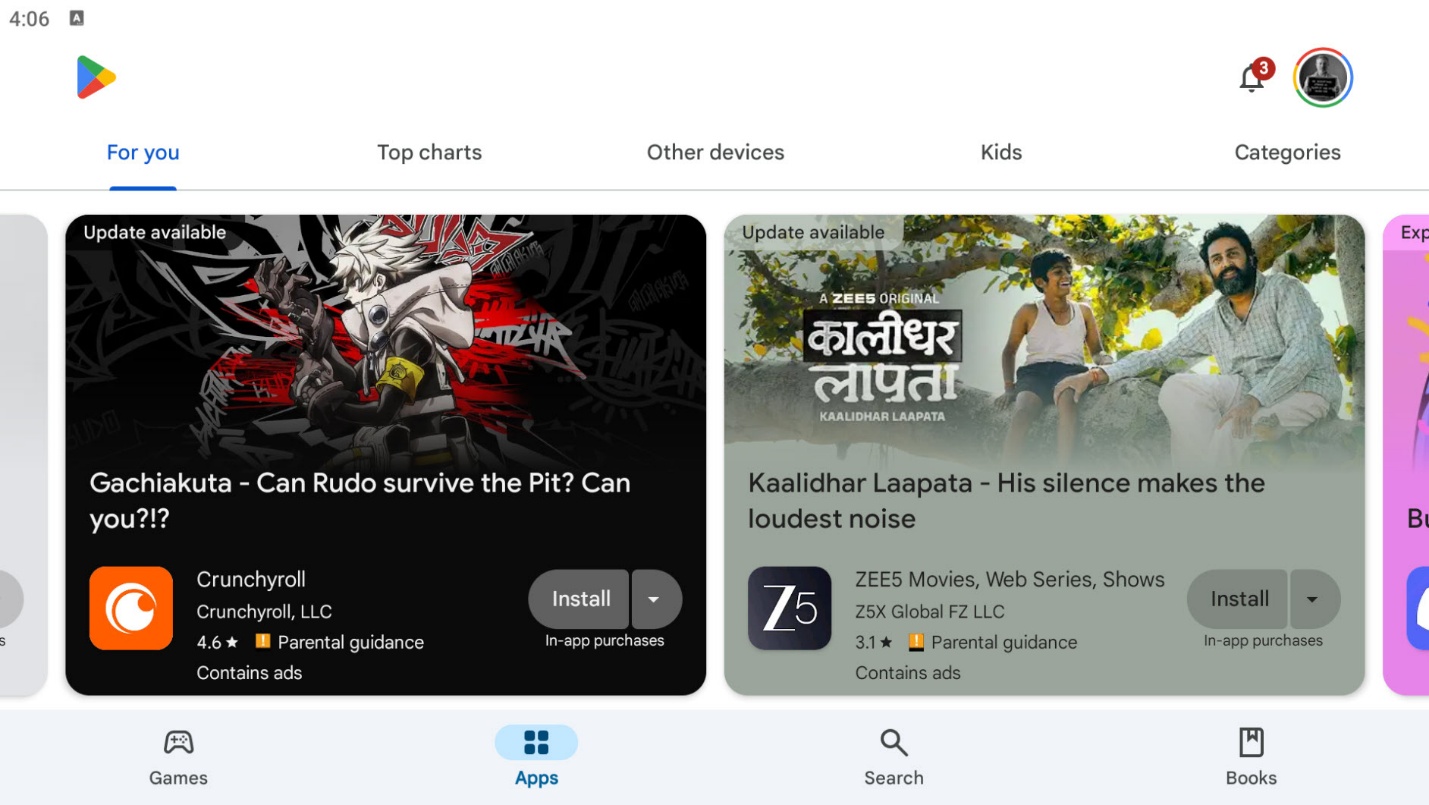
At the search bar, enter the text ‘SignageTube’.

Normally, the SignageTube app is listed as the first application.
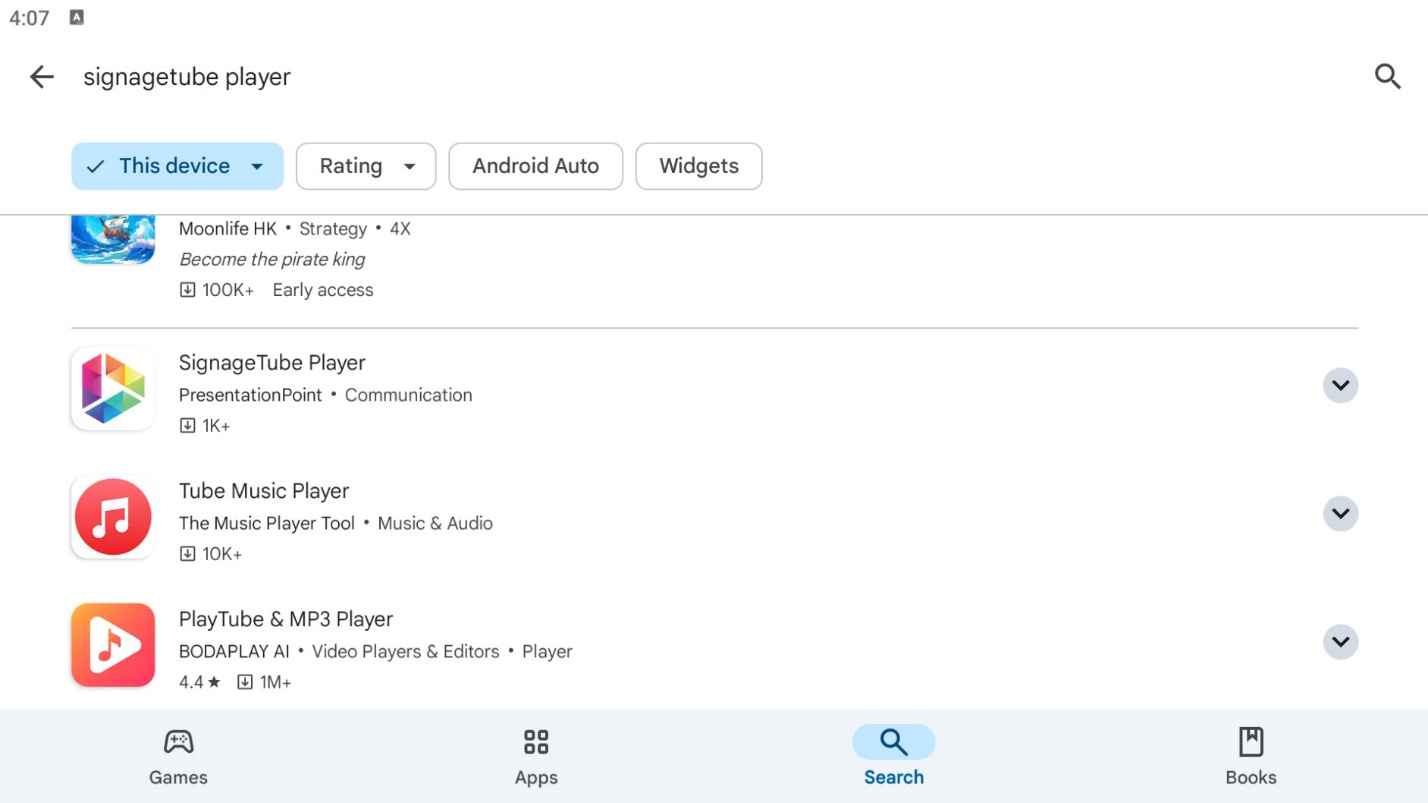
Click to open the details of the SignageTube Player app.
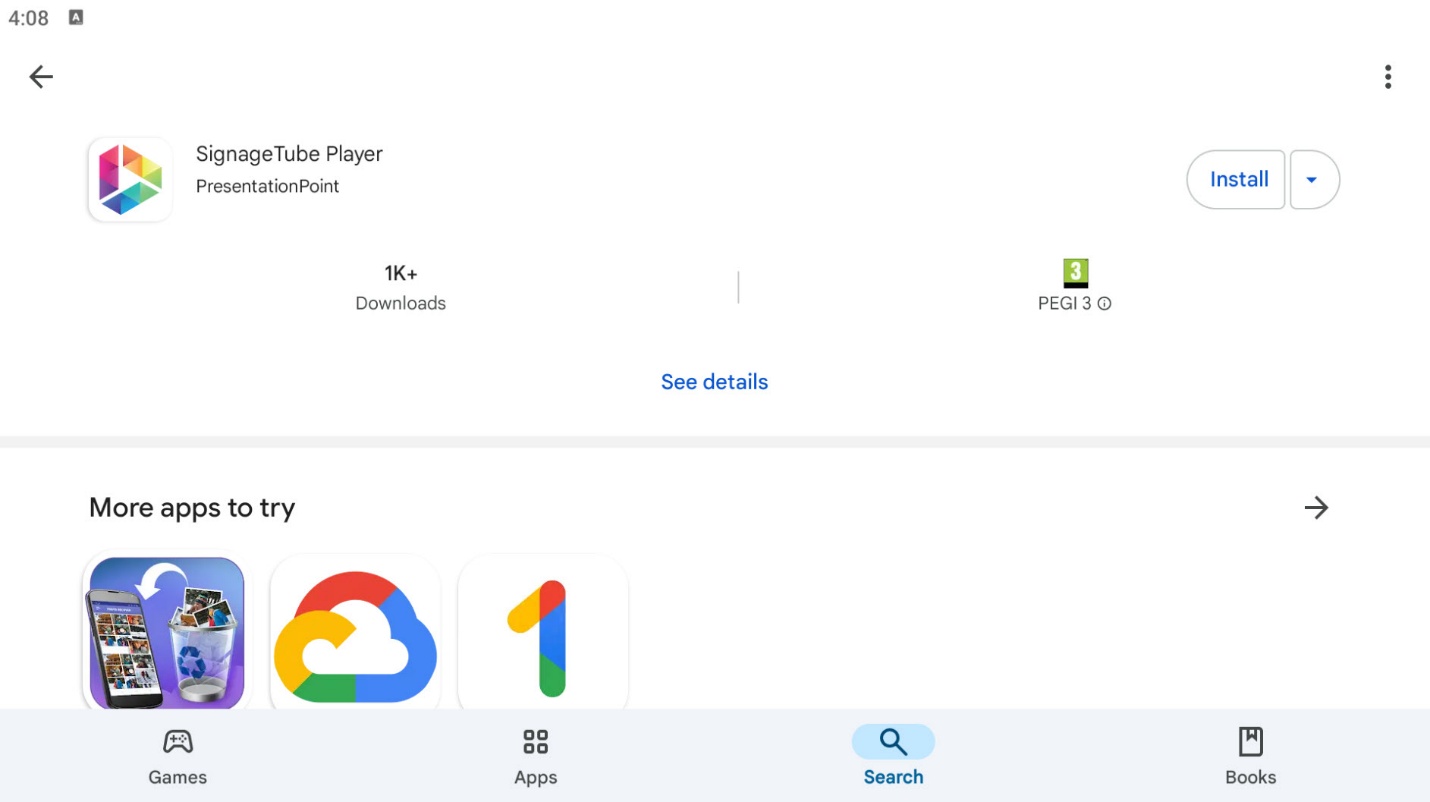
Now click the Install button. This will start downloading the app from the store, and it will install the app on your device.

When done, click to open the app. It will start by showing the SignageTube opening video. And secondly, it will start by showing your device ID. This device ID is like a car’s license plate and is needed to identify the screen. We are going to use the SignageTube control panel to add this device or screen to your SignageTube account.
Pick the edition you want to try for 15 days. No credit card, just your name and email.
Images, video, web pages, PowerPoint and Live Pages on any TV. The easiest place to start.
Start Starter trial →Real PowerPoint on Windows, a report of what played (Proof of Play) and a Control Room for all your screens.
Start Professional trial →Live data from Excel, databases and 20+ sources, screen health alerts and switching screens on and off.
Start Enterprise trial →Not sure? Start with Starter. You can move up any time.
Both come with a 15 day free trial. No credit card, just your name and email.

