 SignageTube
How to Put a Live SQL Server Query on a Factory Screen
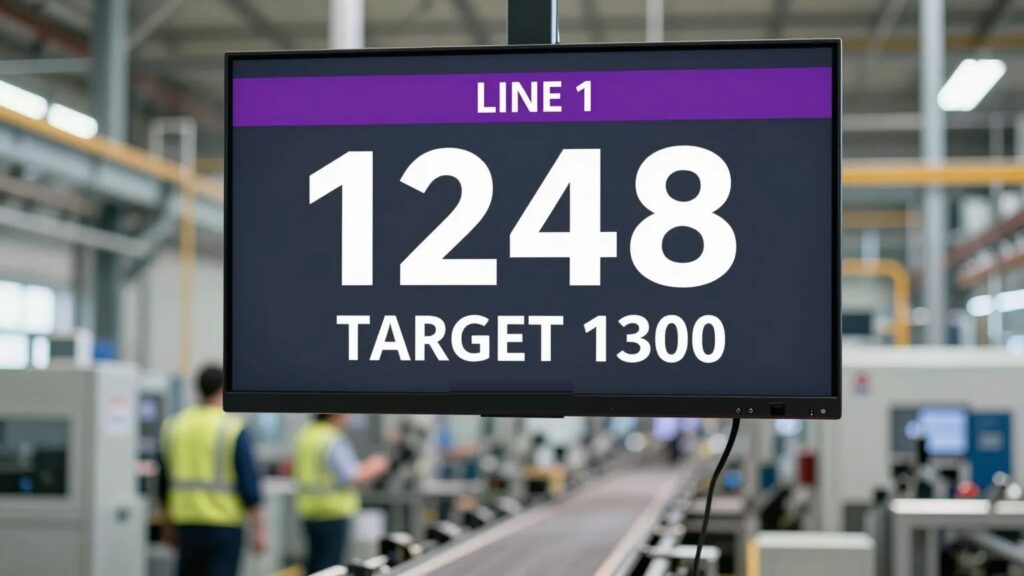
Most production data already lives in SQL Server. Order counts, line output, downtime logs, quality checks: it is all in a database that only a handful of people ever query. Putting a live SQL Server query on a factory screen closes that gap. The people doing the work see the numbers as they change, without anyone exporting anything.
Here is the whole setup, end to end, including the parts most guides skip: the read-only account, the refresh interval, and what happens when the network drops.
Step 1: create a read-only SQL login
Do not point a display at your database with an admin account. Create a dedicated login that can read exactly the tables or views the screen needs, and nothing else:
CREATE LOGIN signage_reader WITH PASSWORD = 'a-strong-password';
CREATE USER signage_reader FOR LOGIN signage_reader;
GRANT SELECT ON dbo.vw_ProductionToday TO signage_reader;
Your IT team will ask about this account in the security review. Having it scoped to one view, read-only, is usually the whole conversation.
Step 2: write the query as a view
Keep the query itself in the database as a view, so the screen configuration stays simple and the logic stays where your DBA can see it. A typical factory example:
CREATE VIEW dbo.vw_ProductionToday AS
SELECT line_name,
       SUM(units_produced) AS output_today,
       MAX(target_units)   AS target_today
FROM   production_log
WHERE  log_date = CAST(GETDATE() AS date)
GROUP  BY line_name;
The screen then just runs SELECT * FROM dbo.vw_ProductionToday. When the definition of “output” changes, you change the view, not the display.
Step 3: connect the screen
In SignageTube Live, you design the slide in PowerPoint with the Live Designer add-in, add a SQL Server connection (server, database, the signage_reader login), and bind the query result to a table or to individual text boxes on the slide. The slide keeps its PowerPoint fonts, layout and animations; only the numbers refresh.
Because Live can run on premises, the database connection never has to leave your network. For most manufacturing IT teams, that is the deciding argument.
Step 4: pick a sensible refresh interval
| What the screen shows | Sensible refresh |
|---|---|
| Live production counts | 15 to 60 seconds |
| Shift or daily totals | 5 minutes |
| Quality and downtime summaries | 5 to 15 minutes |
| Anything from a busy ERP database | Ask the DBA, then double it |
Faster is not better. A screen read from across the hall does not benefit from sub-second updates, and your DBA will thank you for not hammering the server.
What happens when the network drops
Ask this question of any setup before you trust it on a factory floor. A SignageTube Live player keeps showing the last good data rather than an error message, and recovers on its own when the connection returns. A screen full of database errors in the middle of a shift is worse than no screen.
For the wider picture of what belongs on factory displays, see our guide to real-time production metrics on screens and the manufacturing overview.
Want to try it against your own database? Start a free trial and have a test query on a screen this afternoon.
- SignageTube Starter – content signage on any TV
- SignageTube Enterprise – live data on your screens
- Digital signage software – how to choose, and what matters
- Templates – 120+ ready-made designs
- Pricing – simple per-screen plans