
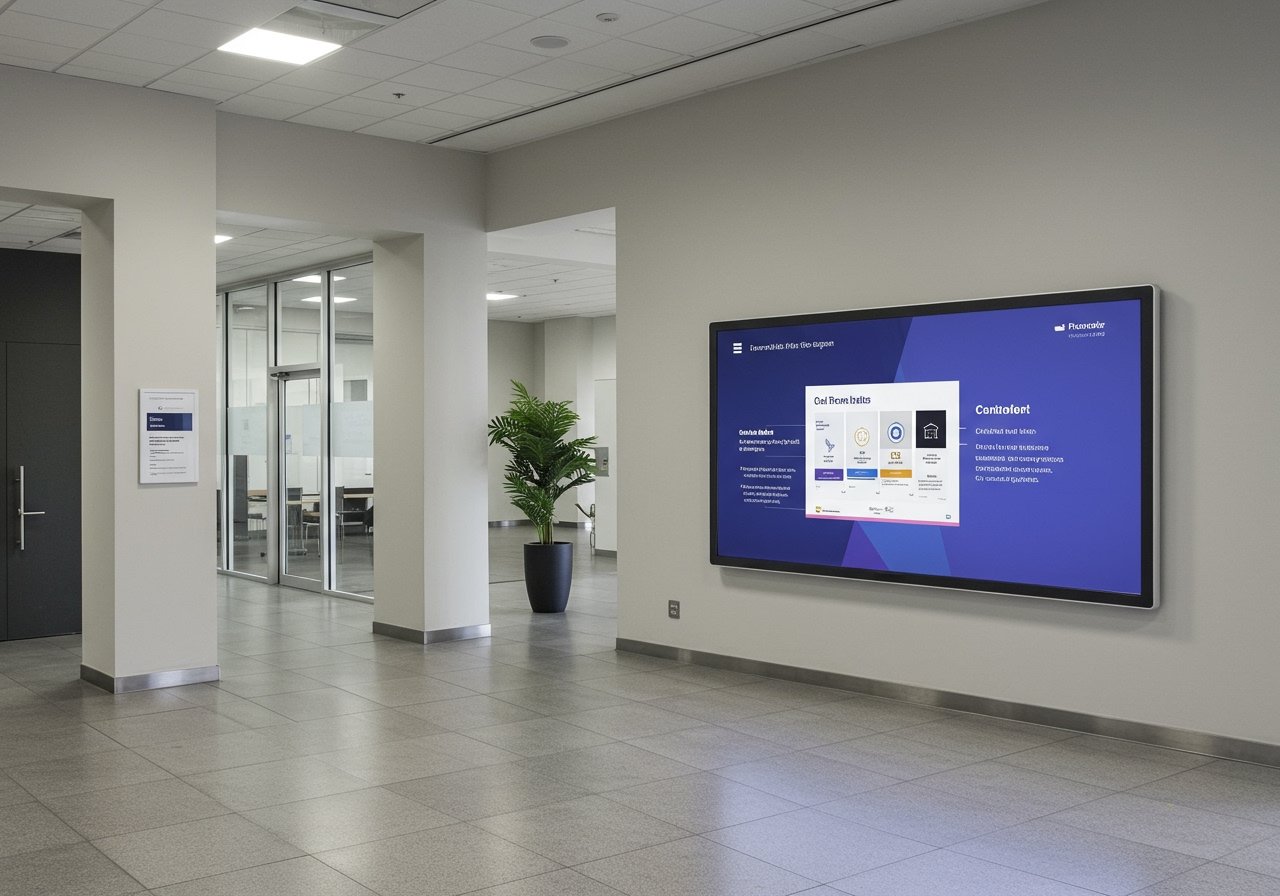
PowerPoint digital signage is transforming how organizations communicate dynamic messages in real time across multiple locations. This guide is for communication managers, IT staff, and anyone looking to use PowerPoint for digital signage in their organization. Whether you’re responsible for internal communications, marketing, or facility management, this resource will help you leverage the tools you already know to create professional, engaging screen content.
Why does this matter? Digital signage is a powerful way to communicate dynamic messages in real time across multiple locations. It enables organizations to keep employees, visitors, and customers informed with up-to-date information, announcements, and promotions—right where they need it most.
Who is this guide for?
-
Communication managers seeking to streamline messaging across screens
-
IT staff tasked with deploying and managing digital signage networks
-
Anyone interested in using PowerPoint to create and manage digital signage content in their organization
What is digital signage?
Digital signage refers to the use of digital displays—such as TVs, monitors, or LED panels—to present multimedia content like announcements, schedules, advertisements, or real-time data. These screens can be updated remotely and are commonly found in offices, schools, retail stores, hospitals, and public spaces.
Why PowerPoint?
Most users are already familiar with PowerPoint, making it accessible and cost-effective for digital signage. PowerPoint’s interface is familiar to almost everyone, reducing the need for extensive training and allowing teams to create effective digital signage content quickly and efficiently.
Why PowerPoint is a Powerful Tool for Digital Signage
PowerPoint is a powerful tool for creating digital signage content due to its templates and features. Its interface is familiar to almost everyone, making it easy to create effective digital signage content. Most employees already possess basic PowerPoint skills, reducing training costs, and many organizations already have access to PowerPoint through Microsoft 365. With a wide range of templates, design features, and export options (JPG, PNG, PDF, MP4), PowerPoint enables anyone to produce professional, screen-ready content for digital signage.
What is PowerPoint digital signage?
PowerPoint digital signage means using Microsoft PowerPoint slides as the content for digital signage screens. Instead of presenting slides once in a meeting, you design slides to:
-
Play on a loop
-
Communicate quickly (often in 2–5 seconds)
-
Stay readable from a distance
-
Update easily when information changes (with a clear content update process; regularly updating content is essential to keep your digital signage relevant and engaging)
In many organizations, PowerPoint becomes the content engine—and digital signage software becomes the delivery engine. This is the practical “integrating PowerPoint” step.
What is a content management system (CMS)?
A content management system (CMS) is software that helps you organize, schedule, and update your digital signage content efficiently—even for non-technical users. A CMS allows you to upload, schedule, and control digital signage content across multiple screens and locations, making it easy to manage content at scale.
For a deeper explanation, see what PowerPoint digital signage is.
Now that you understand the core concept, let’s explore why teams choose PowerPoint for digital signage.
Why teams choose PowerPoint for digital signage
PowerPoint works for signage because it’s accessible, fast, and flexible. Our SignageTube digital signage blog articles explore in more depth how teams turn familiar slide workflows into robust screen communication.
-
Anyone can edit slides, so updates are quick and don’t require design expertise.
-
Consistent branding: You can keep fonts, colors, and logos consistent with your brand guidelines.
-
Custom fonts: Using custom fonts in PowerPoint presentations helps reinforce your brand identity. To ensure these fonts display correctly on all digital signage screens, it’s important to embed the fonts in your presentation or export slides as videos or images. This preserves the intended style and ensures compatibility across different devices.
-
Flexible export: Slides can be exported as images or videos for use on any digital signage platform.
-
Engaging features: PowerPoint supports animations, transitions, and multimedia, making content more engaging.
1) Your team already has the skills
Most teams don’t need training to start—because they’re already comfortable with existing PowerPoint skills and can reuse existing presentations as a starting point. That means you can move from idea → screen in hours, not weeks.
2) It’s easy to standardize branding
With templates, you can keep:
-
Fonts consistent
-
Colors consistent
-
Layout rules consistent
-
Brand consistency and brand identity across every screen
If you want a shortcut, start from professional layouts and adapt them: digital signage templates (including ready-to-use templates and designed PowerPoint templates).
3) It’s ideal for simple, repeatable messages
PowerPoint is excellent for:
-
Announcements
-
Schedules
-
Reminders
-
Welcome screens
-
Promotions
-
“What’s next” messages
It’s also a great fit when you need fast, appealing content that’s easy to tweak for local teams (for example, a centralized communication team creating core slides, with small edits by local factory managers for their respective screens).
4) It scales when you pair it with the right delivery system
The bottleneck isn’t slide creation—it’s keeping screens updated everywhere.
That’s where a platform like SignageTube digital signage helps you distribute and manage screen content remotely—and unlock the real key benefits of digital signage: reliable playback, scheduling, governance, and fast updates. A CMS (content management system) enables users to upload, schedule, and control digital signage content across multiple screens and locations, making it easy to manage content at scale.
Transition:
Now that you know why PowerPoint is a strong choice, let’s look at how it differs from traditional presentations.
PowerPoint digital signage vs. presenting slides (the key differences)
Traditional presentations are designed for:
-
A seated audience
-
A speaker guiding the story
-
Long attention spans
Digital signage is designed for:
-
Passing viewers
-
Short attention spans
-
Fast comprehension
-
Continuous playback
To ensure seamless playback on digital signage screens, it’s important to export PowerPoint presentations into compatible formats such as MP4, PDF, JPEG, PNG, or GIF. PowerPoint exports to JPG, PNG, PDF, and MP4 video formats, which work with virtually any digital signage setup. Exporting PowerPoint presentations as MP4 videos preserves animations and transitions, making them suitable for digital signage. Choosing the right formats allows for effortless content updates and smooth display across various signage devices.
The result: signage slides need stronger hierarchy, fewer words, and larger typography—plus a publishing workflow that keeps relevant information current.
Transition:
Next, let’s review the technical requirements for setting up PowerPoint digital signage.
Technical requirements for PowerPoint digital signage
Setting up PowerPoint digital signage starts with the right technical foundation. At the core, you’ll need a digital signage player or media player that connects directly to your TV or display screen. Popular choices include Windows-based mini PCs, Android sticks, or dedicated signage hardware—each capable of supporting the display resolution of your screens, whether that’s standard 1080p or ultra-sharp 4K. Ensuring your player matches your TV’s resolution is key for crisp, professional-looking images and smooth playback of your PowerPoint presentations.
Technical requirements checklist:
-
Digital signage player: Windows mini PC, Android stick, or dedicated signage hardware
-
Display resolution: Match your player to your TV’s resolution (1080p, 4K, etc.)
-
Storage: Enough space for PowerPoint files, images, and media
-
Internet connection: For remote management and real-time updates
-
Digital signage software: Choose a platform that supports PowerPoint files and integrates with your player (e.g., Rise Vision, SignageTube)
Note: Most modern TVs use a 16:9 widescreen aspect ratio. When creating PowerPoint presentations for digital signage, it’s important to design slides in the correct dimensions to match the display’s resolution. This avoids scaling issues and ensures your content looks sharp and professional.
On the software side, choose a digital signage platform that supports PowerPoint files and integrates easily with your chosen player. Solutions like Rise Vision are designed to handle PowerPoint presentations, offering features such as scheduling, transitions, and support for animations to keep your content dynamic and engaging. Look for software that allows you to manage your signage remotely, schedule presentations, and ensure your slides render correctly on every screen.
Transition:
With your technical foundation in place, let’s explore the best ways to publish PowerPoint content to your digital signage screens.
The best ways to publish PowerPoint to digital signage screens
There are several ways to get PowerPoint content onto a screen. Some methods are straightforward and do not require technical expertise, making it easy for anyone to publish presentations to digital signage. For practical options including HDMI, wireless casting, and USB playback, see this guide to playing PowerPoint on a TV. The best choice depends on how many screens you have and how often content changes.
Option 1: HDMI from a laptop (best for one-off use)
This is the simplest approach for a single moment—like a meeting or a one-time event.
Steps:
-
Connect your laptop to the TV via HDMI.
-
Open your PowerPoint presentation.
-
Play the slideshow.
Limitations:
-
Requires someone to connect and launch
-
Not ideal for unattended playback
-
Doesn’t scale across multiple screens
Option 2: Export PowerPoint as a video (MP4) for looping
Exporting to MP4 can be a strong choice when you need:
-
Reliable playback
-
A simple loop
-
No interactivity
Export options:
PowerPoint supports export to JPG, PNG, PDF, and MP4 formats, which are compatible with most digital signage setups. Exporting PowerPoint presentations as MP4 videos preserves animations and transitions, making them suitable for digital signage.
Steps:
-
In PowerPoint, go to File > Export.
-
Choose ‘Create a Video’ (MP4) to preserve animations and transitions.
-
Alternatively, export as JPG or PNG for static slides, or PDF for simple document-style signage.
-
Upload the exported file to your digital signage player or platform.
Trade-offs:
-
Every change requires re-exporting
-
After making edits to your original PowerPoint, you must re-upload the updated video file to the signage platform to display the latest version
-
File sizes can grow quickly
-
You lose “true slide” flexibility (and your new slides require a full re-render)
Timing tip:
Setting timings for slides in PowerPoint typically involves entering a duration of 5-15 seconds for each slide.
Microsoft’s guidance on creating a self-running presentation is a helpful reference for timings and looping. (External) https://support.microsoft.com/en-au/office/create-a-self-running-presentation-57fc41ae-f36a-4fb5-94a3-52d5bc466037
The exported video can be set to play as a continuous slideshow on your digital signage screens, enabling automated and seamless visual displays.
Option 3: Run PowerPoint as a kiosk (interactive or locked-down)
If you need touch navigation (like a self-service kiosk), use kiosk mode. PowerPoint’s Kiosk mode allows presentations to loop automatically on a connected display, making it ideal for unattended playback. Kiosk Mode in PowerPoint allows the presentation to loop continuously. Users can easily navigate through slides or menus using the interactive features of the digital signage kiosk, allowing for a seamless and engaging experience.
Learn more:
Option 4 (recommended for scale): Use digital signage software to distribute PowerPoint
If you’re doing signage as an ongoing channel (or across multiple locations), digital signage software is the easiest way to stay consistent—especially when you need to target desired slide sets to specific locations and screen types. Leading platforms offer consistent functionality for managing and displaying PowerPoint content, ensuring seamless integration and ease of use across devices.
With SignageTube cloud-based digital signage you can:
-
Upload PowerPoint content
-
Combine it into playlists with videos and images
-
Support dynamic content such as real-time updates, videos, and animations
-
Schedule content by time and location
-
Manage screens remotely
Start here: SignageTube Cloud-based digital signage.
Note: You may also see other approaches and ecosystems in the market—like tv – ScreenCloud, PowerPoint integration – ValotaLive, or environments where Vision Works support is part of the rollout (including hardware stacks such as hardware rise vision avocor displays or commercial-grade, plug-and-play devices like the Amazon Signage Stick, which is compatible with many digital signage platforms). The core idea is the same: a dependable delivery layer that makes PowerPoint content manageable at scale.
Transition:
Now that you know how to publish your content, let’s look at how to design PowerPoint slides that work effectively on digital signs.
How to build PowerPoint slides that work on digital signs
PowerPoint makes slide creation easy—but signage requires a different design mindset. When using static images in PowerPoint slides for digital signage, applying transition effects is important to create a smoother, more professional presentation and to reduce abrupt changes between slides.
Design rule 1: One slide = one takeaway
-
If a slide has two goals, it usually achieves none.
-
The 3-Second Rule: The 3-Second Rule suggests that a viewer should understand the main message in three seconds or less.
-
Ask: “What do I want someone to remember after 3 seconds?”
Design rule 2: Use fewer words than you think
-
Replace paragraphs with:
-
A headline
-
A subhead
-
A short supporting line (optional)
-
Design rule 3: Design for distance (big type wins)
-
If text isn’t readable from the viewing distance, it won’t be read.
-
Recommended font sizes: For headlines, a font size of 60pt or larger is recommended, while at least 24pt should be used for body text.
-
Practical tips:
-
Use large fonts
-
Avoid thin font weights
-
Avoid long lines of text
-
Design rule 4: Use contrast like it’s a feature
-
High contrast improves readability.
-
Using high contrast colors in PowerPoint presentations helps ensure readability from a distance, which is crucial for digital signage.
-
High contrast colors and legible fonts are essential for effective digital signage created in PowerPoint.
-
A good accessibility benchmark is WCAG contrast guidance (External): https://www.w3.org/WAI/WCAG21/Understanding/contrast-minimum.html
Design rule 5: Keep motion purposeful
-
Animations can help, but only when they:
-
Guide attention
-
Reveal information step-by-step
-
Don’t distract from the message
-
If you want ideas that translate well to signage screens, see PowerPoint animations for dynamic digital signage.
Design rule 6: Build reusable templates
-
Templates are how you scale quality—and the fundamentals of good templates are repeatability, readability, and fast editing.
-
Even a basic template system should define:
-
Slide sizes (16:9)
-
Font sizes for headlines and body
-
A small set of layouts (announcement, schedule, promo, dashboard)
-
You can start with digital signage templates and customize them to your needs to produce professional-looking slides quickly (including unique slide sets when different teams need different content styles).
Tip: If you’re using 365 PowerPoint, tools like PowerPoint Designer can help you move faster from rough layout to a cleaner, more polished look—just keep your signage rules (big type, low word count) in place. If your organization is experimenting, you can also leverage AI – Copilot to draft headlines or shorten copy, then apply human review for clarity.
Transition:
With strong design principles in place, let’s look at common use cases for PowerPoint digital signage.
Common use cases for PowerPoint digital signage
PowerPoint digital signage is a versatile solution that adapts to a wide range of environments and communication needs.
Business environments
-
Display company news, internal announcements, event schedules, and promotional content in high-traffic areas like lobbies, meeting rooms, and break rooms.
-
Keeps employees and visitors informed and engaged with up-to-date information.
Educational institutions
-
Showcase student achievements, highlight upcoming events, and share important notices in hallways, cafeterias, and libraries.
-
The ability to quickly update slides makes it easy to keep content relevant for students and staff.
Public spaces
-
In shopping malls, airports, and transit hubs, digital signage powered by PowerPoint presentations is used for wayfinding, advertising local events, and broadcasting public service announcements.
Restaurants and cafes
-
Display dynamic menus, daily specials, and nutritional information, making it easy to update offerings in real time.
Healthcare facilities
-
Provide patient information, wayfinding assistance, and even entertainment in waiting areas.
No matter the setting, digital signage powered by PowerPoint helps organizations communicate clearly and efficiently, ensuring that the right message reaches the right audience at the right time.
Transition:
Now, let’s see how scheduling and playlists make PowerPoint even more powerful for digital signage.
Scheduling and playlists: how digital signage makes PowerPoint more powerful
PowerPoint alone is content.
Digital signage becomes a channel when you add:
-
Playlists (a repeatable sequence)
-
Scheduling (right message at the right time)
-
Governance (who owns what)
With digital signage software, new content can be easily added to playlists and scheduled for display, ensuring your screens always show the latest updates.
If you’re building a signage program, this guide is a practical companion: scheduling and managing presentation-based displays.
Transition:
Let’s discuss how to keep your PowerPoint signage up to date without chaos.
Keeping PowerPoint signage up to date (without chaos)
The biggest failure mode in PowerPoint signage is not design—it’s operational drift.
With online digital signage platforms, it’s easier than ever to update and manage your PowerPoint content remotely, ensuring your screens always display the latest information.
Lightweight update system:
-
Define owners
-
Who updates which slides?
-
Who approves changes?
-
Who monitors screens?
-
-
Use a predictable update rhythm
-
Daily (for schedules/status)
-
Weekly (for announcements)
-
Monthly (for evergreen templates)
-
-
Separate evergreen and fast-changing content
-
Use playlists to keep:
-
Evergreen slides stable
-
Changing slides easy to swap
-
-
-
Standardize naming and versions
-
Simple conventions prevent mistakes:
-
Date: 2026-02-16
-
Location: HQ-Lobby
-
Purpose: Announcements
-
-
Practical workflow tip:
Keep the “source of truth” PowerPoint file in OneDrive or SharePoint so the latest deck is easy to find, edit, and hand off—then publish it through your signage platform as part of your standard content update process (especially when there are existing notes inside existing presentations that need to be preserved).
Transition:
Sometimes, you need your signage to update automatically with real-time data. Here’s how to add that capability.
Adding real-time data to PowerPoint digital signage
Sometimes a slide isn’t enough—because the information changes too fast, and you need dynamic displays with real-time content that react automatically as data changes.
If you want screens that update automatically, build a live data layer. You can integrate data from Excel spreadsheets directly into PowerPoint slides, or use SignageTube Live for automated data-driven digital signage, ensuring your digital signage always displays the most up-to-date information.
Start here:
-
Benefits of real-time digital signage and why real-time digital signage with SignageTube Live can be such a powerful upgrade
A powerful approach is hybrid signage:
-
PowerPoint slides for messaging
-
Live widgets/feeds for the “what’s happening now” layer
In some environments, this expands into broader screen capabilities (like emergency alerts, interactive displays, screen sharing integrations) depending on your hardware and platform.
Transition:
If you’re ready to scale, let’s look at how to manage PowerPoint digital signage across multiple locations.
Scaling from one screen to many (multi-location PowerPoint signage)
If you only have one screen, you can manage content manually.
If you have many screens, manual processes become expensive fast.
To scale, you need:
-
Centralized control (often a centralized communication team for core messaging)
-
Screen grouping by location/purpose (so content reaches respective screens and individual displays correctly)
-
Predictable schedules
-
Remote monitoring
-
Secure user access and permissions management to ensure only authorized users can update or schedule content across multiple locations
This is exactly the kind of environment SignageTube is built for—helping you assign the right playlists to the right screens, including specific screens in lobbies, cafeterias, production areas, or meeting zones.
Explore the platform:
And if you’re designing how content flows across screens, it helps to understand how digital signage media files, playlists, and channels work together.
If you need expert help during rollout (template setup, governance, or mapping content to locations), plan that into your deployment so you can move faster without sacrificing quality, and don’t hesitate to contact the SignageTube team for implementation support.
Transition:
Managing screens remotely is essential for multi-location deployments. Here’s how remote management works for PowerPoint digital signage.
Remote management of PowerPoint digital signage
Remote management is a game-changer for PowerPoint digital signage, especially for organizations with multiple locations or screens. With digital signage software like Rise Vision, users can upload, schedule, and control their PowerPoint presentations from anywhere using a web-based interface or mobile app. This means you can update content, adjust schedules, and respond to new events or announcements in real time—without needing to be physically present at each signage location.
Key features of remote management:
-
Centralized control: Monitor the status of all your digital signage players, receive alerts about connectivity issues, and troubleshoot problems remotely.
-
Streamlined content distribution: Assign different presentations to specific screens, schedule content for different times of day, and make instant updates as needed.
-
Automatic syncing: PowerPoint files can be linked directly from Microsoft OneDrive for automatic syncing of updates to digital signage displays. Rise Vision supports linking PowerPoint files from Microsoft OneDrive for automatic syncing of updates to displays.
The result is a more agile, responsive, and reliable digital signage system that keeps your audience informed and engaged.
Transition:
To ensure your digital signage is effective, it’s important to measure its impact. Let’s look at analytics for PowerPoint digital signage.
Measuring success: analytics for PowerPoint digital signage
To maximize the impact of your PowerPoint digital signage, it’s essential to measure performance and engagement using analytics tools. Platforms like Rise Vision provide built-in analytics that track key metrics such as playback time, screen resolution, and the frequency of content updates. These tools help users understand how often their signage is viewed, which presentations are most effective, and how content is performing across different screens.
Analytics can also reveal technical data, such as player uptime and connectivity status, allowing users to quickly identify and resolve issues that could affect signage performance. By monitoring data on viewer engagement—like the number of views or interactions—organizations can refine their content strategy, optimize scheduling, and ensure that their digital signage is delivering the intended results.
Regularly reviewing analytics data empowers users to make informed, data-driven decisions, improve content effectiveness, and demonstrate the value of their digital signage investment. With the right tools and a commitment to ongoing analysis, you can continually enhance your PowerPoint digital signage strategy and achieve your communication goals.
Transition:
Have more questions? Check out the frequently asked questions below.
Frequently asked questions
What is the best way to use PowerPoint for digital signage?
For a single TV and a one-time use, HDMI from a laptop is the fastest.
For ongoing signage (especially multiple screens), use digital signage software so you can schedule content, manage playlists, and update screens remotely.
Can I use PowerPoint for digital signage without a computer connected to the TV?
Sometimes. A common approach is exporting the deck to MP4 and playing it via a media player. For frequent updates, remote management is easier with signage software.
How do I make PowerPoint look good on a TV?
Use 16:9 slides, large fonts, strong contrast, and keep one message per slide. Always test from the real viewing distance.
If you want faster results, start from ready-to-use templates or designed PowerPoint templates that are built for signage (then customize them to maintain brand consistency).
Can PowerPoint digital signage be interactive?
Yes. Use kiosk mode with button-based navigation.
See: PowerPoint kiosk mode and touch screen kiosks using PowerPoints.
How do I keep multiple TVs in sync with the latest PowerPoint?
The practical answer is remote management. When screens are distributed across locations, digital signage software helps you publish updates centrally and keep playback consistent.
At scale, it also helps to standardize “how updates happen” (your content update process), including where files live (OneDrive/SharePoint), who changes what, and how content is routed to specific screens or different screen groups (sometimes via platform configuration like valotalive app settings, depending on your tooling).
PowerPoint files can be linked directly from Microsoft OneDrive for automatic syncing of updates to digital signage displays. Rise Vision supports linking PowerPoint files from Microsoft OneDrive for automatic syncing of updates to displays.
Next step: build a PowerPoint-first signage system you can scale
PowerPoint is a powerful starting point because it lowers the barrier to entry. Importantly, building a PowerPoint-first signage system offers unmatched ease of use and cost savings, allowing organizations to leverage familiar tools without the need for expensive design software or specialized training.
When you pair it with scheduling, playlists, remote updates, and multi-location control, it becomes a true digital signage channel—built on the tools people already use (including Microsoft PowerPoint / 365 PowerPoint) and the governance needed to keep content fresh.
If you’re ready to scale beyond “one TV,” explore SignageTube Cloud-based digital signage and start building a screen network that stays fresh, consistent, and easy to manage.