 SignageTube
How to Install and Connect your SignageTube Player app from the Google Play Store
By signagetube · March 26, 2020 · 2 min read
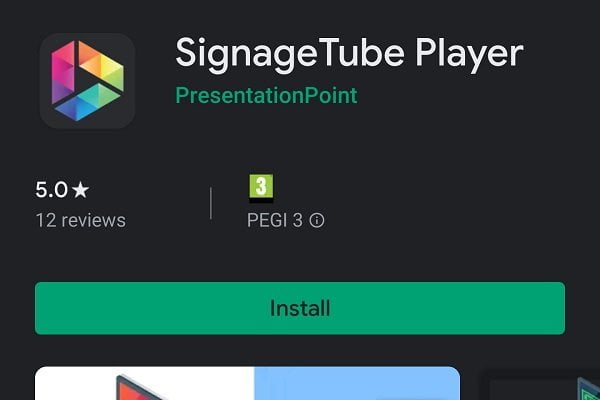
We wrote a manual on how you can use the SignageTube Player app for Android devices from the Google Play Store. Read these step-by-step instructions on how to download and install the SignageTube Player app on Android devices like Android phones, Android tablets or Android-driven smart TVs.
After that you explore how to connect your Android device to your SignageTube cloud environment and start sending digital signage presentations and movies to your Android devices. Setting up an Android phone for the first time, and connect it to your SignageTube account, will not take more than 10 minutes.
Read the installation manual.
Explore SignageTube
- SignageTube Starter – content signage on any TV
- SignageTube Enterprise – live data on your screens
- Digital signage software – how to choose, and what matters
- Templates – 120+ ready-made designs
- Pricing – simple per-screen plans
Keep reading
Ready to try it? Try SignageTube free for 15 days, no credit card. Start your free trial →