 SignageTube
PowerPoint Kiosk Mode: How to Create a Locked-Down Interactive Kiosk (step-by-step)
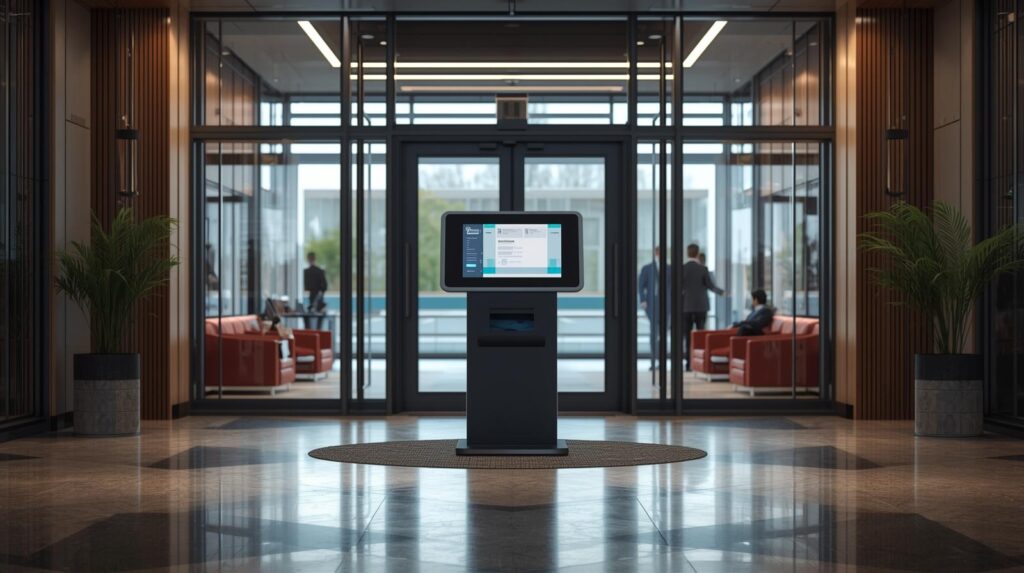
PowerPoint isn’t just for meetings. With the right settings, it can become a touch-friendly, locked-down kiosk that people can use without accidentally skipping slides or breaking your flow.
That’s exactly what PowerPoint kiosk mode is for.
In this guide, you’ll learn:
- what kiosk mode does (and doesn’t do)
- how to enable it step-by-step
- how to build button-based navigation for touch screens
- how to loop safely for unattended playback
- how to publish your kiosk to a TV or kiosk screen (including multi-screen rollouts)
If you want the big-picture basics first, start with our simple explanation of what digital signage is. Then come back here to build an interactive kiosk experience using a tool your team already knows.
What is PowerPoint kiosk mode?
PowerPoint kiosk mode is a slideshow setting called “Browsed at a kiosk (full screen)”. When it’s enabled, PowerPoint ignores normal clicks and most keyboard navigation, so users can’t casually advance slides.
Instead, your presentation must be navigated intentionally—typically using:
- on-screen buttons (action buttons)
- hyperlinks
- timed slide transitions (for self-running loops)
Microsoft’s own community guidance summarizes the core difference clearly: kiosk mode prevents normal keyboard input (except Esc to exit). citeturn0search7
Kiosk mode vs “loop continuously until Esc”
These two options often get mixed up.
- Loop continuously until ‘Esc’: repeats the slideshow forever.
- Browsed at a kiosk (full screen): changes how users can navigate (button-only / controlled navigation).
In many kiosk scenarios, you’ll use both: kiosk mode for controlled navigation, plus looping/timings for unattended operation.
When should you use kiosk mode?
Kiosk mode is a great fit when you need your presentation to be:
- interactive (touch screen, click-to-choose menus)
- unattended (runs all day in a lobby or hallway)
- controlled (users shouldn’t skip ahead or exit the flow)
This overlaps strongly with digital signage workflows—especially if you’re building informational kiosks or interactive wayfinding.
If you’re deploying content to TVs or multiple sites, you’ll also benefit from a system built for remote updates, playlists, and scheduling. That’s where SignageTube Cloud-based digital signage fits in.
Step-by-step: How to enable PowerPoint kiosk mode
These steps work across many PowerPoint versions (labels may vary slightly).
- Open your presentation.
- Go to the Slide Show tab.
- Click Set Up Slide Show.
- Under Show type, select Browsed at a kiosk (full screen).
- Click OK.
Many guides reference the same path: Slide Show → Set Up Slide Show → “Browsed at a kiosk”.
NOTE
In kiosk mode, plan how users will move forward/back (buttons or links). If you don’t, they may get stuck.
Make it touch-friendly: Build navigation with buttons (the right way)
Kiosk mode shines when you create a simple “app-like” flow.
Design your kiosk navigation first (before adding buttons)
Before you add anything in PowerPoint, decide:
- What is the “home” screen?
- What are the main choices (3–8 is a good range)?
- Do you need a Back button on every screen?
- Should users be able to jump between sections?
A clean kiosk experience usually uses:
- Home
- Section screens
- Back and Home buttons consistently placed
Add action buttons / hyperlinks
PowerPoint lets you create clickable shapes and link them to other slides.
If you want a simple tutorial on linking shapes and creating button-style navigation, this overview is helpful. citeturn0search2
Practical build tips:
- Use large buttons (touch needs bigger targets than mouse)
- Keep labels short (“Start”, “Map”, “Services”, “Back”)
- Use consistent placement (same corner for Back/Home)
- Add visual feedback (hover isn’t reliable on touch, so use pressed states only if you test it)
Create an unattended kiosk loop (without weird timing issues)
For unattended kiosks (no one there to click), you’ll typically combine:
- kiosk mode (controlled navigation)
- timings (auto-advance)
- looping (restarts after the last slide)
A commonly recommended setting is “Loop continuously until ‘Esc’”, optionally alongside kiosk mode. citeturn0search0turn0search4
The simplest loop setup
- Slide Show → Set Up Slide Show
- Check Loop continuously until ‘Esc’
- Set slide timings (so slides advance automatically)
Some guides note that kiosk mode won’t behave “self-running” unless you also have timings configured.
Save and launch it like a kiosk (recommended)
If you want your kiosk to start immediately in slideshow mode, save it as a PowerPoint Show:
- Save As → choose .ppsx
That makes it easier for staff to launch without opening edit mode first (and reduces the chance of accidental edits).
A good next step is to protect editing with a password—especially for public-facing kiosks.
Troubleshooting: Common kiosk mode problems (and quick fixes)
“People can still click through slides”
Make sure you actually selected Browsed at a kiosk (full screen) (not “Presented by a speaker”).
“My buttons don’t work”
Kiosk mode relies on action buttons/hyperlinks for navigation. If buttons don’t work:
- verify the button is linked to the correct slide
- ensure the button is on top of other shapes (not hidden behind)
- test in Slide Show mode on the target device
“I can’t exit kiosk mode”
Use Esc to end the show (common kiosk behavior). citeturn0search0turn0search2
“Users can still access toolbars / UI”
If you control the kiosk PC, you can reduce distractions via PowerPoint options (for example, disabling popup toolbars). Community troubleshooting often points to this direction for locked-down experiences.
How to deploy your PowerPoint kiosk to a TV or multiple screens
Once your PowerPoint kiosk is ready, you have a few paths:
Option 1: Run the kiosk locally on a dedicated kiosk PC
This is common for touch kiosks where the computer is physically attached.
Option 2: Convert your kiosk experience into digital signage content
If your goal is distribution—one screen today, many screens tomorrow—consider a signage workflow that supports remote updates.
With SignageTube, teams commonly start with presentation-based content and scale into scheduled playlists and multi-location control:
- build your content in PowerPoint
- upload it and schedule it
- manage playback remotely
Explore:
- SignageTube Cloud (how it works + scheduling + monitoring)
- SignageTube downloads (player apps for platforms)
- SignageTube shop (TV/player guidance)
If your kiosk is touch-driven and built in PowerPoint today, you can still evolve toward a broader signage network later.
Kiosk mode checklist (copy/paste)
Before you deploy, confirm:
- Kiosk mode is enabled (Browsed at a kiosk)
- Home/Back navigation exists on every relevant slide
- Buttons are large enough for touch
- The show exits cleanly with Esc
- If unattended: timings are set + looping is enabled
- The kiosk launches as .ppsx
- You tested on the actual screen size and viewing distance
Related reading on SignageTube
If your kiosk is part of a bigger screen strategy, these help connect the dots:
- Learn the fundamentals: what digital signage is
- Build interactive kiosks: how to set up touch screen kiosks using PowerPoints
- Use live screens: real-time digital signage: live data, feeds, and updates
For everything else on getting PowerPoint onto screens reliably, see the complete PowerPoint digital signage guide.
- SignageTube Cloud – cloud-managed signage on any TV
- SignageTube Live – real-time data on your screens
- Digital signage software – how to choose, and what matters
- Templates – 120+ ready-made designs
- Pricing – simple per-screen plans