 SignageTube
What Do You Need for SignageTube?
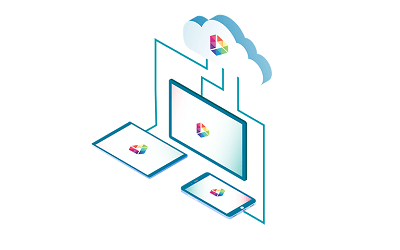
Let’s describe what you would need when you want to set up digital signage with SignageTube.
You have 2 physical workspaces. One at your desk at your home or at work where you design and schedule signage, and secondly a place where you show the digital signage channel. For most of us, both workspaces are probably at the same location. But some customers can have multiple display workspaces because of shops or restaurants at different cities.
Your Design Workspace
At your desk, you have a laptop or desktop that you use to design your signage and schedule your channels.
Designing Digital Signage
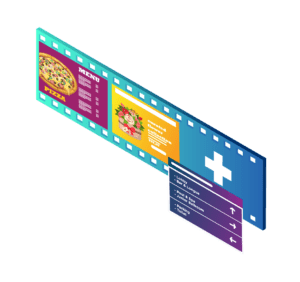 With SignageTube, you can use 3 types of files:
- A ready-made template from our digital signage library.
- A presentation that you have or design from scratch by using Microsoft PowerPoint.
- A video file that you already have, maybe from your supplier, or something that you created yourself in e.g. Adobe After Effects.
The result of your designing is either a presentation or video.
Scheduling Digital Signage
After signing up, you get a SignageTube account and control panel from us. Log on to your control panel to upload your design work. If it was a presentation, then our cloud servers will render your video. Then use the scheduling tool to indicate when and where you want to show this signage video file on your screens.
This is all done from your desktop, at home, at office, or even while you are travelling via a mobile connection.
Display Workspace
At your factory, office or shop, you will want to display your digital signage files on a television or computer screen. That is what we call the display workspace.
You can have a site with multiple screens, or maybe multiple sites with each one or multiple screens.
Let’s describe what you need at a display workspace.
A Screen
 No digital signage without a screen. Use a computer screen or television screen to output your digital signage media. Screens and televisions come in various sizes. Keep in mind the location. Large areas ask for large screens. Corridors ask for smaller screens. Typically for viewing and risks, a digital signage screen is placed high so that everyone can see and nobody can touch.
Optionally you can also use a tablet (e.g. Surface tablet) for smaller implementations. Think about a tablet hanging next to the door of a conference room.
A Computing Device
Use a small form factor computer or a normal desktop to connect to your display (when not using a tablet as screen). Currently SignageTube works with Windows computers and Android devices only. iOS will be supported in the future.
When you use a Smart TV then you already have Android build-in. No external computing device is needed here. Same for tablets. Download the SignageTube Player app from Google Play.
SignageTube App
 On your computer, being a normal computer, a computing stick, or a tablet, you have to install the official SignageTube player application. This application will make a connection to your SignageTube account and listen to what you have scheduled.
Note that all scheduled SignageTube files are downloaded as local files on the computer and are started from there. That has the advantage that your screen will continue to play the files, even when there is no internet.
Conclusion
That is what you need to run your SignageTube environment. Once this is set up correctly, you can manage all your signage screens from your sofa.
- SignageTube Starter – content signage on any TV
- SignageTube Enterprise – live data on your screens
- Digital signage software – how to choose, and what matters
- Templates – 120+ ready-made designs
- Pricing – simple per-screen plans