 SignageTube
How to Use a TV for Advertising: A Guide on Using a TV Stick
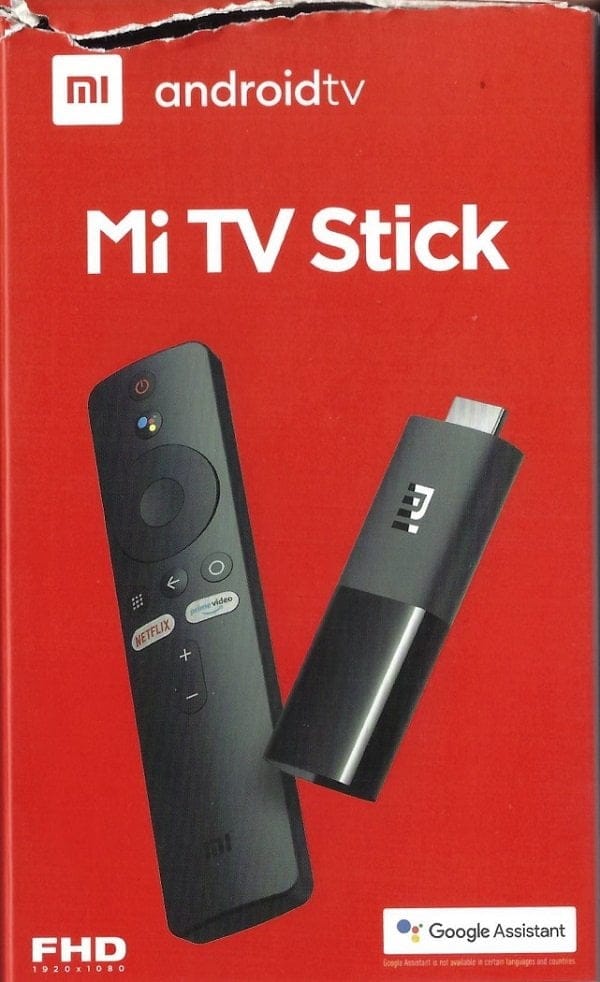
A TV stick is one of the easiest and most affordable ways to run digital signage on any television. This article explains how SignageTube transforms compact streaming devices into full‑featured advertising players, letting you publish content from the cloud, schedule promotions, and update screens instantly. Discover how a plug‑and‑play setup can help you launch professional advertising displays without expensive hardware or complex installation, making it a cost-effective solution for organizations of all sizes. Digital signage technology turns your TV into a powerful communication tool for advertising and information.
AndroidTV** is an Android-driven operating system with devices that are ideal for your digital signage content on television screens. Why? There are a few advantages for this:**
-
Other operating systems like Windows and MacOS are great operating systems, but they are overkill since they have too many features on board that we don’t need. Here for our digital signage, we only need to show presentations and movies on the screen. More like a movie player or picture frame. The AndroidTV operating system is a mature operating system but stripped to only the basics that we need.
-
Cheap hardware. You can find AndroidTV hardware solutions for $50 or €50 on the market. Small, compact, no rotating or moving parts. Most of them just need power. You connect to the internet by using WIFI mostly.
-
Thru HDMI this AndroidTV television stick can be connected to any television younger than let’s say 15 or 20 years. Most TVs support HDMI, making them suitable for digital signage technology, but always follow security best practices such as securing USB ports and ensuring data security.
In this article we are going to unpack the Mi TV stick and connect it to a television. And then use our SignageTube player app on there.
Unpack the box and you will find:
-
TV Stick with AndroidTV operating system
-
Power cable
-
HDMI extension cable (good if you can’t plug it in directly)
-
Remote control (batteries are not included)
-
Note: Some smart TVs have a built-in media player, while others, including non smart TVs and regular TVs, require an external media player or player device for digital signage.
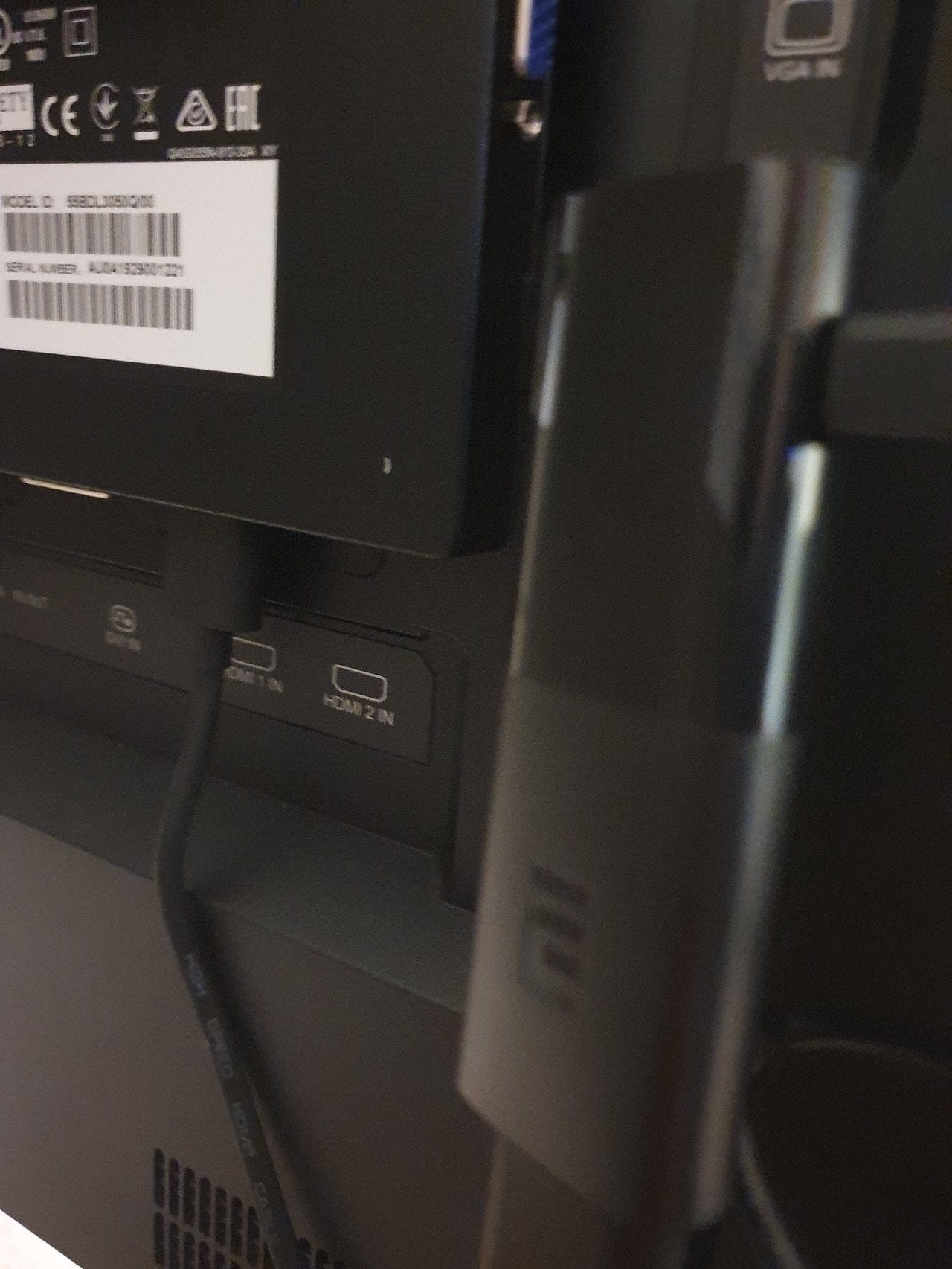
Connect the TV Stick to your electricity network, and connect the device to your television via the TV’s HDMI port. HDMI stands for High-Definition Multimedia Interface and is the current standard for connecting devices to displays and televisions like VGA was before.
Connect the TV Stick to your electricity network, and connect the device to your television via the TV’s HDMI port. HDMI stands for High-Definition Multimedia Interface and is the current standard for connecting devices to displays and televisions like VGA was before.
We are now going to set up this Android device. The initial setup involves selecting your language and region, connecting to WiFi, logging in, pairing devices, and preparing the system for content management. There are many steps involved but it is not difficult at all. Follow me.
First of all, we have to select our language and region. Scroll down the list and choose your preferences.
Of course, we have to connect this device to a WIFI network. We want to connect to the internet so that we can connect to the SignageTube network. Select the WIFI network that you want to use for this and enter the password (when needed).
Now complete the installation of this TV stick and log on with your Google Account. This is needed because we need to install an app from the Google Play Store later on.
This device is set up correctly now. This is the AndroidTV home screen. Click the Play Store button or image.
Click the Play Store button to get to the app store, and you will see the home page.
Go to the search open and type in SignageTube.
Open the app that matches SignageTube Player.
Give it a few moments to install the app on this device.
Finally, it is ready to be used.
Click to open the app now and it will show you a long number or code on your screen. This is called your SignageTube connection ID. See it as a sort of license plate number to uniquely identify your television screen. Your control panel needs to store this number before you can send presentations and movies to this screen.
The player will detect that this connection ID was added to your control panel when it starts playing the SignageTube intro movie.
Now use your SignageTube control panel on your laptop or desktop and upload a presentation for this AndroidTV device and television screen. The SignageTube app acts as a digital signage media player, enabling you to display content such as dynamic and interactive content, static content, and digital signs. You can tailor your display content to maximize engagement and foot traffic. A few moments later, your presentation will be running on your television screen.
That is it! You have successfully installed and configured your first AndroidTV stick. Send out your promotions, messages, products, and other info to your screens now. The online dashboard (one online dashboard) allows for remote management of multiple TVs, video walls, commercial displays, and digital displays, making it easy to control and schedule content across all your locations.
The final customization that you can do is to give the app a more prominent position to find and start the app. You can add the app to the Apps channel as you can see in the picture below.
Another great option is to use a tool called ‘Launch on boot’. With that tool, you can instruct the TV stick to launch our SignageTube Player app when the stick starts. For a fully hands-off setup, you can configure your digital signage to launch automatically on AndroidTV. Turn on the television. Boot the TV stick and one minute later, your player app is playing your digital signage content without user interaction.
When considering compatibility, android smart tv, fire tvs, and lg webos TVs may have different requirements for digital signage. Most smart TVs are suitable, but some non smart TVs and regular TVs will need an external device. Placing advertising on television screens with digital signage is a cost-effective and flexible way to leverage digital signage technology for advertising, and with proper data security and physical security measures like securing USB ports, you can ensure reliable and safe operation.
Introduction to Digital Signage
Digital signage has revolutionized the way organizations communicate with their audiences, transforming traditional static displays into dynamic, engaging experiences. At its core, digital signage refers to the use of electronic screens—such as TVs, monitors, or dedicated digital signage displays—to present information, advertisements, or entertainment content. This technology is now widely adopted across retail stores, corporate offices, schools, and hospitality venues, thanks to its flexibility and impact.
A complete digital signage solution typically consists of three main components: the digital signage display, a media player, and digital signage software. The display is the visual interface, ranging from consumer-grade TVs to robust commercial digital signage screens. The media player—often a compact device like a TV stick or an external digital signage player—serves as the engine that drives content to the screen. The most critical element, however, is the digital signage software. This software acts as the control center, enabling users to create, schedule, and manage digital signage content remotely, often through a cloud-based platform. With the right digital signage software, organizations can easily update displays, tailor messages to specific audiences, and monitor performance from anywhere.
When selecting a digital signage solution, it’s important to consider the type of content you want to display, your target audience, and the environment in which the signage will be used. Reviewing multiple features in a digital signage player before buying will help you match capabilities with your needs. Whether you’re showcasing promotional videos, real-time social media feeds, or interactive content, the right combination of hardware and software ensures your digital signage system delivers maximum impact with minimal effort.
Choosing the Right Hardware
Selecting the appropriate hardware is a crucial step in deploying an effective digital signage system. There are a variety of options available, each with its own advantages and considerations. Many organizations start with smart TVs, such as Samsung Smart TVs or LG Smart TVs, which offer a straightforward and budget-friendly entry point for digital signage. These consumer TVs are widely available and easy to set up, making them suitable for small businesses or locations with moderate usage.
However, for commercial environments that demand continuous operation and higher performance, commercial digital signage screens are the preferred choice. These displays are engineered for 24/7 use, offering superior brightness, enhanced durability, and advanced connectivity options. They also come equipped with features like extended warranties, robust security, and compatibility with a wider range of digital signage software.
To transform a regular TV into a digital signage display, external digital signage players such as the Amazon Fire Stick can be connected via the TV’s HDMI port. These compact devices run digital signage software and are ideal for retrofitting existing screens or deploying signage across multiple locations, and you can follow a step-by-step guide on installing SignageTube Cloud APK on an Amazon Fire TV Stick to get started. When evaluating hardware, it’s essential to review the technical specifications, including the operating system, available HDMI ports, and network connectivity. Ensuring compatibility between your chosen digital signage software and hardware will help you achieve a seamless, reliable digital signage experience.
Setting Up Digital Signage
Deploying a digital signage system involves a few straightforward steps that can be completed with minimal technical expertise. The process begins with the hardware setup: connect your digital signage display—whether it’s a smart TV, commercial screen, or regular TV—to a media player or external device, such as a TV stick or PC. Most modern TVs and digital signage screens offer multiple HDMI ports, making it easy to integrate external devices.
Once the hardware is in place, the next step is to install the digital signage software. This can be done directly on the display if it supports app installations, or on the connected media player. It’s important to ensure that the software is compatible with the operating system of your device, whether it’s Android TV, webOS, or another platform.
With the software installed, you can begin uploading content to your digital signage system. Digital signage software typically supports a wide range of content types, including static images, videos, social media feeds, and interactive content. If you’re unsure about the next steps, a collection of digital signage tutorials for SignageTube can walk you through setup and configuration. Advanced scheduling capabilities allow you to set specific times for content playback, ensuring your messages reach the right audience at the right moment. By leveraging these features, you can create a dynamic and engaging digital signage display that adapts to your business needs.
Content Creation and Management
The success of any digital signage deployment hinges on the quality and relevance of its content. Effective content creation and management are made possible by robust digital signage software, which often includes a comprehensive content management system (CMS). A CMS provides users with intuitive tools—such as drag-and-drop editors, customizable templates, and playlist management—to design and organize digital signage content with ease, including handling PowerPoint presentations and native video uploads in SignageTube Cloud.
With a CMS, users can upload a variety of media, from static images and videos to dynamic social media feeds and interactive content. Scheduling capabilities allow for precise control over when and where content appears, making it easy to tailor messages for different audiences or times of day, for example when displaying company announcements on office TVs to improve internal communication. Many digital signage solutions also support advanced features like data analytics, integration with other devices, and proof of play logging, providing valuable insights into audience engagement and content performance.
When designing content, it’s important to consider display settings such as resolution, aspect ratio, and orientation. For example, portrait mode is ideal for menu boards, directories, or schedules that require a vertical layout. By leveraging the full capabilities of your digital signage software and CMS dashboard, you can ensure your digital signage display remains fresh, relevant, and impactful.
Connectivity and Security
Reliable connectivity and robust security are foundational to any successful digital signage deployment. A stable internet connection is essential for updating content, managing screens remotely, and ensuring seamless operation of your digital signage software. Most modern TVs, including smart TVs, are equipped with Wi-Fi capabilities, allowing for easy integration into your network infrastructure.
Security is equally important, especially when managing multiple digital signage displays across different locations. Digital signage software often includes built-in security features such as encryption, user authentication, and access controls to safeguard your digital signage system from unauthorized access and data breaches. When using consumer TVs for digital signage, it’s important to be aware of potential risks like screen burn-in and the limited durability of these displays under continuous use. In contrast, commercial digital signage screens are specifically designed for extended periods of operation and offer enhanced security and reliability.
By prioritizing a stable internet connection and leveraging the security features of your digital signage software, you can protect your investment and ensure your digital signage displays deliver consistent, high-quality content to your audience.
- SignageTube Cloud – cloud-managed signage on any TV
- SignageTube Live – real-time data on your screens
- Digital signage software – how to choose, and what matters
- Templates – 120+ ready-made designs
- Pricing – simple per-screen plans