 SignageTube
How to Assign Playlists to Multiple Screens
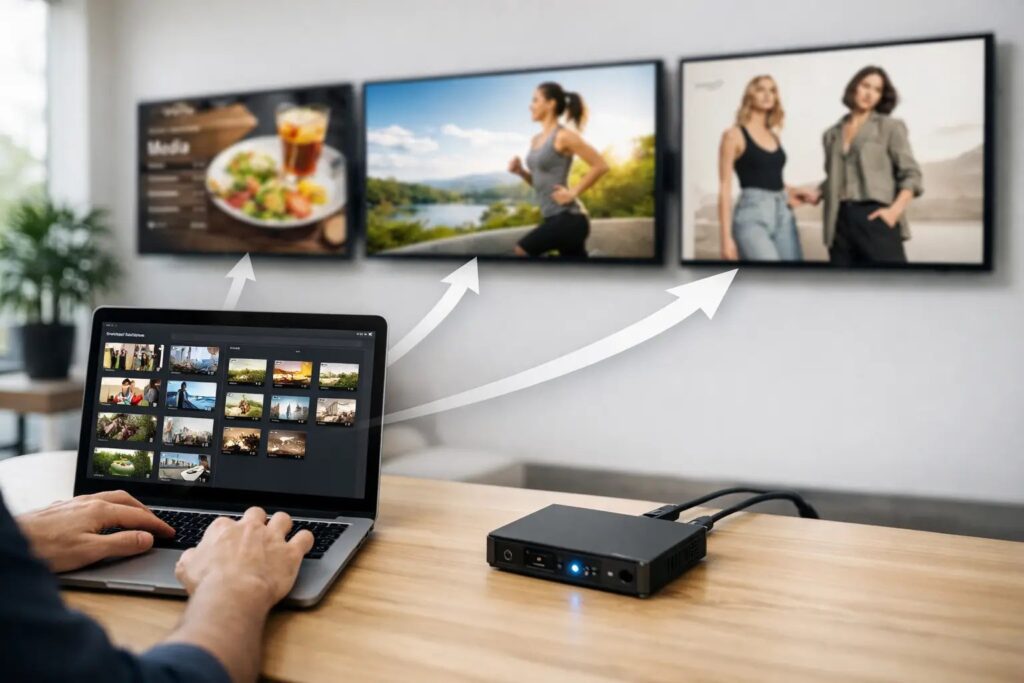
When a store manager updates one screen by hand, it feels manageable. When that same message needs to appear across 12 lobbies, break rooms, waiting areas, and sales floors, the process starts breaking down fast. The ability to assign playlists to multiple screens is what turns digital signage from a collection of displays into a system your team can actually run.
For most organizations, the challenge is not building one good-looking playlist. It is keeping the right content on the right screens without creating extra work for marketing, operations, or IT. That is where a centralized playlist strategy matters. Instead of treating every screen as its own project, you organize content once, map it to groups of screens, and control updates from a single place.
Why assign playlists to multiple screens at all?
The biggest benefit is speed, but speed is only part of the story. Assigning one playlist to many screens helps keep messaging consistent across locations and departments. If a promotion changes, a policy update needs to go live, or a seasonal campaign starts Monday morning, you do not want staff making edits one screen at a time.
There is also a governance advantage. Multi-screen assignment reduces the risk of outdated slides, off-brand visuals, or incorrect scheduling. For organizations in healthcare, education, hospitality, retail, and corporate communications, consistency is not just a branding issue. It can affect customer experience, employee awareness, and day-to-day operations.
That said, the right setup depends on how similar your screens really are. If every location runs identical messaging, one playlist may cover a large group. If certain screens need local content, emergency notices, or department-specific announcements, you need a structure that supports both shared and targeted playback.
How to assign playlists to multiple screens without creating chaos
The easiest way to lose control of a signage network is to organize it around individual devices. That works for five screens. It gets messy at 50.
A better approach is to organize screens by purpose first. For example, you might group displays by location, audience, or content type. A retail brand may have separate groups for storefront displays, checkout screens, and staff areas. A healthcare system may split screens between waiting rooms, nurse stations, cafeterias, and administrative offices.
Once those groups exist, playlists become easier to manage. You are no longer asking, “What should Screen 27 play?” You are asking, “What should all employee communication screens play this week?” That shift is where scale starts to feel practical instead of technical.
Start with shared content layers
Most organizations have content that should appear broadly across the network. Brand campaigns, company updates, event reminders, safety messaging, and recurring promotions often belong in that category. Build playlists around these shared content layers first.
Then add variation only where it has a clear operational purpose. This matters because too much customization creates maintenance overhead. Teams often assume every location needs its own playlist, when in reality 80 percent of the content is the same. If you standardize that shared 80 percent, your team spends less time rebuilding material and more time keeping communication current.
Use screen groups, not one-off assignments
If your platform lets you assign playlists to multiple screens through groups, use that method whenever possible. Groups make future updates faster because changes happen at the group level. Add a new display to the lobby group, and it follows the same content rules as the rest. Remove a device from a campaign, and you do not have to rebuild the schedule from scratch.
This is also where simplicity matters. Teams should be able to upload content, build a playlist, and push it to a screen group without relying on specialized design software or a complicated deployment process. A PowerPoint-based workflow is useful here because it lowers the barrier for everyday users who need to keep screens fresh without waiting on a creative team.
Assign playlists to multiple screens with a scheduling plan
A playlist assignment is only half the job. The other half is deciding when that playlist should run.
Scheduling becomes especially important when screens serve more than one purpose. A corporate office might run visitor messaging during the day, employee communications in break areas throughout the afternoon, and event content in the evening. A hotel may rotate conference signage, dining promotions, and welcome messaging based on the time of day.
Without a schedule, teams often overwrite content manually. That leads to mistakes, last-minute requests, and screens that show the wrong message at the wrong time.
Build around repeating patterns
Most signage environments have predictable rhythms. Weekday menus differ from weekend menus. School announcements follow bell schedules. Retail campaigns change by season, but not every hour. If you identify those patterns early, you can assign playlists once and let the schedule do the heavy lifting.
This is where centralized management saves time. Instead of asking local teams to remember content swaps, administrators can schedule playlists across multiple screens in advance. The result is less manual intervention and more dependable playback.
Leave room for exceptions
Even the best schedule needs flexibility. Emergency notices, last-minute promotions, event changes, and location-specific updates still happen. Your setup should allow a screen or screen group to temporarily override normal playback when needed.
That does not mean your structure failed. It means you designed for real operations. The goal is not rigid control. It is controlled flexibility.
When one playlist should not go everywhere
It is tempting to push the same content to every display because it is easy. Sometimes that is the right move. Often it is not.
Customer-facing screens and employee-facing screens usually need different priorities. A waiting room display may focus on service information and wayfinding, while a staff lounge screen highlights training reminders, HR updates, and operational notices. Even within one building, the audience changes from screen to screen.
There is also a pacing issue. A playlist that feels fine on a large lobby display may be too long for a point-of-sale screen where dwell time is short. Assigning playlists to multiple screens works best when the grouped screens share a similar audience, purpose, and viewing context.
Consider location-level control
Multi-location organizations often need a hybrid model. Headquarters may own core brand content, while local teams add regional messages or site-specific announcements. That balance keeps branding consistent without ignoring local needs.
In practice, this usually means creating a master playlist structure with room for local inserts. Corporate content stays standardized, but each location can slot in its own slides where appropriate. That model works especially well for franchises, school districts, healthcare systems, and distributed office networks.
Cloud or on-premises? It depends on how you operate
If you need to assign playlists to multiple screens across many locations, cloud-based management is usually the most direct path. It gives teams remote control, faster updates, and less dependence on on-site intervention. For marketing and communications teams, that often means shorter turnaround times and easier campaign management.
On-premises deployment can make more sense when your organization requires tighter local control, has strict network policies, or depends on real-time internal data sources. In those environments, the value is not just screen management. It is the ability to keep automated, data-driven content running within your own infrastructure.
The right choice comes down to governance, connectivity, and how fast content needs to change. Many organizations are not choosing between convenience and control. They are choosing the model that best fits their operating environment.
What a practical workflow looks like
A workable multi-screen process should feel straightforward. Create content in a familiar tool, turn that content into playlists, assign those playlists to the right screen groups, and schedule playback based on business needs. When content changes, update it once and push it everywhere it belongs.
That is one reason SignageTube focuses on a PowerPoint-first approach. It gives non-technical teams a faster path from content creation to screen deployment while still supporting centralized control across a wider network. For organizations that need to move quickly without building a complicated signage process, that balance matters.
The real win is not just publishing faster. It is reducing friction across departments. Marketing can control brand consistency. Operations can keep messages current. IT can maintain governance without becoming the bottleneck.
If your team is still updating screens one by one, the problem is not effort. It is structure. Once playlists are organized around screen groups, schedules, and real audience needs, managing many displays starts to feel a lot more like routine communication – and a lot less like constant cleanup.
- SignageTube Starter – content signage on any TV
- SignageTube Enterprise – live data on your screens
- Digital signage software – how to choose, and what matters
- Templates – 120+ ready-made designs
- Pricing – simple per-screen plans