 SignageTube
How to Publish PowerPoint to TV Screens
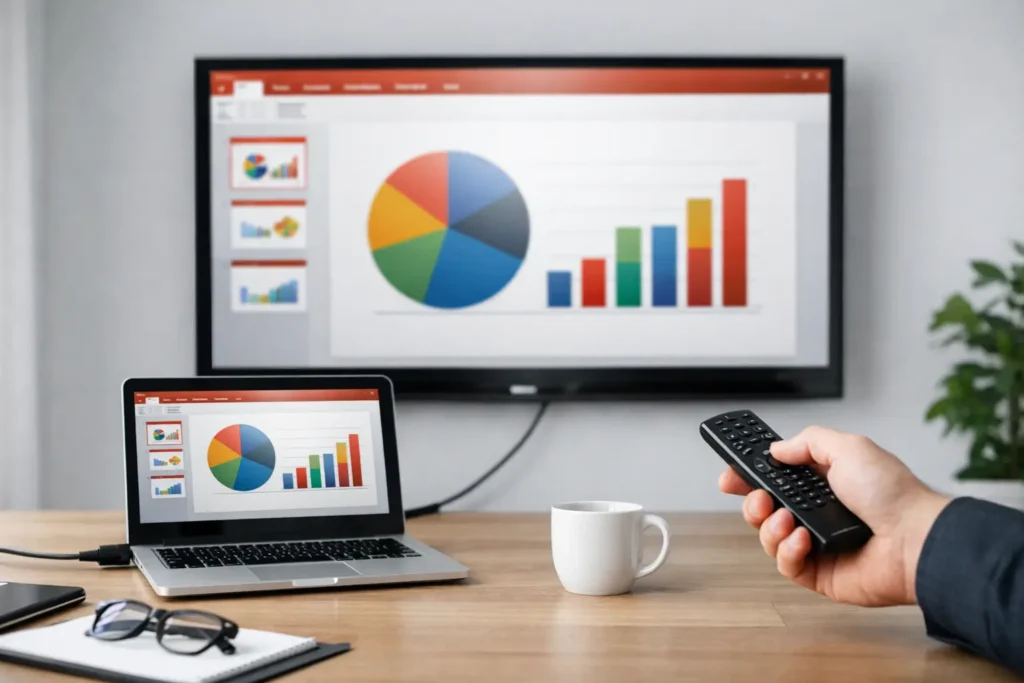
If your team is still emailing slide decks, copying files to USB drives, or manually updating lobby screens one by one, the problem usually is not content. It is distribution. Knowing how to publish PowerPoint to TV screens turns a familiar presentation tool into a practical communication channel for promotions, internal updates, wayfinding, menus, and operational messaging.
For many organizations, PowerPoint is already the fastest way to create screen content. The challenge is getting those slides onto one screen or hundreds of screens reliably, in the right format, on the right schedule, and without adding a heavy technical process. That is where the publishing method matters.
How to publish PowerPoint to TV without extra complexity
At the simplest level, publishing PowerPoint to a TV means taking presentation content and displaying it on a television screen in a way that is readable, stable, and easy to maintain. There are a few ways to do that, and the best option depends on how many screens you manage, how often content changes, and whether your team needs centralized control.
If you only have one screen in one location, you can connect a laptop directly to the TV with HDMI and run the presentation in slideshow mode. This works, but it is usually a short-term fix. Someone has to keep the laptop powered on, prevent interruptions, and update files manually.
A second option is using a USB drive if the TV supports media playback. In that case, you export the PowerPoint as images or video, copy the file to USB, and plug it into the TV. This removes the laptop, but updates are still manual. It is fine for static content that rarely changes, but not ideal for organizations with multiple departments, locations, or rotating schedules.
The more scalable option is digital signage software. This lets you publish PowerPoint content to connected TV screens through a centralized platform, schedule playback, and manage updates remotely. For teams that already build content in PowerPoint, this approach keeps creation simple while making deployment much easier.
Start with the right PowerPoint format
Before you publish anything, make sure the presentation is designed for the screen it will appear on. A TV in a break room behaves differently than a conference room display or a retail menu board.
Set the slide size to widescreen 16:9 unless you know the screen uses a portrait layout or a custom resolution. This helps avoid black bars, stretched visuals, or cropped content. Keep text large enough to read from the intended viewing distance. On-screen content should be scanned quickly, not read like a report.
Animations and transitions deserve a quick reality check. Some playback methods handle them well, while others require slides to be flattened into images or video. If motion is central to the message, test it before rolling it out across multiple displays. If reliability matters more than animation, simpler slides often perform better.
It also helps to treat PowerPoint as signage, not as a meeting presentation. That means fewer words, clearer hierarchy, stronger contrast, and slides that can stand on their own without a presenter.
Publishing PowerPoint to a TV with a direct connection
For a one-screen setup, direct connection is the fastest path. Connect a PC or laptop to the TV using HDMI, set the TV as an extended or mirrored display, and launch the slideshow in full-screen mode.
This approach is easy to understand and requires very little setup. It is often used in reception areas, conference spaces, and temporary event environments. The trade-off is reliability and control. Operating system notifications, sleep settings, pop-ups, and accidental keyboard input can interrupt playback. If the content changes often, someone has to update it locally every time.
Direct connection works best when the screen is nearby, ownership is clear, and the message is not mission-critical.
Publishing PowerPoint to a TV with USB
If the TV has built-in USB playback, you can export your PowerPoint as a video or as a set of images, place the files on a USB drive, and use the TV’s media player to loop the content.
This method is simple and low-maintenance for basic playback. It is useful when network access is limited or when the content will stay the same for long periods. The downside is that USB publishing is still manual. Every change requires touching the screen physically, and scheduling is limited by the TV’s built-in features.
There is also less control over consistency. If you manage ten screens across ten sites, USB updates create ten separate jobs. That is where this method starts to slow teams down.
How to publish PowerPoint to TV screens at scale
When you need to manage multiple screens, recurring updates, or different content by location, digital signage software is the better fit. Instead of treating each TV as a separate project, you manage them from one place.
The usual workflow is straightforward. Create the content in PowerPoint, upload it to your signage platform, assign it to one or more screens, and schedule when it should play. From there, the media player connected to each TV retrieves the content and displays it automatically.
This model solves several common operational problems at once. Marketing can update promotions without visiting each site. Internal communications can rotate announcements by daypart. IT can maintain governance without becoming the bottleneck for every content request.
For organizations that want to keep using familiar tools, a PowerPoint-first workflow reduces training time. Teams do not need to learn advanced design software just to update a menu board, lobby display, or employee communications screen.
Cloud vs on-premises publishing
This is one of the key decisions behind any serious screen deployment.
Cloud-based publishing is usually the easiest to roll out. Content is uploaded and managed remotely, and screens receive updates over the network. This is a strong fit for distributed organizations that want centralized control across offices, clinics, schools, stores, or hospitality locations. It keeps updates fast and lowers the amount of hands-on maintenance required at each site.
On-premises publishing makes more sense when your environment requires tighter local control, specific network policies, or real-time automated updates from internal systems. In those cases, screen content can still be driven by PowerPoint-based workflows, but deployment happens within your own infrastructure.
Neither model is universally better. It depends on your IT requirements, security expectations, and how dynamic your content needs to be.
Scheduling matters more than most teams expect
A lot of screen projects start with playback and only later run into scheduling problems. A TV that always shows the same presentation is not hard to set up. A network of screens that changes content by time of day, department, season, or location is a different job.
That is why publishing should include scheduling from the start. You may want breakfast promotions in the morning, recruiting messages in the afternoon, and event content in the evening. You may also need certain screens to show one playlist in public areas and another in staff-only spaces.
Without centralized scheduling, those changes turn into manual work. With scheduling built in, PowerPoint becomes a repeatable content source rather than a file that someone has to remember to replace.
Common issues when publishing PowerPoint to TV
Most playback issues come down to formatting, screen setup, or workflow mismatch.
If slides look blurry, the export resolution may be too low or the original slide dimensions may not match the display. If content is cut off, check aspect ratio settings on both the PowerPoint file and the TV. If playback is unreliable, the issue may not be the slides at all. It could be a sleep setting on a connected PC, a weak local process for updates, or a method that was fine for one screen but not for twenty.
Teams also run into governance issues. When multiple people can edit and publish content, version control matters. A centralized platform helps by giving teams a defined process for approvals, scheduling, and screen assignments.
The practical workflow most organizations need
For everyday business use, the best workflow is usually the one that balances familiarity with control. Build slides in PowerPoint. Use templates so content stays on brand. Publish through a platform that can push updates to TVs remotely. Then schedule content by screen group, location, or date range.
That keeps content creation accessible for non-technical users while giving operations and IT the structure they need. It also reduces the hidden cost of screen management, which is rarely the first setup. It is the weekly updates afterward.
This is exactly why many organizations move from ad hoc TV playback to a purpose-built signage approach. The screen is only the endpoint. The real value is having a repeatable system behind it.
If your team already knows PowerPoint, you are closer than you think. The smartest next step is not replacing that workflow. It is giving it a better way to reach every screen that matters.