 SignageTube
How to Deploy Screens Across Campuses
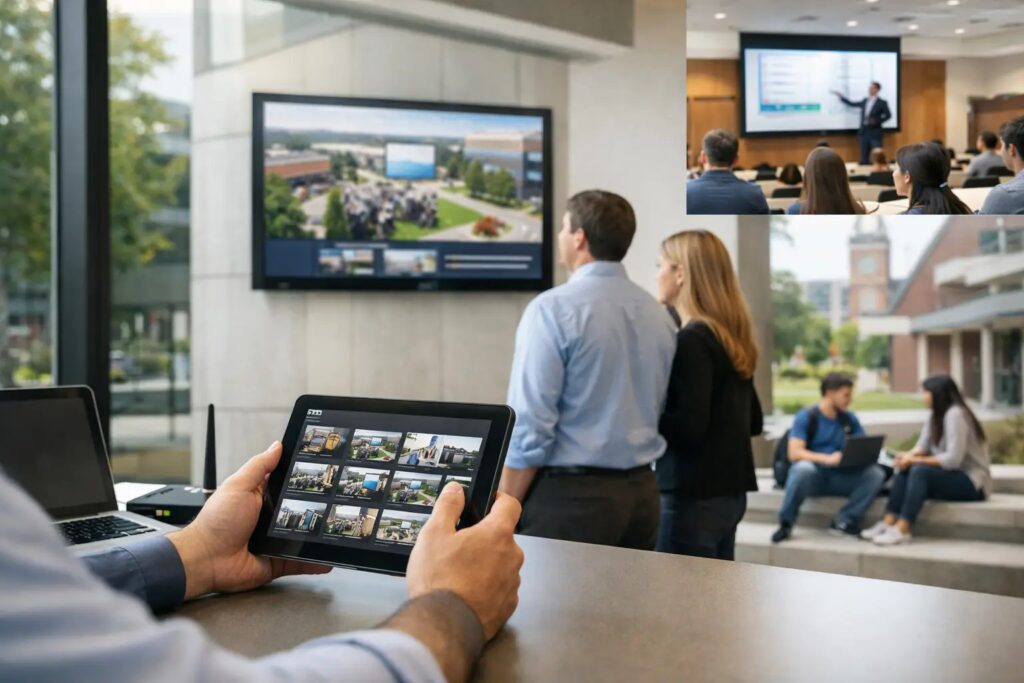
A campus screen network usually starts the same way: one display in the lobby, another outside the cafeteria, then a request from admissions, facilities, student services, or HR to add “just a few more.” Before long, you are managing dozens of endpoints across multiple buildings with different audiences, different schedules, and very little time. That is exactly why knowing how to deploy screens across campuses matters early – not after the network becomes hard to control.
The good news is that campus digital signage does not need to become a technical project that drags on for months. The most effective deployments are built around simple content creation, centralized control, and a rollout plan that reflects how campuses actually operate.
Start with the campus model, not the screens
If you want to deploy screens well, begin by mapping communication needs across the campus. A student union display serves a different purpose than a nursing school hallway screen or an employee break room monitor. Some screens are public-facing and focused on events, wayfinding, and announcements. Others are internal and better suited for policy reminders, department updates, emergency messaging, or operational notices.
That difference matters because it affects everything that follows – who owns the content, how often it changes, and whether updates need to happen instantly or on a schedule. A campus with one communications team may prefer highly standardized playlists. A university with distributed departments may need local control within clear brand rules. A corporate training campus may prioritize consistency above all else.
This is where many deployments get off track. Teams choose hardware first, then try to force every building into the same workflow. In practice, campuses work better when the deployment model reflects the organization chart and the communication flow.
How to deploy screens across campuses without creating chaos
The fastest path is usually a hub-and-spoke setup. Central teams define templates, governance, and network-wide content. Local departments or building managers handle a limited set of approved updates for their own screens. That gives you consistency without turning every content request into a bottleneck.
For most campuses, this means creating screen groups by location, function, or audience. You might group displays by residence halls, academic buildings, common areas, athletics, or administrative offices. You can also group by message type, such as campus-wide alerts, event promotion, donor recognition, dining menus, or employee communications.
Once groups are defined, scheduling becomes far easier. Instead of updating individual screens one by one, you publish to a category of displays. That saves time, reduces mistakes, and makes it easier to keep messaging aligned across multiple buildings.
Build around familiar content workflows
A campus rollout often slows down because content production becomes the hidden problem. Screens are installed, but teams do not have a practical way to keep them updated. If every slide requires specialized design software or a trained operator, the network quickly becomes stale.
That is why familiar workflows matter. When staff can create content in PowerPoint, reuse branded templates, and publish without a steep learning curve, adoption improves across departments. Communications teams stay in control of quality, but everyday users can still contribute timely updates.
This is especially useful on campuses where content comes from many sources. Academic departments, student affairs, facilities, and executive offices may all need screen time. A simple creation model reduces training overhead and helps the network stay active long after launch.
Choose the right deployment model for your IT environment
When planning how to deploy screens across campuses, one of the biggest decisions is where management should live. For some organizations, cloud-based control is the obvious fit. It allows remote scheduling, centralized oversight, and easier support across multiple buildings or sites. If your team needs to manage content from anywhere and push updates quickly to many displays, cloud deployment is usually the most efficient option.
But there are cases where on-premises control makes more sense. Some campuses need tighter network control, stricter data policies, or real-time automated updates from internal systems. In those environments, an on-premises setup can support live content feeds and local governance without relying on external connectivity.
This is not just an IT preference. It affects how operations, communications, and facilities teams work every day. Cloud models tend to favor speed and remote convenience. On-premises models tend to favor internal control and deeper integration with local systems. The right choice depends on your policies, internal resources, and how dynamic your content needs to be.
Match content types to the deployment option
Static and scheduled messages such as event calendars, welcome screens, announcements, and promotional slides work well in either environment. The difference becomes clearer when content needs to change automatically. If your screens need live room schedules, queue data, internal dashboards, or other data-driven updates, your deployment approach should support that from the start.
It is much easier to account for those needs during planning than to retrofit them later. A simple question helps: are your screens mostly a publishing channel, or are they part of a live operational communication system? Many campuses have both, so flexibility matters.
Standardize the pieces that should not vary
The easiest campus networks to manage are not the ones with the most features. They are the ones with clear standards. Decide early how screen resolutions, naming conventions, user roles, approval workflows, and content durations will work.
Naming sounds minor until you are trying to update 85 screens before a major event. A label like “Building A Lobby East” is more useful than “Samsung 3.” The same goes for permissions. Central teams should be able to manage brand assets and emergency content, while local users should have access only to the screens and templates relevant to them.
Templates are one of the strongest operational tools in a campus deployment. They keep screens visually consistent while letting different teams swap in their own details. Instead of redesigning content from scratch, staff can update a date, event title, room number, or image and publish quickly.
That balance between control and speed is what keeps a campus network useful.
Roll out in phases, not all at once
A campus-wide launch sounds efficient, but in practice it often creates avoidable friction. Start with a pilot in a manageable set of locations, such as one academic building, one common area, and one staff-focused environment. That gives you enough variety to test real workflows without overwhelming your team.
During the pilot, pay attention to what actually slows users down. It may not be the software at all. Often the issues are content ownership, approval timing, unclear scheduling rules, or lack of template discipline. Solving those early makes expansion much smoother.
After the pilot, document the process in plain language. Show users how to create content, where to upload it, how to assign it to the right screen group, and when changes go live. A deployment is easier to scale when the process is simple enough that departments can follow it without calling IT every time.
If you are using SignageTube, this is where a PowerPoint-first workflow can make a real difference. Teams do not need to change how they already build presentations to start publishing polished screen content across multiple campus locations.
Plan for governance before you need it
Campus signage always looks simple from the hallway. Behind the scenes, governance is what keeps it reliable. Decide who can publish campus-wide messages, who approves shared screens, how emergency content overrides standard playlists, and what happens when departments stop maintaining a display.
This is also where lifecycle planning matters. Screens need periodic review. Playlists need cleanup. Old campaigns need to expire automatically. Without governance, digital signage turns into a collection of forgotten monitors showing outdated information.
A good rule is to make the routine easy and the exceptions controlled. Everyday publishing should be quick. High-impact changes should be limited to the right people.
Measure usefulness, not just uptime
A screen that is turned on is not necessarily doing its job. After deployment, look beyond technical status and evaluate whether the network is helping people find information, respond to updates, and stay aligned across locations.
For a campus, that may mean fewer printed notices, faster communication of schedule changes, more consistent event promotion, or better visibility for internal announcements. Different buildings will produce different outcomes, and that is fine. The point is to treat signage as an operational communication channel, not just a set of displays.
The best campus screen deployments are rarely the flashiest. They are the ones that make publishing easy, keep control centralized where it needs to be, and give local teams enough flexibility to stay relevant. If you build with that in mind, your network can expand across campuses without becoming harder to manage every semester.
Start simple, standardize early, and choose a system your teams will actually use. That is what turns more screens into better communication.
- SignageTube Starter – content signage on any TV
- SignageTube Enterprise – live data on your screens
- Digital signage software – how to choose, and what matters
- Templates – 120+ ready-made designs
- Pricing – simple per-screen plans