
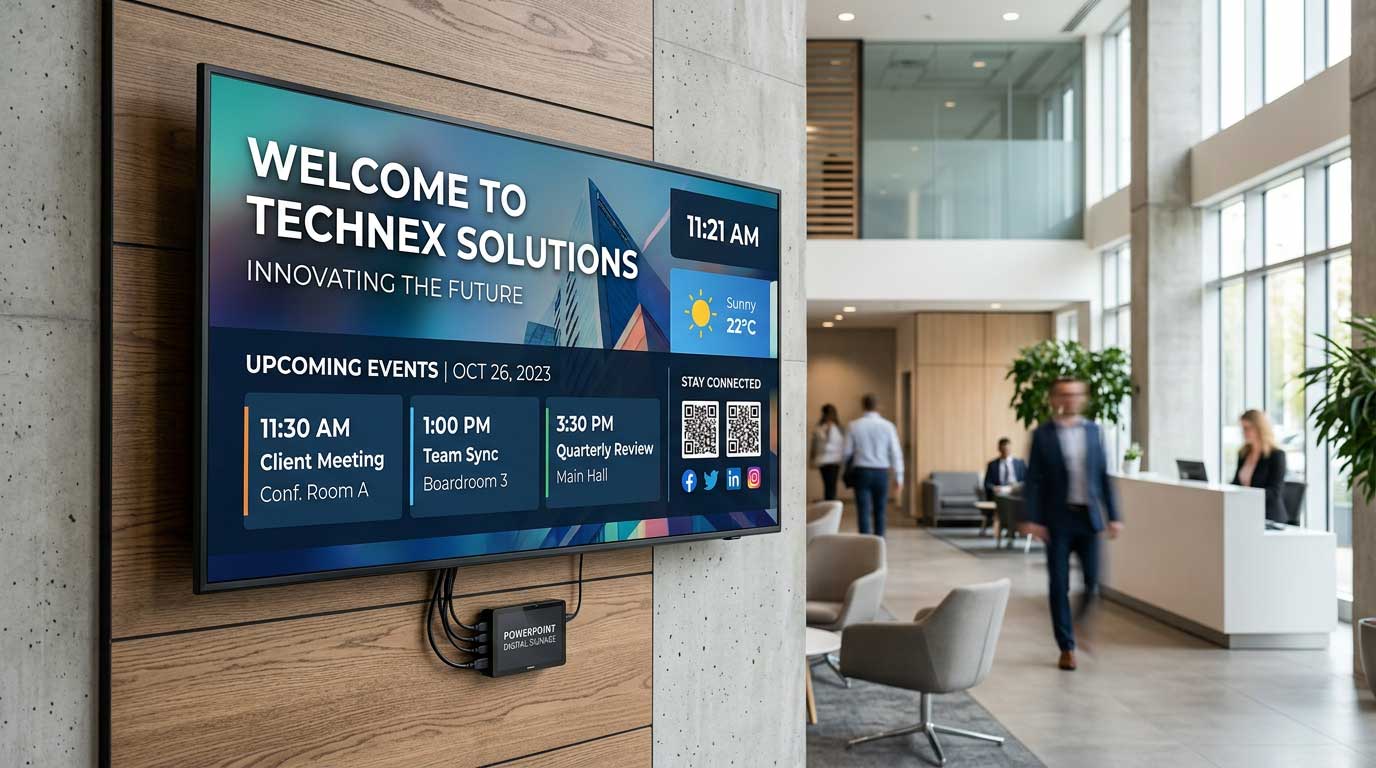
PowerPoint digital signage can be fast, consistent, and scalable. This guide is for business owners, IT managers, and communications teams looking to implement or scale digital signage using PowerPoint. Effective digital signage improves communication, saves time, and ensures brand consistency across locations.
Introduction: Why PowerPoint Digital Signage Matters
Digital signage refers to the use of screens or displays to show informational loops, menus, or announcements. Using PowerPoint for digital signage is an effective, low-cost solution for displaying these types of content on TV screens. PowerPoint is a powerful tool for creating digital signage content due to its templates and user-friendly interface. Its familiar interface makes it easy for most users to create digital signage content without a steep learning curve, allowing organizations to leverage existing skills and resources.
For many organizations, the shortest path to reliable screen communication is digital signage using PowerPoint. Not because PowerPoint is “creative software,” but because it’s already in the building. Most teams can open it, edit a slide, and keep brand standards intact without a new toolchain. Typically, a computer connected to a TV or display is used to run PowerPoint digital signage. The key is pairing that familiar creation step with a system that can schedule, distribute, and control playback across multiple screens.
A store manager needs a price change on six screens by lunch. HR needs an all-hands reminder on every office display for the next two weeks. Facilities wants a lobby screen or TV to show weather, alerts, and a rotating welcome message – without calling IT every time. That’s the real test for digital signage: not whether it can play content, but whether the day-to-day updates are easy enough to happen on time.
Now that you understand what digital signage is and why PowerPoint is a strong choice, let’s explore the foundational design principles that ensure your content looks great on screens.
Designing Slides That Look Good on TVs (and Not Just Laptops)
Creating effective PowerPoint digital signage starts with design. Most signage screens are landscape, bright, and viewed from a distance. PowerPoint defaults can work, but a few adjustments prevent the most common “why is this hard to read?” failures when you use PowerPoint for stunning digital signage.
Set the Right Slide Size
- Set the slide size to match your displays. Many networks standardize on 16:9 at 1920×1080.
- Designing in a different ratio can cause text and images to scale oddly or get cropped when played back.
Design for Glanceability
- A sign is not a brochure. If the message can’t be understood in three to five seconds, it’s too dense.
- Use fewer words, larger type, and one clear callout per slide.
Use Purposeful Motion
- Animations and transitions can help when they’re subtle and consistent.
- Avoid overusing effects; too much motion distracts from the message.
Leverage Templates
- Treat templates as a system, not a one-off.
- A good signage template set includes consistent typography, spacing, and placeholders for common content types—promos, announcements, KPIs, directions, safety, and event schedules.
- If you use custom fonts in your PowerPoint slides, make sure they render correctly on all signage devices to avoid compatibility or display issues.
By following these design principles, your PowerPoint digital signage will be clear, engaging, and effective. Now that you know how to design slides for screens, let’s look at how to implement PowerPoint digital signage operationally.
Why PowerPoint Works So Well for Digital Signage
PowerPoint is built for visual communication, and digital signage is essentially visual communication on a timer. When teams leverage existing PowerPoint skills for digital signage as the content engine, they get speed and consistency without waiting on specialized designers.
It’s also easier to govern. If Marketing owns templates and brand rules, and local teams only swap a headline or date, you get consistent output with minimal risk. Each ‘page’ (slide) in a PowerPoint presentation can be customized for specific messages while maintaining overall brand consistency. Compare that to ad-hoc image files, USB sticks, or “who has the latest PNG?” chaos. PowerPoint keeps the working file editable and trackable.
The trade-off is that PowerPoint alone doesn’t solve distribution and scheduling. A shared drive full of presentations doesn’t tell a lobby screen what to play at 8:00 a.m., and it doesn’t help you confirm that 42 locations updated correctly. That’s where the right signage workflow matters.
Now that we’ve covered why PowerPoint is a strong choice, let’s look at how to implement it operationally.
What “Digital Signage Using PowerPoint” Should Mean Operationally
A practical PowerPoint-first signage approach has three parts: create, publish, and manage, starting with building a PowerPoint presentation for digital signage that’s designed for continuous playback.
Creation
Creation is where PowerPoint shines. Most users are already familiar with the interface, making it easy to create visually appealing slides for digital signage screens.
Publishing
Publishing is where many teams stumble—often needing to convert PowerPoint files into formats like PDF or video for digital signage, as outlined in a complete guide to using PowerPoint for digital signage. Users may need to export presentations to video (such as MP4) or PDF formats to ensure compatibility with signage platforms, as exporting helps preserve animations and transitions. After making changes, it’s common to re-upload or upload the updated PowerPoint files to the signage platform to keep displays current. Many platforms now allow users to simply drop PowerPoint files into the interface for quick updates. Exporting to PDF is also a popular method to ensure presentations display correctly across various signage systems. Managing PowerPoint files efficiently is key to keeping content up to date and consistent.
Management
Management is the long game: getting the right content to the right screens, on the right schedule, with enough oversight that IT and operations can trust it.
When evaluating your workflow, ask a simple question: can a non-technical user update a screen in minutes, while IT still retains control over devices, permissions, and uptime? If the answer is no, you’ll either slow down communication or end up with shadow processes.
With the operational workflow in mind, let’s explore how to build a content cadence that keeps your screens fresh and relevant.
Building a Content Cadence That People Will Actually Maintain
Digital signage fails when it becomes another chore. The easiest way to keep content current is to set a cadence that matches how your organization works and reflects what PowerPoint digital signage is for beginners.
Set Update Intervals
- For retail promotions, update weekly with a mid-week “hot fix” capability.
- For internal comms, use a two-week rolling calendar of messages that rotate and automatically expire.
- For facilities and safety, maintain evergreen slides plus a fast lane for urgent alerts.
It’s important to set expected update intervals for each content type, and if content does not update as expected, check your scheduling settings or network connection to troubleshoot the issue promptly.
Use a “Deck per Purpose” Approach
- Instead of one giant, messy presentation, keep separate decks for lobby branding, employee comms, menu boards, or metrics.
- This reduces edit risk and makes approvals faster.
With a content cadence in place, the next step is to schedule your content so it appears at the right time and place.
Scheduling: The Step That Separates Signage from Screensavers
The minute you have more than a couple screens, manual updates break down. Scheduling turns PowerPoint content into programming and, with real-time digital signage using SignageTube Live, can also keep data-driven content continuously up to date.
Key Scheduling Features
- Dayparting: Different content in the morning vs afternoon, weekdays vs weekends, and location-based variations.
- Start and End Dates: Ensure content doesn’t linger past its relevance.
- Playlists: Rotate multiple PowerPoint items alongside other media if needed.
- Automated Playback: Automate the playback of a PowerPoint slideshow across multiple screens, ensuring presentations run seamlessly and on time.
Governance and Ownership
- Marketing might own brand playlists, HR might own employee announcements, and site leaders might own local promos.
- Scheduling should support that division of ownership without letting anyone accidentally overwrite the entire network.
Cloud Integration
- Some platforms allow you to link PowerPoint files directly from cloud storage like OneDrive or Google Drive.
- This enables automatic updates to your digital signage whenever the original file changes, streamlining content management and reducing manual re-uploading, similar to how SignageTube Cloud handles PowerPoint uploads and live playback.
With scheduling in place, let’s discuss how to manage multiple screens as your network grows.
Managing Multiple Screens Without Turning It Into an IT Project
Scaling signage isn’t about buying more TVs. It’s about keeping control as the network grows by following a 2026 guide to running PowerPoint slides on screens.
Centralized Device Management
- Centralized device management, reliable playback, and clear roles and permissions are essential.
- A dedicated media player or a Windows-based device is often used to run digital signage software, as Windows devices are commonly chosen for their compatibility and reliability.
IT and Operations Concerns
- IT typically cares about uptime, networking, device security, and remote troubleshooting—including features that notify you if a screen goes offline and help restore connectivity.
- Operations cares about “is the right message showing right now?”
- Marketing cares about consistency and speed.
- Microsoft Excel can also be integrated to display live data or metrics on digital signage screens, adding value for data-driven content.
Avoiding Common Scaling Pitfalls
- If your process requires remote desktop sessions into media players, it won’t scale.
- If it requires exporting files in a specific format every time, updates will drift and errors will creep in.
- The goal is a repeatable workflow that behaves the same for one screen or one hundred.
Cloud vs On-Premises: Which Is Right for You?
| Cloud Management | On-Premises Management |
|---|---|
| Ideal for remote access across many locations and fast rollout | Best for strict network policies, limited internet connectivity, or real-time data-driven updates inside the local environment |
As your network grows, security and accessibility become even more important. Let’s look at how to address these needs.
Security for Digital Signage
Security is foundational to any successful digital signage deployment, especially when your content is built in Microsoft PowerPoint and managed across multiple screens.
User Management and Permissions
- Assign clear roles and permissions within your content management system (CMS) to control who can create, edit, and publish PowerPoint presentations and other media.
- This safeguards your brand standards and prevents unauthorized changes or accidental disruptions.
Secure Sign-In Options
- Modern digital signage platforms, like SignageTube, support secure sign-in options such as single sign-on (SSO) through Microsoft or Google accounts.
- This ensures that only authorized users can access your signage tools and manage your presentations, whether they’re working from the office or remotely.
With security in place, it’s equally important to ensure your content is accessible to all viewers.
Accessibility Best Practices
Effective digital signage content should be easy to read and understand for everyone.
Design for Accessibility
- Use high-contrast color schemes, large and legible fonts, and concise messaging to maximize readability from a distance.
- Microsoft PowerPoint offers built-in tools to help you create accessible presentations, such as adding alt text to images and enabling closed captions for videos.
Inclusive Communication
- These features not only make your signage more inclusive but also reinforce your brand’s commitment to clear communication.
By prioritizing both security and accessibility, you create a digital signage system that is reliable, easy to manage, and welcoming to all viewers—while keeping your content and devices protected.
Now, let’s consider when PowerPoint is enough for your signage needs and when you might need more advanced solutions.
When PowerPoint Is Enough – and When You Need More
Some signage needs are almost entirely static: a welcome loop, a rotating set of promotions, basic wayfinding, or an event schedule that changes weekly. In these cases, PowerPoint-first can cover most of the creative workload.
When PowerPoint Is Sufficient
- Use PowerPoint for designed messaging, informational loops, menus, or announcements that change daily or weekly.
- PowerPoint allows users to create visually appealing slides that can be displayed on digital signage screens.
When You Need More
- If you need automated dashboards, live queue status, production metrics, or real-time alerts that update without human edits, you’ll want a system that can combine PowerPoint content with data-driven elements.
- Modern digital signage platforms can display dynamic content such as live data, videos, or real-time updates alongside PowerPoint slides, ensuring your screens always show the latest information, as highlighted in SignageTube’s digital signage blog articles.
The honest answer is: it depends on how often information changes and whether the change can be handled by a person. If a human can update it daily or weekly, PowerPoint fits. If it should update every minute, you need automation.
Next, let’s walk through a practical workflow your team can adopt quickly.
A Practical Workflow Teams Can Adopt Quickly
The most successful PowerPoint signage programs treat slide creation like a lightweight publishing process.
Step 1: Start with Templates
- Use templates owned by a central team.
- Keep them simple, with clear placeholders and limited font and color options.
Step 2: Assign Deck Owners
- Assign “deck owners” for each content stream, such as HR updates or store promos.
- Deck owners edit in PowerPoint, but they don’t manage devices.
Step 3: Use a Single Publishing Path
- Avoid emailing files or storing multiple versions in different folders.
- The fewer handoffs, the fewer errors.
Step 4: Schedule by Audience
- A lobby screen should not be programmed like a breakroom screen.
- Retail endcaps shouldn’t run the same loop as customer service TVs.
- Once screens are grouped logically, updates become predictable.
Teams can implement new digital signage workflows quickly by leveraging familiar tools and streamlined processes. In addition to PowerPoint, Google Slides is a popular alternative for creating and displaying signage content, especially when online collaboration and real-time updates are needed. Many digital signage solutions offer web-based interfaces for managing and scheduling content, making it easy to update displays remotely. Users can also find templates and resources on various website platforms, with some providers offering free trials or free templates to help teams get started.
Platforms like SignageTube are built around this PowerPoint-first model – create in a tool your teams already know, then schedule and manage playback across one or many displays with cloud or on-premises options depending on IT requirements.
With a workflow in place, it’s important to avoid common pitfalls that can undermine your signage program.
Common Pitfalls (and How to Avoid Them)
Avoiding common mistakes will help you get the most from your PowerPoint digital signage.
Design for the Viewer, Not the Editor
- Slides that look fine on a laptop often fail at ten feet away.
- Build a habit of previewing at full-screen and sanity-checking readability.
Don’t Overload a Single Deck
- When one presentation becomes the dumping ground for every message, approvals slow down and errors rise.
- Separate decks by purpose and ownership.
- Remember, the primary goal of PowerPoint digital signage is to promote key messages, products, or services effectively—workflow issues like overloaded decks can hinder your ability to promote what matters most.
Set Expiration Dates
- Signage loses credibility when it shows last month’s event.
- Scheduling should include end dates by default, even for “evergreen” content that you intentionally renew.
Avoid Local Workarounds
- If a location can’t get a quick update through the normal process, someone will plug in a USB stick.
- That’s a signal to simplify the workflow or adjust permissions – not to police people after they’ve found the only way to get the message up.
By steering clear of these pitfalls, your signage program will run more smoothly and deliver better results. Next, let’s look at how to measure your success.
Measuring Success and Analytics for Your Signage
Understanding how your digital signage is performing is key to maximizing its impact and justifying your investment. While digital signage systems don’t typically track individual viewer behavior, there are powerful ways to measure effectiveness and optimize your content using data.
Integrate Live Data
- Connect your signage to Google Calendar to automatically display up-to-date schedules and event information.
- Use dashboards from platforms like Power BI to showcase real-time business metrics, sales data, or operational KPIs directly on your screens.
Monitor Key Metrics
- Engagement rates
- Content play counts
- Frequency of updates
Many CMS platforms provide proof-of-play logging and playback reports, giving you insight into what content is being displayed and when.
Experiment and Optimize
- Use A/B testing with different slides or messages to see which versions drive better results, such as increased inquiries or higher conversion rates.
By regularly reviewing your signage data and making informed adjustments, you can ensure your digital signage remains effective, relevant, and aligned with your organizational goals. This data-driven approach not only improves your return on investment but also helps you deliver the right message to the right audience at the right time.
Conclusion: Why PowerPoint Digital Signage Works
Using PowerPoint for digital signage is an effective, low-cost solution for displaying informational loops, menus, or announcements on TV screens. PowerPoint is a powerful tool for creating digital signage content due to its templates and user-friendly interface. Its familiar design makes it accessible for most users, allowing teams to create visually appealing slides without a steep learning curve. Whether you need to display static messages, rotate promotions, or keep employees informed, PowerPoint digital signage offers a scalable, reliable, and easy-to-manage solution for organizations of any size.
The real payoff is faster communication with less friction. When teams can build polished messages in minutes, schedule them once, and trust that every screen is current, signage becomes an operational advantage instead of a side project. Your screens are a communication channel, not a design portfolio. If your workflow makes it easy for the right people to publish the right message at the right time, you’ll get more value than any fancy feature you rarely use.