 SignageTube
Why Use PowerPoint for Digital Displays?
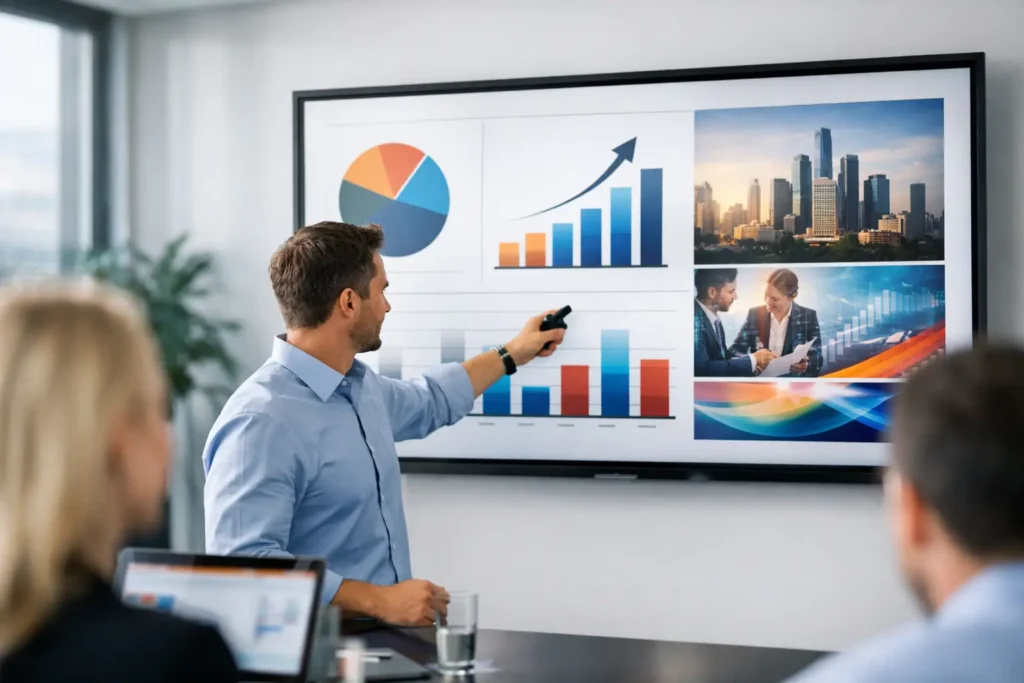
A store manager needs a promotion on screens before the lunch rush. An HR team needs to push a policy update to breakroom displays by 2 p.m. A hospital wants wayfinding and service messages refreshed without pulling in a designer every time. That is exactly why use PowerPoint for digital displays is such a practical question – because in most organizations, speed and control matter as much as screen quality.
PowerPoint is already part of how many teams communicate. They use it for presentations, announcements, training, sales updates, and internal reporting. When that same tool can power digital displays, the gap between creating content and getting it on screen gets much smaller. Instead of introducing a specialized design platform and retraining staff, teams can work with a familiar format and move faster.
Why use PowerPoint for digital displays in the first place?
The short answer is familiarity. The more useful answer is operational efficiency.
Digital signage often stalls because the content process is harder than expected. The screens may be installed, the media players may be connected, and the business may have clear communication goals, but updates still slow down when only a few people know how to build content. If every screen change depends on a design team, an external agency, or a niche editing tool, digital signage becomes another backlog.
PowerPoint changes that dynamic. Most office staff already know how to add images, edit text, apply brand colors, and organize slides. That lowers the training burden immediately. Marketing can create promotions, internal communications can publish announcements, operations can update schedules, and local teams can make approved edits without starting from scratch.
That does not mean PowerPoint is the right fit for every screen program. Highly interactive kiosks or complex custom applications may need a different approach. But for a large share of business signage – promotions, menus, dashboards, event schedules, lobby messages, employee communications, and branded loops – PowerPoint is often the fastest route from idea to display.
A familiar workflow removes friction
One of the biggest advantages of using PowerPoint for digital displays is that content creation feels familiar from day one.
That matters more than many organizations expect. New software always comes with hidden costs: training sessions, support tickets, process changes, and delays while users build confidence. When teams can use a tool they already understand, they spend less time learning and more time publishing.
For non-technical users, this is a major win. A school administrator can update event slides. A retail marketer can swap seasonal graphics. A corporate communications team can rotate messages across office locations. They are not forced to think like designers or developers. They are simply using a known business tool in a new channel.
For technical stakeholders, familiar creation does not have to mean weak control. The content can still be reviewed, scheduled, and distributed through a proper signage platform, with governance over where and when it plays.
PowerPoint makes brand consistency easier
Digital signage usually fails quietly, not dramatically. The screens work, but the content starts to drift. Fonts change. Colors vary by location. Old slides keep looping. Teams reuse outdated layouts because they do not have an approved starting point.
PowerPoint helps solve this when organizations use templates properly. Brand-approved slide masters, layouts, and reusable assets give teams a clear framework. Instead of designing each screen from scratch, they edit within a consistent visual system.
This is especially useful for multi-location businesses. A hospitality group can give every property a branded template for guest messaging. A healthcare network can standardize waiting room communications across sites. A corporate office can maintain consistent internal messaging across departments while still allowing local updates where needed.
The result is not just better design. It is better governance. Teams can move quickly without making every screen look different.
Faster updates matter more than flashy features
A digital display is only valuable if the content stays current. That sounds obvious, but stale screens are common because update workflows are too slow.
PowerPoint works well here because editing is straightforward. Change a headline, replace an image, duplicate a slide, export, and publish. There is no need to rebuild content in a more complicated system every time a campaign changes or a notice expires.
This speed is useful in both planned and reactive communication. Planned content includes weekly promotions, monthly campaigns, or scheduled employee messages. Reactive content includes weather alerts, room changes, service notices, and operational announcements. In both cases, teams benefit when updates can be handled by the people closest to the message.
That speed becomes even more valuable at scale. One screen is easy to manage manually. Fifty screens across departments or locations is not. A PowerPoint-first workflow paired with centralized scheduling keeps content updates manageable without turning them into a full-time project.
Why use PowerPoint for digital displays across multiple teams?
Because it creates a shared language between departments.
Marketing, operations, HR, facilities, and IT often have different priorities for signage. Marketing wants promotions to look polished. Operations wants quick updates. HR wants reliable internal messaging. IT wants controlled deployment and less support overhead. PowerPoint can support all of those needs because it is accessible to business users while fitting into a structured publishing process.
This is one of the strongest practical arguments for PowerPoint-based signage. It does not force content ownership into a single department. Instead, it lets organizations distribute content creation while centralizing management.
That distinction matters. Distributed creation means the right people can build and update messaging. Centralized management means the organization still controls scheduling, screen assignments, and content approval. It is a practical balance between flexibility and oversight.
Scheduling and screen management are the real multiplier
PowerPoint alone is a content creation tool, not a full signage system. The real value shows up when presentations are paired with software that handles scheduling, playback, and remote management.
This is where many organizations shift from ad hoc screen updates to a scalable communication channel. Instead of manually loading files onto individual displays, teams can assign content to one screen, one group of screens, or an entire network. They can schedule by date, time, location, or campaign window. They can update content remotely instead of relying on someone onsite.
That operational layer is what turns simple presentations into an efficient screen program. A retail chain can schedule promotions by region. A company can run different content in lobbies, cafeterias, and meeting areas. A school can update multiple buildings from one place. The content may start in PowerPoint, but the consistency comes from centralized control.
For organizations with stricter IT requirements, deployment flexibility also matters. Some prefer cloud-based management for convenience and remote access. Others need on-premises control for security, compliance, or real-time data handling. A platform built around PowerPoint can support both scenarios without changing how teams create content.
Trade-offs to consider before choosing PowerPoint
PowerPoint is practical, but it is not magic.
If your screens require advanced interactivity, dynamic user input, or highly customized application behavior, PowerPoint is probably not the complete answer. If your team has no content standards at all, a familiar tool can also make inconsistency easier unless templates and approval processes are in place.
There is also a difference between creating slides and creating effective signage. Screen content needs to be readable from a distance, concise, and timed properly. A presentation built for a conference room does not always work on a lobby display. Teams still need basic signage discipline: larger text, fewer words, stronger contrast, and clear visual hierarchy.
That said, these are manageable trade-offs. Most organizations are not trying to build cinematic screen experiences. They are trying to communicate clearly, update quickly, and manage content without adding complexity. In that environment, PowerPoint is often a smart fit.
Where PowerPoint-based digital signage works best
It works especially well in environments where content changes often and multiple teams need to contribute.
Retail locations can run promotions, product highlights, and seasonal campaigns. Corporate offices can share announcements, KPIs, welcome messages, and employee recognition. Healthcare facilities can display service updates, health reminders, and directional content. Schools can manage events, cafeteria menus, and campus communications. Hospitality teams can update guest messaging, schedules, and branded information throughout a property.
In each case, the benefit is similar: content stays easier to create than it would in a more specialized production workflow, while management stays more controlled than it would with disconnected files and manual updates.
That is the core reason many organizations choose a PowerPoint-first approach. It respects how teams already work.
SignageTube is built around that idea. Teams create content in PowerPoint, then publish, schedule, and manage displays through a platform designed for ongoing business communication. That keeps rollout fast, reduces training time, and gives organizations room to scale from a few screens to many.
If you are evaluating your signage process, the better question may not be whether PowerPoint is powerful enough. It may be whether your current workflow makes screen communication easier than it needs to be. When the goal is clear, timely messaging across real operating environments, familiar tools often outperform complicated ones.