 SignageTube
PowerPoint Digital Signage: Turn Your Slides into Controlled Displays
Most businesses already have the perfect tool for creating digital signage content sitting right on their desktops. Microsoft PowerPoint, the software your team uses for meetings and reports, can become a powerful design hub for lobby screens, menu boards, and promotional displays. The missing piece? A way to push those slides to TVs across your locations without walking around with USB sticks.
This guide walks you through everything you need to know about using PowerPoint for digital signage—from designing effective slides to managing screens across multiple sites with SignageTube.
Key Takeaways
- PowerPoint is a fast, familiar way to design digital signage content, and SignageTube lets you publish those slides to TVs and info screens in minutes without specialized design skills.
- You can keep designing in PowerPoint and then upload PPTX files, images, or MP4 videos to the SignageTube cloud to play on Android, Windows, and Smart TV players.
- SignageTube adds what PowerPoint alone cannot deliver: remote control of screens, playlist management, scheduling, proof-of-play logs, and live monitoring across multiple locations.
- Concrete use cases include restaurant menus, retail promos, hotel lobby boards, school announcements, and corporate dashboards—all built in PowerPoint and distributed via the cloud.
- You can start with a free SignageTube trial and use ready-made PowerPoint-based templates to get a digital signage screen running the same day.
What Is PowerPoint Digital Signage?
PowerPoint digital signage refers to using PowerPoint-created content on public screens, managed through a digital signage platform like SignageTube. Instead of projecting slides during a meeting, you’re displaying them on TVs in stores, lobbies, cafeterias, and corridors—often running unattended around the clock.
The key difference from a live presentation is the playback mode. A meeting slide deck requires someone clicking through slides. A digital signage playlist loops automatically, showing each slide for a set duration before advancing to the next. This makes it ideal for environments where viewers come and go.
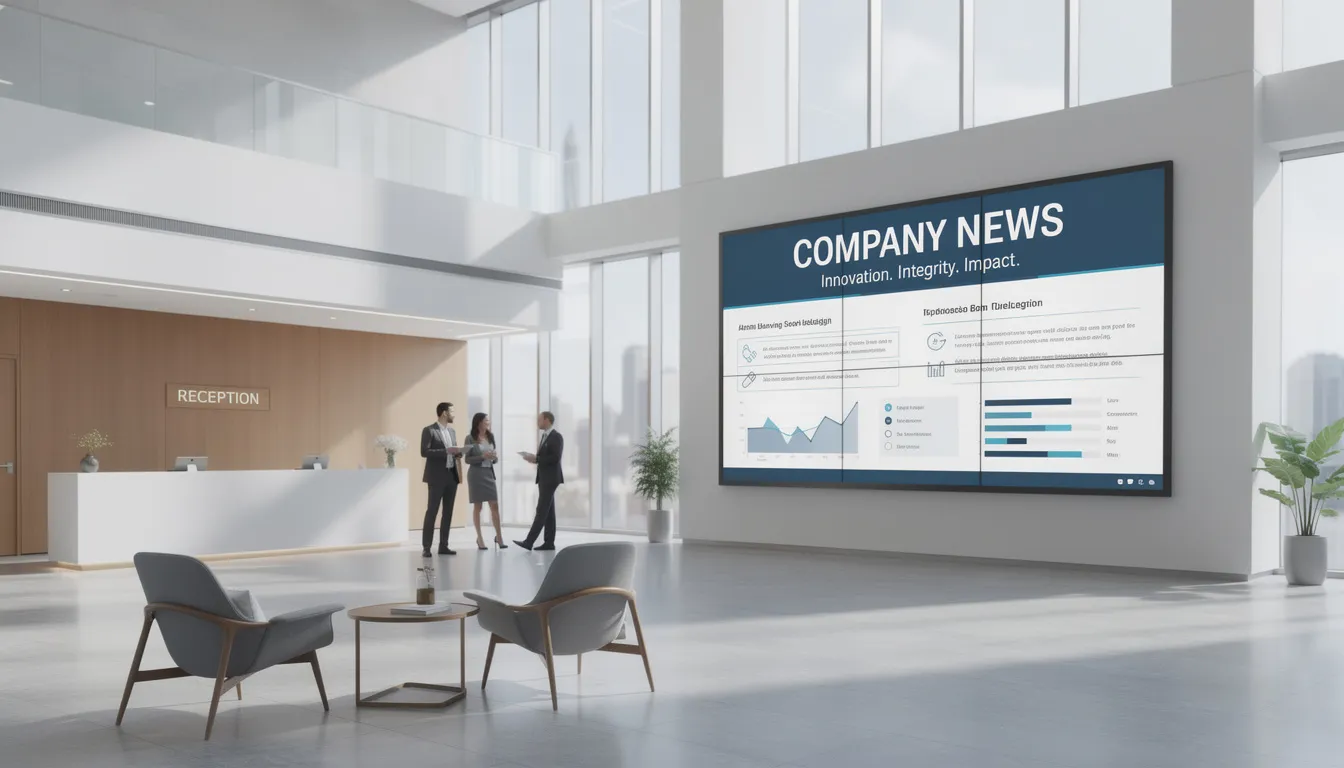
The core workflow is straightforward: design your content in PowerPoint, then distribute it via the cloud to screens wherever they’re located. Digital signage solutions like SignageTube allow you to manage and schedule content across multiple screens and locations, making it easy to target specific content and automate updates for different audiences or sites. Whether you have three screens in a single building or three hundred across multiple cities, the process remains the same. Different presentation formats work for digital signage, including videos, pictures, and document files, all of which are compatible and suitable for various display setups and ease of distribution.
Since the mid-2010s, many organizations have moved away from printed posters and USB stick updates toward cloud-controlled PowerPoint signage. The shift happened because updating content remotely saves hours of work and eliminates the risk of outdated information lingering on screens.
This article covers design best practices, technical setup, scheduling, and ongoing management—specifically using SignageTube as your digital signage solution.
Why Use PowerPoint for Digital Signage?
PowerPoint lets users create engaging digital signage by exporting slides as videos or GIFs, preserving animations and custom fonts. Most office staff already know how to create PowerPoint presentations. That familiarity makes PowerPoint the lowest-friction entry point for organizations starting with digital signage. There’s no steep learning curve or expensive training required.
PowerPoint includes everything needed for signage design:
- Professional layouts and slide masters
- Brand colors and custom fonts
- Charts, tables, and data visualizations
- Animations and transitions
- Image and video embedding
These features work perfectly for signage scenes like menu boards, event schedules, and real-time dashboards. The drag-and-drop interface lets anyone position elements exactly where they want them.
PowerPoint files are also easy to share between departments. Marketing can create a promotional template, HR can adapt it for employee announcements, and management can approve everything before publication. This simplifies approval workflows significantly.
Compared to designing from scratch in specialist tools like Adobe Creative Cloud, using PowerPoint with SignageTube delivers faster turnaround at a lower cost. Your team can go from idea to live screen in under an hour, not days.
With SignageTube, organizations keep PowerPoint as their design hub while gaining professional signage distribution features: remote updates, scheduling, monitoring, and analytics.
Cost-Effective and Accessible
Many organizations already pay for Microsoft 365 Business Standard or similar plans, which include PowerPoint. This means the design software is essentially free—you’re just using it for a new purpose.
Only content creators need PowerPoint installed on their computers. The signage players themselves—whether Android boxes, Windows mini PCs, or compatible Smart TVs—don’t require PowerPoint licenses. They simply display the content SignageTube sends them.
SignageTube runs on affordable hardware options:
|
Device Type |
Approximate Cost |
Best For |
|---|---|---|
|
Android media player |
$50-100 |
Budget deployments |
|
Windows mini PC |
$150-300 |
Complex content needs |
|
Existing office PC |
$0 (repurposed) |
Quick testing |
|
Compatible Smart TV |
Built-in |
Simplified setup |
This combination is particularly attractive for budget-conscious sectors: schools, non-profits, small retail stores, and local restaurants. You’re not buying proprietary hardware or expensive software licenses.
The total cost of ownership stays low because you’re reusing existing Office licenses and adding a cloud subscription rather than investing in complex on-premise systems.
Familiar and Easy to Use
Marketing or office staff can adapt an existing presentation into a digital sign in under an hour. The process involves simplifying slides for distance viewing, setting appropriate timing, and uploading to SignageTube.
The learning curve stays minimal because both PowerPoint and SignageTube use intuitive interfaces. If you can drag and drop elements in a slideshow, you can create digital signage content.
Consider this example: An HR team wants to display weekly staff updates in the lobby. They take their existing weekly update deck, remove the dense bullet points, increase font sizes, and export as images. They upload these to SignageTube and schedule them to play automatically every Monday morning. No IT involvement needed.
In SignageTube, uploading a PPTX or MP4 exported from PowerPoint feels similar to attaching a file to an email. Select the file, click upload, and the platform handles conversion and distribution.
This practical ease-of-use means your team spends time on message and design rather than fighting with software.
Templates and Branding Power
PowerPoint offers built-in templates alongside the ability to create brand-specific slide masters. This ensures consistent logos, fonts, and colors across all digital signage content.
Creating a dedicated “Digital Signage” template in PowerPoint saves time on every future project. Include:
- Correct dimensions (16:9 at 1920×1080 for most screens)
- Brand color palette
- Logo placement zones
- Standard text and image placeholders
SignageTube provides ready-made PowerPoint-based signage templates for common use cases: restaurant menus, corporate announcements, school events, and promotional displays. Download one, add your content, and you’re ready to publish.
For organizations with multiple locations—like a retail chain across different cities—using one master template keeps branding unified. Store managers can update local content while headquarters maintains overall visual consistency.
Effective template layouts include:
- Bold full-screen hero image slides for promotions
- Ticker-style announcement slides for quick updates
- Split-screen layouts showing text alongside pictures
Designing Effective PowerPoint Slides for Digital Signage
Digital signage slides are fundamentally different from meeting presentations. Viewers don’t sit and study them—they glance for 3-5 seconds while walking past or waiting in line. Every element must communicate instantly at a distance of several meters.
This section covers aspect ratios, colors, fonts, text length, and animation choices that render correctly on large TVs and commercial displays. All examples assume common resolutions like full HD (1920×1080) and 4K (3840×2160), which are standard for SignageTube users in retail and corporate spaces.
Always test your content on a real screen before rolling out to dozens of locations. What looks perfect on a laptop can behave differently on a 55-inch display.
Aspect Ratios and Slide Size
What is Aspect Ratio?
Aspect ratio is the proportional relationship between the width and height of a display or image. For digital signage, the most common aspect ratios are 16:9 (landscape) and 9:16 (portrait).
Creating effective digital signage with PowerPoint involves setting the correct 16:9 or 9:16 slide aspect ratio to match your screen orientation. Setting the correct slide dimensions in PowerPoint is crucial for ensuring that content displays clearly on digital signage screens. If the aspect ratio or resolution does not match the display, your content may appear stretched, squished, or have black bars, resulting in an unprofessional look.
Steps to configure slide dimensions in PowerPoint:
- Go to Design > Slide Size > Custom Slide Size
- Choose Landscape (16:9) or Portrait (9:16) orientation
- Match your display’s native resolution (1920×1080 for Full HD, 3840×2160 for 4K, or 1080×1920 for portrait)
- Click OK and choose whether to maximize or ensure fit
Why is this important?
Setting the correct slide dimensions in PowerPoint to match the display’s resolution is crucial for clear visuals in digital signage. Mismatched resolutions cause problems such as blurred logos, stretched images, or black bars on the edges. The big difference between a professional-looking display and an amateur one often comes down to getting dimensions right from the start.
SignageTube users should standardize a few resolution profiles—such as “1080p landscape” and “1080×1920 portrait”—and share them across their design team.
Portrait orientation works well for specific applications:
- Digital posters in corridors
- Elevator lobby displays
- Vertical wayfinding totems
- Entrance welcome screens
Choosing Colors and Fonts
High Contrast for Readability
High contrast is essential for digital signs viewed in bright retail floors or sunlit lobbies. The most readable combinations use light text on dark backgrounds or dark text on light backgrounds.
Effective color combinations:
- Dark blue background with white text (Corporate messaging)
- Black background with yellow text (Safety warnings)
- White background with black text (Clean, minimal designs)
- Brand color background with white text (Promotional content)
Typography for Digital Signage
Typography refers to the style, arrangement, and appearance of text. Typography for effective digital signage should utilize large, bold, sans-serif fonts for better legibility at a distance.
Recommended fonts:
- Arial
- Calibri
- Verdana
- Roboto
These system fonts render correctly across all players without substitution issues. If custom fonts are required for brand consistency, export your PowerPoint slides to images or MP4 video before uploading to SignageTube. This embeds the font visually so the player doesn’t need it installed.
Font size guidance for a 55-inch screen viewed at 3-5 meters:
- Main headlines: 48-60 pt minimum
- Subheadings: 36-44 pt
- Body text: 28-36 pt
- Fine print: Avoid if possible
When in doubt, make text larger. Nobody complains about text being too easy to read.
Managing Text Density
Keep It Brief
Digital signage demands brevity. Viewers often only glance at the screen for a few seconds before moving on. Every word counts.
Text Density Rules:
- 3×5 Rule: Use no more than three lines of five words OR five lines of three words per slide for clarity.
- 6×6 Rule: Limit text to no more than six words per line and six lines per slide for readability.
Keeping text short and using bullet points can help convey messages effectively in digital signage presentations.
Examples of concise signage messages:
- “Today’s Special: Grilled Salmon $12.99”
- “Next Town Hall: Friday 2PM”
- “Safety Tip: Wear Your Badge”
- “Welcome to Our Annual Conference”
Bullet points should be short phrases, not complete sentences. Internal communications in office settings can tolerate slightly more detail than high-traffic retail screens, but brevity remains important.
If your message is longer, break it across multiple static slides in the playlist rather than cramming everything into one dense slide. Viewers absorb sequential simple slides better than one complex one.
Animations and Transitions
Use Animations Wisely
Subtle transitions enhance professionalism while flashy effects distract and annoy. Stick with Fade, Wipe, or simple entrance animations like Appear and Fade In.
For full animation support on SignageTube, export your presentation as an MP4 video from PowerPoint. The video file preserves all your animations and transitions exactly as designed.
Static PPTX uploads work best for slides without animation: static menus, schedules, safety notices, and simple announcements. However, SignageTube Cloud offers a unique feature that converts PowerPoint presentations into dynamic digital signage screens, preserving all animations and transitions perfectly for playback. This process requires no PowerPoint installation on playback devices, ensuring smooth, animated content delivery across all supported screens without converting slides into static images.
Timing guidelines:
|
Content Type |
Recommended Duration |
|---|---|
|
Simple announcement |
6-8 seconds |
|
Detailed event listing |
10-12 seconds |
|
Menu with multiple items |
12-15 seconds |
|
Video or animated content |
As needed |
To ensure smooth looping, set “Advance Slide Automatically” in PowerPoint before exporting. This timing carries over to the video file, creating seamless digital signage content.

From PowerPoint File to Digital Signage Screen with SignageTube
The workflow connects your designer’s laptop to screens across branches, campuses, or offices: design in PowerPoint, export or save, upload to SignageTube, assign to a playlist, and schedule to screens.
SignageTube serves as the bridge between content creation and display. Once your PowerPoint content is in the cloud, it can reach any registered screen—Windows PCs, Android boxes, or compatible Smart TVs connected to the internet. PowerPoint presentations can be displayed on digital signage using various media players that plug into the TV’s HDMI port, enabling easy setup and display without complex configurations.
The process is fast. Content can go live in under a few minutes after upload, making SignageTube ideal for time-sensitive announcements and last-minute updates.
Option 1: Upload PPTX Directly to SignageTube
SignageTube accepts PowerPoint files directly and converts slides into images for playback on any supported digital signage player.
Direct upload workflow:
- Log into the SignageTube web dashboard
- Use the Quick Deploy button for immediate uploading and scheduling
- Click Add Media and select your .pptx file
- Wait for the conversion process to complete
- Preview slides in your browser to verify appearance
This approach works best for simple slides without complex animations or embedded videos. The platform converts each slide to a high-quality image that displays reliably across all device types.
When you update your PPTX, simply re-upload the new version under the same media item. Active playlists update automatically—no need to rebuild your schedule.
Direct PPTX upload is ideal for frequently changing content: office announcements, school timetables, or daily information boards.
Option 2: Export as Images or MP4 Video from PowerPoint
Exporting each slide as a PNG or JPEG ensures exact visual fidelity on all players. This method locks in custom fonts, complex layouts, and precise positioning.
For animated content, export as MP4 video to preserve transitions and timing:
- In PowerPoint, go to File > Export > Create a Video
- Choose resolution (1080p for most uses)
- Set slide duration timing
- Click Create Video and save the file
Upload these images or videos to SignageTube as standard media. They loop seamlessly in playlists alongside other content.
This method suits highly polished marketing campaigns, animated menu boards, or motion-heavy corporate visualizations. A restaurant creating an animated “Happy Hour” promotion exports to MP4 and loops it across 20 locations via SignageTube.
Option 3: SignageTube Live Platform for Real-Time PowerPoint Playback
SignageTube Live is a Windows-based solution that runs directly on your playback TV or connected PC. Unlike other options, it requires both Windows and Microsoft PowerPoint installed on the playback device, but it offers the unique advantage of playing native PowerPoint presentations without any conversion.
This platform excels in scenarios needing real-time data integration. It can connect PowerPoint slides to live data sources such as databases, web servers, Excel files, and more, enabling instant updates on your digital signage screens. This capability is ideal for environments like train stations and airports, where real-time departure and arrival information is critical.
Beyond transport hubs, SignageTube Live is perfect for offices, factories, and control rooms that display live KPIs, dashboards, and operational data. By leveraging PowerPoint’s flexibility combined with live data feeds, organizations can deliver dynamic, always up-to-date content that traditional static slides or videos cannot match.
Key benefits of SignageTube Live:
- Native PowerPoint playback with full support for animations and transitions
- Direct connection to real-time data sources for instant updates
- No need to export or convert presentations before playback
- Ideal for mission-critical displays requiring up-to-the-minute accuracy
This option complements cloud-based workflows by providing an on-premises solution for organizations with advanced digital signage needs.
Managing Screens, Playlists, and Schedules in SignageTube
Once content is in SignageTube, the platform handles which screens show what, at which times, and in which locations, making it easy to manage and schedule content across multiple screens and sites. This replaces manual USB stick updates or local PC setups, saving hours each week for multi-site organizations.
Cloud-based digital signage platforms like SignageTube often feature user-friendly interfaces that require minimal technical knowledge, and typically offer free trials so users can test the service before committing.
SignageTube supports different player devices—Android, Windows, some Smart TVs—all controlled from a single web dashboard. Run different playlists by location, time of day, or audience segment without leaving your desk.
Screen Registration and Remote Control
Setup starts with installing the SignageTube player app on your chosen device and connecting it via HDMI to the display. For most setups, you simply plug the digital signage player or media device into the TV’s HDMI port, making installation quick and straightforward.
Registration process:
- Power on the media player and launch SignageTube app
- Note the on-screen activation code
- Log into SignageTube web dashboard
- Add new screen and enter the activation code
- Assign a friendly name (e.g., “London Lobby”, “Store #12 Menu”)
Once registered, each screen appears in your dashboard with full remote control capabilities:
- Start and stop playback
- Reboot player remotely
- Change assigned playlist instantly
- View current screenshot to verify display
This allows central control for organizations with locations across different cities or countries. IT no longer needs to physically visit screens to update powerpoint content or troubleshoot issues.
Building Playlists and Dayparting Schedules
Playlists are sequences of items—PowerPoint-based content, images, videos, web pages—with defined durations for each.
Add your PowerPoint-derived items (PPTX converted slides, image sets, or MP4 files) to playlists alongside other assets like promotional videos or widgets. Drag and drop them into the desired order and set how long each should display.
Dayparting lets you schedule certain playlists for specific time windows. A restaurant might run:
|
Time Window |
Playlist Content |
|---|---|
|
7 AM – 11 AM |
Breakfast menu |
|
11 AM – 3 PM |
Lunch specials |
|
3 PM – Close |
Dinner and happy hour |
A retail chain could show staff messages before 9 AM, promotional slides during business hours, and recruitment content after closing.
Scheduling handles dates too. Plan a holiday campaign to run only December 1-25, or schedule a product launch announcement for a specific week in 2026.
Proof of Play and Live Monitoring
Proof of play logs record when each asset was displayed, on which screen, and for how long. This data matters for:
- Advertising campaigns requiring verified impressions
- Compliance reporting for safety messages
- Internal audits of communications reach
SignageTube tracks this automatically. Export reports showing exactly when a sponsor’s video ran across your network or confirm that mandatory safety content displayed throughout a compliance period.
Live monitoring shows dashboard indicators for each screen: online or offline status, last content heartbeat, and current playlist. Set up alerts to receive email notifications if a screen goes offline, allowing quick response before anyone notices.
This data also helps justify signage ROI. Show stakeholders exactly how many hours your content played across how many screens, with proof that everything ran as scheduled.
Real-World Use Cases for PowerPoint Digital Signage with SignageTube
PowerPoint combined with SignageTube already powers digital signs across retail, hospitality, restaurants, offices, schools, and healthcare. In each case, staff use PowerPoint for design and SignageTube for deployment, monitoring, and automation.
Retail Stores and Shopping Centers
Clothing and electronics stores use PowerPoint to design promo slides for weekend sales, loyalty programs, and new arrivals. The software makes it easy to combine product images with pricing and promotional text.
Head office marketing teams can push updated campaign decks to all branches before a specific launch date. A “Spring Sale 2026” campaign gets designed once and deployed to every location simultaneously.
Different screen locations serve different purposes:
- Window displays attract foot traffic
- Aisle end-caps highlight featured products
- Checkout screens promote impulse purchases
A retail chain with 20 stores replaced printed posters with PowerPoint-created digital posters, updated weekly through SignageTube. They eliminated printing costs entirely and reduced campaign rollout time from days to minutes.
Restaurants, Cafés, and Quick-Service Chains
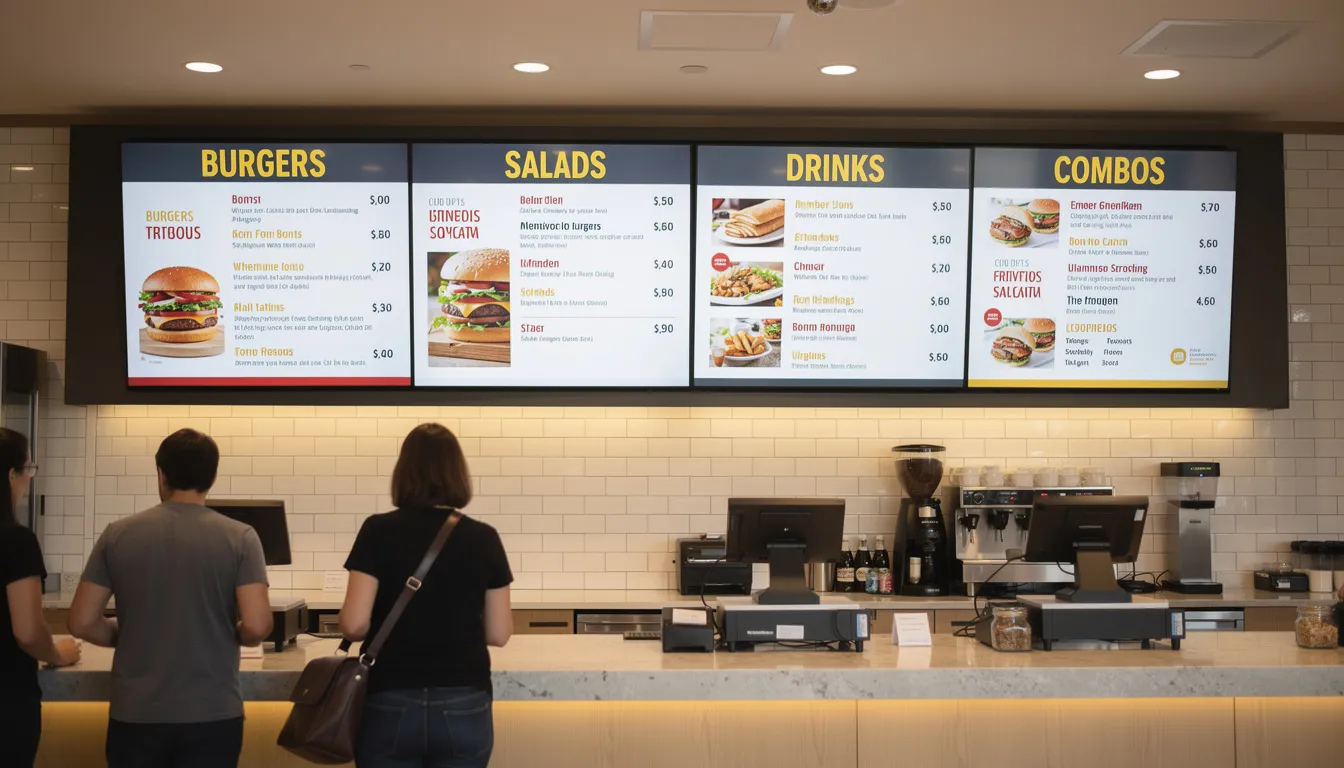
Many restaurant menus are designed in PowerPoint: clear columns for items, prices, and food imagery, optimized for 16:9 TVs mounted above the counter.
Dayparted playlists automatically switch content throughout the day. No staff intervention required—the breakfast menu disappears at 11 AM and lunch specials take over.
Franchise owners can localize certain slides for language differences or regional promotions while headquarters controls branding templates via SignageTube. Brand consistency stays intact while allowing local flexibility.
A café chain uses portrait displays at entrances to show today’s specials with seasonal animated promotions. When prices change, one PowerPoint edit plus SignageTube publish updates every location—no reprinting menu boards.
Hotels, Corporate Offices, and Lobbies
Hotel lobby displays show conference schedules, wayfinding maps, and restaurant offers. Guests see relevant information without approaching the front desk.
Corporate buildings use digital signage for:
- Internal news and company updates
- KPI dashboards and sales performance
- Meeting room availability
- Welcome messages for visitors
An HR department updates one PowerPoint file every Monday morning and pushes it via SignageTube to 10 office lobbies. The weekly news reaches every employee who walks through reception.
International offices manage multiple languages through versioned PowerPoint decks. SignageTube schedules the appropriate language version to each location.
Proof-of-play logs help corporate communications prove that critical safety or compliance messages displayed throughout required periods—useful for audits and regulatory requirements.
Education, Healthcare, and Public Institutions
Schools and universities build PowerPoint templates for events, exam schedules, bus changes, and cafeteria menus. The familiar software means administrative staff can update content without training.
Hospitals and clinics display waiting room information, visiting hours, and health tips—all editable in PowerPoint by communications staff who already know the tools.
These organizations often run on tight budgets, making the combination of existing Microsoft 365 licenses and low-cost players especially valuable.
A school district with 15 campuses updates daily announcements from a central PowerPoint file, scheduled to play before classes start each morning. This replaces individually updating USB sticks on screens in every hallway—saving hours of staff time weekly.
Getting Started with PowerPoint Digital Signage on SignageTube
Your first week follows a clear roadmap: choose screens, create your first PowerPoint signage template, set up players, and schedule initial playlists. Start with SignageTube’s free trial to test with actual content before committing.
Step 1: Plan Your Screens and Content
List every location where you want a screen and define its purpose:
|
Location |
Purpose |
Orientation |
|---|---|---|
|
Main lobby |
Welcome and company news |
Landscape |
|
Cafeteria |
Menus and events |
Landscape |
|
Elevator bank |
Quick announcements |
Portrait |
|
Conference entrance |
Meeting schedule |
Landscape |
Consider viewing distance for each screen. Lobby screens seen from 5 meters need larger text than screens at reception desks.
Start with just 2-4 screens to test your workflows before scaling to dozens. This keeps initial complexity low while you learn the system.
Define a simple content calendar: what changes daily, weekly, and monthly? Use existing slide decks as starting points to reduce initial design time.
Step 2: Create or Adapt a PowerPoint Template
Set slide size to match your screens (16:9 at 1920×1080 for most displays) and create master layouts for different use cases.
Template elements to include:
- Logo placement in consistent position
- Brand colors as background options
- Footer with date or location placeholder
- Text placeholders for headlines and body copy
- Image zones for photos and graphics
Place these elements in the Slide Master so every new slide automatically includes them. This ensures consistency across all content creators.
Save your final template as a .potx file (e.g., “SignageTemplate_2024.potx”) and share it with anyone who will design slides.
SignageTube’s library of starter PowerPoint templates can shorten this step dramatically—download one, add your branding, and you’re ready to create content.
Step 3: Set Up SignageTube Players and First Playlist
Choose your device based on needs and budget. Connect it via HDMI to your TV, power it on, and install the SignageTube player app.
First playlist setup:
- Register the screen using the activation code
- Upload your first PowerPoint-based asset
- Create a new playlist and add your content
- Set display duration for each item
- Assign the playlist to your test screen
- Verify content appears and loops correctly
Watch the content play on the actual screen. Adjust slide durations based on how quickly someone can read the message. If viewers struggle to finish reading before the next slide appears, add more time.
Step 4: Scale Up, Automate, and Refine
Once your first screens run smoothly, add more locations. Reuse playlists and templates rather than rebuilding from scratch.
Use SignageTube scheduling features to plan campaigns across specific dates. A holiday promotion scheduled for December automatically starts and ends without manual intervention.
Gradually incorporate advanced features:
- Proof-of-play reports for advertisers or compliance
- Live monitoring alerts for offline screens
- User permissions for local managers to update their own content
Review analytics and gather feedback monthly. Refine slide design, timing, and messaging based on what actually works in your environment.
Start a free SignageTube trial today to experience the complete PowerPoint digital signage workflow in your own organization.
FAQ: PowerPoint Digital Signage and SignageTube
Do I need PowerPoint installed on every screen to use it for digital signage?
No—only content creators need PowerPoint on their computers. SignageTube Cloud players display exported content (videos or PPTX) without running PowerPoint software locally.
This reduces licensing needs significantly. A network of 50 screens might only need 2-3 PowerPoint licenses for the people actually creating content. Any device capable of running the SignageTube player app and connecting to the cloud can show PowerPoint-designed signage.
Will my PowerPoint animations and transitions work on SignageTube screens?
Static PPTX uploads are no longer simply converted to images. SignageTube now supports native playback of PowerPoint files, preserving animations, transitions, and timing exactly as designed. This advancement allows for dynamic and engaging digital signage content without the need to export presentations as videos. You can confidently use animated slideshows for your campaigns while still benefiting from the ease of direct PPTX uploads for simpler content.
Exporting your presentation as an MP4 video from PowerPoint can be useful, as it preserves all animations, transitions, and timing exactly as designed. The video plays seamlessly on SignageTube players, though this step is optional depending on your content needs.
Reserve video export for important animated campaigns while using static slides for simpler content that doesn’t need motion.
Which devices can I use as digital signage players with SignageTube?
SignageTube supports multiple device types:
- Windows PCs or mini PCs connected via HDMI
- Android media players and Android TV devices
- Selected Smart TVs with app installation capability, typically running on Google TV or Android TV as operation system.
Ensure stable internet connectivity and reliable power for business-hours or 24/7 playback. Small devices like Android boxes work well for most standard content, while Windows PCs handle more demanding requirements.
Organizations can start with existing office hardware for testing and later standardize on dedicated media players for larger deployments.
How many screens can I manage with SignageTube if I use PowerPoint for design?
SignageTube is cloud-based and designed to scale from a single display up to large multi-site networks with hundreds of screens. The platform handles distribution regardless of network size.
The number of screens available depends on your SignageTube subscription plan, not PowerPoint. Organizations planning growth should consider user roles and content approval workflows when scaling—local editors might need different permissions than central administrators.
Is PowerPoint digital signage secure enough for corporate and education environments?
In a proper setup, PowerPoint serves only as the design tool. SignageTube handles secure delivery via encrypted connections and authenticated user access.
Security best practices include:
- Restricting who can publish playlists
- Controlling access with user roles in SignageTube
- Placing sensitive content (internal KPIs, confidential data) only on appropriate internal screens
- Following your organization’s data handling policies
The combination of familiar PowerPoint design with professional SignageTube distribution provides both convenience and appropriate control for business environments.
Measuring Success and Analytics of PowerPoint Digital Signage
Measuring the effectiveness of your digital signage is essential for maximizing its impact and ensuring your investment in Microsoft PowerPoint and digital signage solutions delivers real business value. With the right analytics, organizations can move beyond simply displaying PowerPoint slides—they can understand how their digital signs are performing, which content resonates most, and how to continually improve their messaging.
Key Metrics to Track
To get a clear picture of your digital signage success, focus on these core metrics:
- Engagement Metrics: Track how many people view your digital signage, how long they spend looking at the screen (dwell time), and, if applicable, how often they interact with the display. These insights help you determine if your PowerPoint presentations are capturing attention.
- Content Performance: Analyze which PowerPoint slides, presentations, or digital signage content pieces are most effective. Are certain slides driving more engagement or prompting action? Identifying top performers allows you to refine future content for even better results.
- Screen Uptime and Health: Monitor the operational status of your digital signs to ensure your message is always visible. Reliable playback of PowerPoint slides and presentations is crucial for maintaining a professional image and consistent communication.
- Return on Investment (ROI): For businesses, it’s important to connect digital signage efforts to outcomes like increased sales, improved customer satisfaction, or enhanced internal communications. Tracking these results helps justify your investment in digital signage and PowerPoint-based content.
By keeping an eye on these metrics, organizations can ensure their digital signage is not just running—but truly making a difference.