 SignageTube
How Do you Display Info on your Menu Board TV?
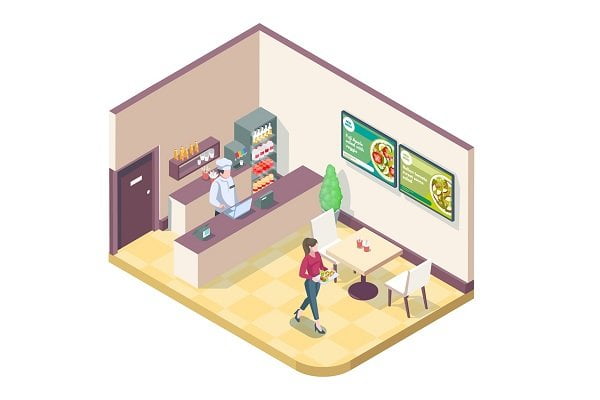
How to Display Menu on TV
Are you a restaurant owner, café manager, or service-based business looking for a modern, cost-effective way to display your menu? This guide will show you exactly how to display a menu on TV using digital signage solutions. By leveraging your existing televisions and cloud-based software, you can transform your menu presentation, save on printing costs, and engage customers with dynamic, up-to-date content.
Digital menu boards are electronic displays used to showcase menus and promotions in food service environments such as quick service restaurants, cafes, bars, and food trucks. A digital menu board is an electronic display used to showcase restaurant products, prices, and promotions, commonly found in quick service restaurants, cafes, bars, and food trucks. Digital menu boards can transform existing televisions into appealing displays that showcase restaurant products, allowing for real-time updates and engaging animations. This article will cover what digital menu boards are, how they work with TVs, step-by-step setup instructions, troubleshooting tips, and how to maximize their impact for your business.
How to Display Menu on TV: Making Digital Signage in the Cloud Menu Boards Work
Digital menu boards are a key application of digital signage in the cloud, especially for service-based businesses. Typically, a channel of displaying menus electronically, a menu board TV is usually found at quick-serve restaurants (QSR), coffee shops, and service-based businesses. They provide an easy and convenient avenue to showcase sales opportunities to customers for up-sells, calories, and prices.
However, many restaurateurs and QSR entrepreneurs believe that implementing digital signage in the cloud for their businesses would largely dent their financial standings. Contrary to these widely-held beliefs, the total cost for software and hardware needed for deploying digital signage in the cloud solutions is actually lower than the speculated cost, especially if you already have televisions in your outlets.
Choosing the Right TV and Hardware
In practice, a digital menu board only requires a few key components to work, and thus, can be deployed on a budget. While a regular LED television mounted on the wall and a few peripheral devices will suffice, not all TVs are created equal for displaying menus. It’s important to select a TV screen with HD or 4K resolution to ensure sharp text and clear images for your TV menu or TV menu board. Digital menu board TVs typically start at 32-34 inches, but larger screens may be necessary for busy locations or behind counters. Commercial panels are designed for longer duty cycles and brighter displays, making them more suitable for high-traffic or fast food environments than consumer TVs.
Connecting and Setting Up
To deploy a digital signage in the cloud menu board, you need at least four components:
- A monitor or television
- Internet connection
- Media player (such as a computer, microcomputer, Google Chromecast, or Amazon Fire TV)
- Digital signage software (such as SignageTube, accessible through a browser)
Many TVs come with built-in streaming software, but for better screen control and management, using external hardware like Google Chromecast or Amazon Fire TV is recommended—simply plug the device into the HDMI port. A thumb drive (USB stick) can also be used to transfer menu files, and the USB method is an alternative for displaying static menus on one screen.
Updating and Managing Content
The setup process is designed for easy setup, and digital signage solutions and digital menu board solutions streamline menu management, playlist scheduling, and remote screen control. It’s similar to using Netflix on your home TV.
As your menu or prices change, you can easily update these changes so they reflect on your digital menu board TV through our cloud-based dashboard, and your updates are effected immediately. Cloud-based digital signage solutions can significantly lower lifetime costs by eliminating the need for printing and reprinting physical menus, saving both time and resources, especially when you leverage cloud-based digital signage software to manage content and updates from anywhere. Using digital menu boards can significantly reduce printing costs and allow for real-time updates and scheduling of different menus (breakfast, lunch, dinner) using digital signage software. Digital signage software supports rich media formats, including high-quality images, video, and animations, which can enhance customer engagement, drive sales, and enhance customer experience.
Design Tips for Effective Menus
- Use high-quality images and videos of your dishes to make your food look irresistible.
- Consider working with a local designer to enhance visual appeal.
- Incorporate scenic landscapes or images of local suppliers to create ambiance and tell a story about your food’s heritage.
- Use bold colors and high-quality images to ensure legibility and grab attention from a distance.
- Leverage dynamic and interactive elements, such as real-time updates and engaging animations, to enhance the customer experience.
- Utilize scheduling features in digital signage software to automate different menus at specific times, ensuring the right restaurant menu is displayed at the right moment.
Now that you understand the components and benefits, let’s walk through the setup process and how to troubleshoot common issues.
Setting Up and Troubleshooting
Initial Setup Steps
- Select the right TV for your menu board—most modern smart TVs are compatible, or you can use a standard TV with a media player connected via the HDMI port.
- If your TV has a USB port, you can also use a USB flash drive to display static menus, but for dynamic content and real-time updates, a media player running digital signage software is recommended.
- Connect your media player to the TV using an HDMI cable, or insert your USB flash drive into the TV’s USB port if you’re displaying a static menu.
- For cloud-based digital menu board solutions, ensure your TV or media player is connected to a stable internet connection so you can take full advantage of SignageTube’s remote management features.
Uploading and Managing Content
- Install your chosen digital menu software, such as SignageTube.
- Follow the step-by-step guide provided to upload your menu, prices, and special offers.
- Keep in mind the key differences you’ll find when comparing digital signage solutions and SignageTube’s features.
Troubleshooting Common Issues
- If the menu is not displaying, static images appear instead of dynamic content, or there are problems with the HDMI port:
- Check that your digital signage software is up-to-date.
- Ensure your internet connection is active.
- For USB setups, confirm the file format is supported by your TV.
- If your menu board isn’t updating in real time, verify that your device is properly synced with your cloud account and that the correct date and time are set.
Quick service restaurants especially benefit from reliable digital menu board solutions, as they need to display menus and prices that can change throughout the day.
By following these troubleshooting steps, you can quickly resolve most issues and ensure your digital menu board is always ready to display the latest menus, prices, and special offers, providing a seamless experience for your customers.
With your menu board set up and running smoothly, discover how SignageTube can further enhance your digital menu experience.
How SignageTube Enhances Your Menu Board TVs
Industries That Benefit
Even though restaurateur is an obvious target for digital menu boards, they aren’t the only ones who can actually use them. There is a wide range of other industries for which digital displays with menus, content, or other information can be deployed. Examples of other lines of businesses that could benefit from a digital menu include:
- Hotels that may need to advertise happy hours in their bars, and welcome conventions
- Retail businesses where digital menu boards can be used to advertise new products, or current sales promotions
- Spas, gyms, salons and other service-based industries can easily change prices for special seasons and advertise trending packages
- Auto dealerships may also use menu boards to show off their vehicles’ accessory packages, and weekend or holiday promos
Features of SignageTube
If you desire to inform, market, or entertain your customers, a digital menu board is just a great investment. With our easy-to-install application, SignageTube, you can easily deploy digital signage in the cloud service for almost any industry that has to communicate with its customers in a more efficient and dynamic way. Our cloud-based software is easy to use and includes a user-friendly content management system, ready-made digital signage templates for any industry, graphic elements, and customer support, should you require the consultation of an expert.
Editing and Updating Menus
Using SignageTube, you can edit the contents of your digital menu board (such as product titles, descriptions, pricing, and nutritional information) with your choice of presentation editor (such as PowerPoint), ready for publishing to your digital menu boards with convenience. For dynamism, you can copy the menu board and change the contents to display different information at different times of the day, and on different days of the week, depending on what you are offering at each time, selecting the most suitable option from our digital signage plans and pricing when you are ready to scale. Also, you can easily set up your products, descriptions, and pricing. Once the digital signage in the cloud service has been successfully configured, you may use your mobile phone, tablet, or PC connected to the network to manually change a product or price and the changes displayed on your menu boards automatically, either on a single digital menu board or many others across all your restaurants, and explore real-time digital signage software options if you want data-driven, automatic updates.
With SignageTube, you can take your digital menu boards to the next level, ensuring your content is always fresh, relevant, and engaging for your customers.
Enhancing Customer Experience
Visual Engagement Strategies
- Use high quality images and videos to showcase your most popular dishes.
- Highlight specials and promote daily specials or happy hours.
- Draw attention to menu items to help customers make quicker, more informed decisions.
Real-Time Updates and Flexibility
- Update prices, dishes, and special offers in real time, ensuring your menu is always accurate and relevant.
- Switch between breakfast, lunch, and dinner menus or promote limited-time offers with ease.
- Incorporate QR codes into your digital menu displays to enhance customer engagement, allowing guests to access menus on their smartphones, place orders, or learn more about your business with a simple scan.
Design Tools and Templates
- Use templates and design tools included in digital menu board solutions to create professional, branded menus that are both attractive and functional.
- Investing in digital signage not only improves the customer experience but also streamlines operations, increases upselling opportunities, and sets your business apart from the competition.
- With the right digital menu software, your restaurant or coffee shop can deliver a modern, interactive, and memorable dining experience that keeps customers coming back.
Summary: Key Steps and Benefits of Displaying a Menu on TV
- What is a digital menu board? An electronic display used to showcase restaurant products, prices, and promotions, commonly found in quick service restaurants, cafes, bars, and food trucks.
- Why use a TV? Digital menu boards can transform existing televisions into appealing displays that showcase restaurant products, allowing for real-time updates and engaging animations.
- How to display menu on TV:
- Choose a suitable TV (HD or 4K, commercial panel for high-traffic areas).
- Connect a media player (Chromecast, Fire TV, or computer) or use a USB stick for static menus.
- Install digital signage software (like SignageTube) and connect to the internet.
- Upload and manage your menu content through the cloud dashboard.
- Design your menu using high-quality images, bold colors, and dynamic elements.
- Update menus and prices in real time, schedule different menus for different times, and troubleshoot as needed.
- Benefits:
- Cost savings by eliminating printing and reprinting of physical menus.
- Modernizes operations and enhances customer engagement with dynamic, visually appealing displays.
- Easy updates and scheduling for different menus and promotions.
- Streamlined management across multiple locations with cloud-based solutions.
- Improved upselling opportunities and a memorable customer experience.
By following these steps, restaurant owners, cafes, and service-based businesses can easily display menus on TV, modernize their operations, and create a more engaging experience for their customers.
- SignageTube Starter – content signage on any TV
- SignageTube Enterprise – live data on your screens
- Digital signage software – how to choose, and what matters
- Templates – 120+ ready-made designs
- Pricing – simple per-screen plans