 SignageTube
How to Schedule PowerPoint Playlists
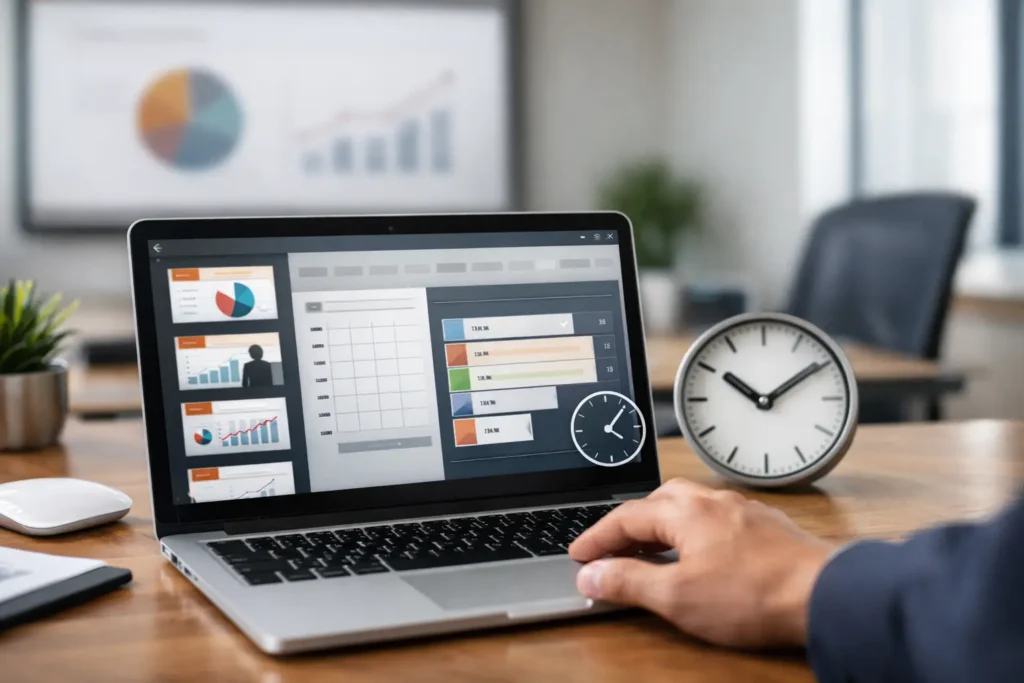
A lobby screen that still shows last week’s event slide is not a design problem. It is a scheduling problem. If you are figuring out how to schedule PowerPoint playlists, the goal is simple: get the right presentation on the right screen at the right time without relying on someone to remember a manual update.
For most organizations, that means moving beyond opening a PowerPoint file full screen and hoping it loops correctly. A scheduled playlist gives you control over what plays, when it plays, where it appears, and how often it updates. That is what turns PowerPoint from a presentation tool into a practical digital signage workflow.
What scheduling a PowerPoint playlist actually means
A PowerPoint playlist is a sequence of presentations or slide-based content assigned to one or more screens. Scheduling that playlist means setting rules for playback, such as date ranges, time windows, screen groups, and the order content appears.
That matters because most business screens do not serve one purpose all day. A retail display may run promotions in the morning, product highlights in the afternoon, and branded closing messages in the evening. A corporate office might show visitor welcome slides in the lobby, internal updates during business hours, and emergency notices when needed. In healthcare or education, schedules often change by department, building, or even time of day.
When teams ask how to schedule PowerPoint playlists, they are usually trying to solve one of three issues: reducing manual work, keeping messaging consistent across locations, or making screen updates easy for non-designers. PowerPoint helps with the content creation side because staff already know how to use it. The scheduling layer is what makes the process scalable.
How to schedule PowerPoint playlists in a real business workflow
The most reliable approach starts before you upload anything. Build your presentations as individual content blocks, not one oversized file that tries to cover every scenario. A playlist works better when each PowerPoint has a clear role, such as a breakfast promotion, a safety message, a recruiting screen, or a conference room welcome loop.
Step 1: Break content into logical presentations
Keep each presentation focused. If one file contains every campaign, every season, and every location update, scheduling becomes harder because you cannot swap or target content cleanly. Separate files give you more control.
This also helps different departments contribute without stepping on each other’s work. Marketing can own promotional slides, HR can own recruiting or culture messaging, and operations can manage service updates. That division reduces errors and speeds up approvals.
Step 2: Organize playlists by audience and screen purpose
Before you schedule anything, decide what each screen is supposed to do. A customer-facing screen and an employee-facing break room screen should not share the same playlist just because they are in the same building.
The easiest way to manage this is by grouping screens by use case. For example, you might have one playlist for retail storefront displays, another for waiting areas, and another for internal communications. Once those groups are clear, scheduling becomes a matter of assigning the right PowerPoint content to the right destination.
Step 3: Set date and time rules
This is where playlists become operational instead of manual. Assign start and end dates for campaigns, then narrow playback to the times that matter. A lunch special should not still run at 4 p.m. A school announcement about morning drop-off should disappear once the day is underway.
If your platform supports recurring schedules, use them. Weekly and daily rules save time and reduce the chance of someone forgetting to reactivate content. They also make seasonal planning easier because you can prepare content in advance and let it publish automatically.
Step 4: Control playback order and duration
Not every slide deck deserves equal screen time. A key promotional message may need to appear more often than a general brand slide. Some content is time-sensitive, while other material simply fills rotation.
That is why playlist order matters. Decide whether content should rotate evenly, whether priority items should appear first, and how long each presentation should remain visible. In some environments, shorter loops keep screens fresh. In others, especially where viewers spend more time waiting, longer playlists can work well. It depends on traffic patterns and attention span.
Step 5: Publish remotely and monitor performance
Once the playlist is scheduled, the job is not finished. You still need confidence that the right content is actually playing on the right screens. That is where centralized management matters.
A cloud-based setup is often the fastest route for distributed teams because updates can be pushed remotely across many locations. An on-premises deployment can make more sense when IT policies, internal data requirements, or real-time operational systems are part of the picture. The right choice depends less on screen count and more on governance, security, and how your organization handles content delivery.
Common mistakes when scheduling PowerPoint playlists
The biggest mistake is treating scheduling as an afterthought. Teams spend hours building presentations and then rush the publishing step. That usually leads to outdated content, overlapping campaigns, or screens showing the wrong message at the wrong time.
Another common issue is making playlists too broad. If one schedule is meant to serve every screen in every location, someone eventually gets irrelevant content. A promotion meant for one region may appear somewhere it does not apply. An internal notice may end up on a public-facing display. Better targeting prevents that.
There is also a practical formatting issue. PowerPoint is familiar, but slides still need to be designed for signage. Text that works in a conference room may be too small for a hallway display. Dense layouts can slow down message recognition. Scheduling cannot fix weak content, so the presentation itself still needs to be built for distance viewing and quick comprehension.
Why PowerPoint works well for playlist-based signage
PowerPoint remains one of the fastest ways to create branded content because most organizations already use it. Teams know how to edit slides, apply templates, and update messaging without waiting on a designer or developer.
That familiarity lowers the training burden, which matters when multiple departments need to contribute. A scheduling system built around PowerPoint lets non-technical users stay productive while giving operations and IT the control they need over publishing, permissions, and screen assignments.
This is where a PowerPoint-first platform becomes useful. Instead of forcing teams into specialized design tools, it lets them keep using a format they understand while adding the controls needed for commercial screen networks. SignageTube is built for that kind of workflow, where creating in PowerPoint and scheduling centrally are part of the same process.
When cloud scheduling makes sense and when on-premises is better
If your main goal is speed, remote access, and easy rollout across multiple locations, cloud scheduling is usually the cleaner option. It allows teams to upload updated presentations, assign playlists, and manage timing without being physically near the screens.
On-premises scheduling can be the better fit when your displays depend on internal systems or tightly controlled environments. Hospitals, production sites, or campuses with strict network policies often need that extra control. It can also support scenarios where data-driven screen content must update in real time from local systems.
Neither option is automatically better. The best one is the one that fits your operational model. For some organizations, that means simplicity and remote management. For others, it means tighter internal control and automation.
How to keep scheduled playlists manageable over time
A good schedule should be easy to maintain, not just easy to launch. The most effective teams name presentations clearly, archive expired content, and use reusable templates so updates do not turn into redesign projects.
It also helps to assign ownership. If nobody owns a playlist, it tends to drift. If one person or team is responsible for each screen group or campaign calendar, content stays current and accountability is clear.
Reviewing playlists on a simple cadence makes a difference too. A quick weekly or monthly check can catch expired promotions, conflicting messages, or opportunities to improve rotation. Scheduling is not a one-time setup. It is an ongoing communication process.
A better way to think about scheduled screen content
When people search for how to schedule PowerPoint playlists, they often expect a technical answer. The real answer is operational. You are building a repeatable system for communication. The software matters, but the bigger win is giving your team a way to create, approve, schedule, and publish content without friction.
That is what keeps screens useful instead of neglected. When scheduling is simple, content stays timely. When content stays timely, screens keep earning attention. Start with clear presentation files, assign them to the right audiences, schedule them around real-world timing, and make sure the workflow is easy enough that your team will actually keep using it next month.