 SignageTube
Real-Time Dashboard Digital Signage That Works
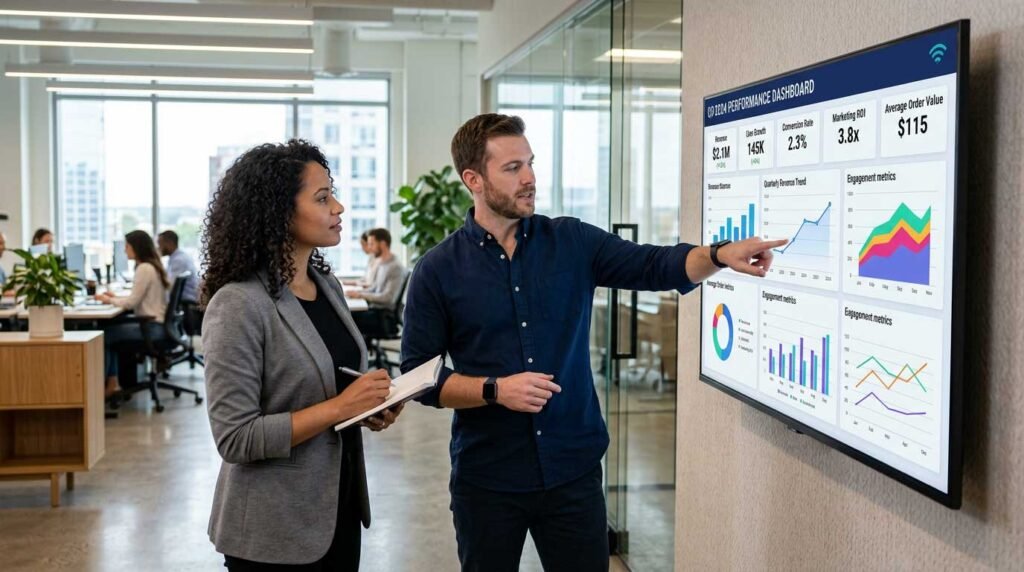
A queue is building at the service desk. Your operations manager is refreshing a dashboard on a laptop. The frontline team is guessing what to prioritize. The data is there, but it is trapped in a place most people will not look at during a busy shift.
That is the gap real time dashboard digital signage is meant to close. It takes live operational metrics – wait times, orders, tickets, safety counts, inventory, uptime – and puts them where decisions actually happen: on the screens people already walk past.
What “real time dashboard digital signage” really means
A dashboard is usually designed for someone seated at a desk, interacting with filters and tabs. Digital signage is designed for glance reading from 10-30 feet away, often while someone is moving. When you combine them, the goal is not to recreate a BI tool on a TV. The goal is to translate the few numbers that drive behavior into a visual that updates automatically.
“Real time” also needs a practical definition. For some teams, real time means every 5 seconds. For others, it means every 5 minutes. If your data source refreshes every 15 minutes, a screen that refreshes every 10 seconds does not make the information more accurate – it just adds churn. The right refresh rate depends on how quickly a decision can change the outcome.
Where real-time signage delivers the most value
Real-time screens work best when they replace repeated manual checks, reduce uncertainty, or coordinate multiple people. That is why they show up in places like retail backrooms, clinic hallways, school administrative areas, hotel staff corridors, and manufacturing or logistics operations.
In customer-facing spaces, the value is often transparency and expectation-setting. A live “Now Serving” board or estimated wait time display can reduce anxiety and cut down on status questions. In employee-facing spaces, the value is alignment: everyone sees the same scoreboard, and the team can react faster.
The key test is simple. If a number changes and someone needs to do something differently because of that change, it belongs on a real-time screen.
Picking the right metrics (and avoiding the noisy ones)
Most organizations start with too many metrics. The screen becomes a wall of tiny charts, and nobody reads it. A signage dashboard should usually answer three questions: What is happening right now? What needs attention next? Are we trending toward a target?
Choose metrics that are actionable within the next hour or shift. For example, “open tickets older than 24 hours” is actionable for a support team. “Net promoter score this quarter” might be important, but it rarely helps someone decide what to do at 2:15 PM.
Also watch out for vanity metrics. A high-level “total sales this month” can be motivating, but if it is not tied to a behavior (upsell prompts, staffing changes, replenishment), it can turn into background wallpaper.
Designing for glance readability
Digital signage has different design rules than dashboards on a computer monitor. If you want adoption, you have to design for the hallway, not the boardroom.
Start with hierarchy. The most important number should be the biggest element on the screen, and it should have a label that a new employee can understand instantly. If you need a legend, it is probably too complicated.
Use color with restraint. Color should signal status (on track, at risk, off track), not decorate. If every widget is bright, nothing feels urgent. Consistent thresholds matter too. If “yellow” means “watch closely” on one screen and “everything is fine” on another, people stop trusting the system.
Finally, plan for distance. If a metric is only readable from three feet away, it will not drive behavior. A good rule is to design key numbers to be readable at the farthest realistic viewing point in the space.
Data sources and integration patterns that keep screens honest
There are two common ways to power real-time signage: embedding an existing dashboard view or generating signage-friendly visuals from data feeds. Both can work, but each has trade-offs.
Embedding is fast when your BI tool already has the chart you want. The risk is usability. Many embedded dashboards include navigation, filters, dense tooltips, and small typography. They also may require authentication flows that are awkward for unattended screens.
Data-feed driven signage usually takes more setup, but it is often more reliable in the long run. You can format the screen for signage from the beginning, control refresh behavior, and avoid interactive elements that do not belong on a TV.
Either way, data quality is the real make-or-break. Before you put a metric on a wall, confirm the definition and the owner. “Wait time” can mean time from check-in to triage, triage to provider, or total time in facility. If the definition is unclear, the screen will create arguments instead of alignment.
Refresh rates, latency, and what “live” should feel like
Chasing the lowest possible latency is not always the goal. The goal is predictable updates. A screen that refreshes every 60 seconds consistently can be more trustworthy than one that refreshes “whenever it feels like it.”
Match the refresh rate to the operational cadence. For a busy clinic lobby, 30-60 seconds may be appropriate. For a retail inventory screen, 5-15 minutes might be plenty. For network operations, you may want faster, but only if the underlying data pipeline is equally fast.
Also plan for what happens when data is delayed. A simple “Last updated: 2:07 PM” timestamp can maintain trust. If the number is stale, people should know.
Governance: keeping the message consistent across locations
Real-time signage becomes more valuable as it scales, but scaling adds governance needs. Multi-location organizations often struggle with three things: inconsistent layouts, inconsistent definitions, and unauthorized edits.
Templates solve the layout problem. If every store or department can start from the same design, your brand stays consistent and the learning curve stays low.
Definitions and thresholds solve the trust problem. If one location flags “red” at 10 minutes and another at 20 minutes, comparisons become meaningless. Align thresholds to policy and customer expectations.
Permissions solve the chaos problem. The operations team may own the metric definitions, IT may own the data connections, and local managers may own scheduling. A good system lets each group do their part without stepping on the others.
Cloud vs on-premises for real-time dashboards
Deployment is not just a technical choice. It affects how quickly you can roll out screens, how much IT involvement is required, and what data you can safely display.
Cloud management is typically the fastest path for scheduling, remote screen control, and multi-site rollouts. It is a strong fit when the screens are distributed across many locations and the data sources are already cloud-accessible.
On-premises deployments can be the better fit when your live data is inside a local network, when you have strict security requirements, or when you need very fast, controlled updates from internal systems. The trade-off is usually more upfront coordination with IT, plus more attention to local network reliability.
Many organizations end up with a hybrid mindset: cloud for content governance and scale, and on-premises where real-time internal data needs to stay local.
A practical rollout approach that avoids rework
Most failures happen when teams try to perfect the screen before they validate behavior change. A better approach is to start small, prove value, then standardize.
Pick one use case where the team already cares about the metric and checks it repeatedly. Build a signage-friendly view that shows only what matters. Put the screen in the place where the decision happens. Then listen for a week.
You will learn quickly if the metric is misunderstood, if the refresh rate feels wrong, or if the layout is unreadable at distance. Iterate, then turn the final version into a template for the next location or department.
If your organization already builds screen content in PowerPoint for promotions and internal comms, it is worth choosing a signage platform that fits that workflow and can also support live, automated updates when you need them. SignageTube, for example, is built around PowerPoint-first creation and offers both cloud management and on-premises real-time capabilities at https://signagetube.com.
Common pitfalls (and how to avoid them)
The first pitfall is trying to show everything. A screen that answers one clear question is more useful than a screen that attempts to replace a reporting portal.
The second pitfall is designing for the executive walkthrough instead of the daily user. If the people who can act on the metric do not understand it at a glance, the screen becomes décor.
The third pitfall is ignoring operations when selecting data. A technically correct metric that does not match how the team works will be ignored. Bring frontline leaders into metric selection early.
The fourth pitfall is failing to plan for downtime. Screens need a graceful fallback when data is unavailable – even if that fallback is simply showing the last known value with a clear timestamp.
A real-time dashboard on a screen is not just information. It is a nudge. When you keep it simple, readable, and tied to decisions people can make right now, the screen becomes part of the operating rhythm – and that is when it starts paying for itself every shift.