
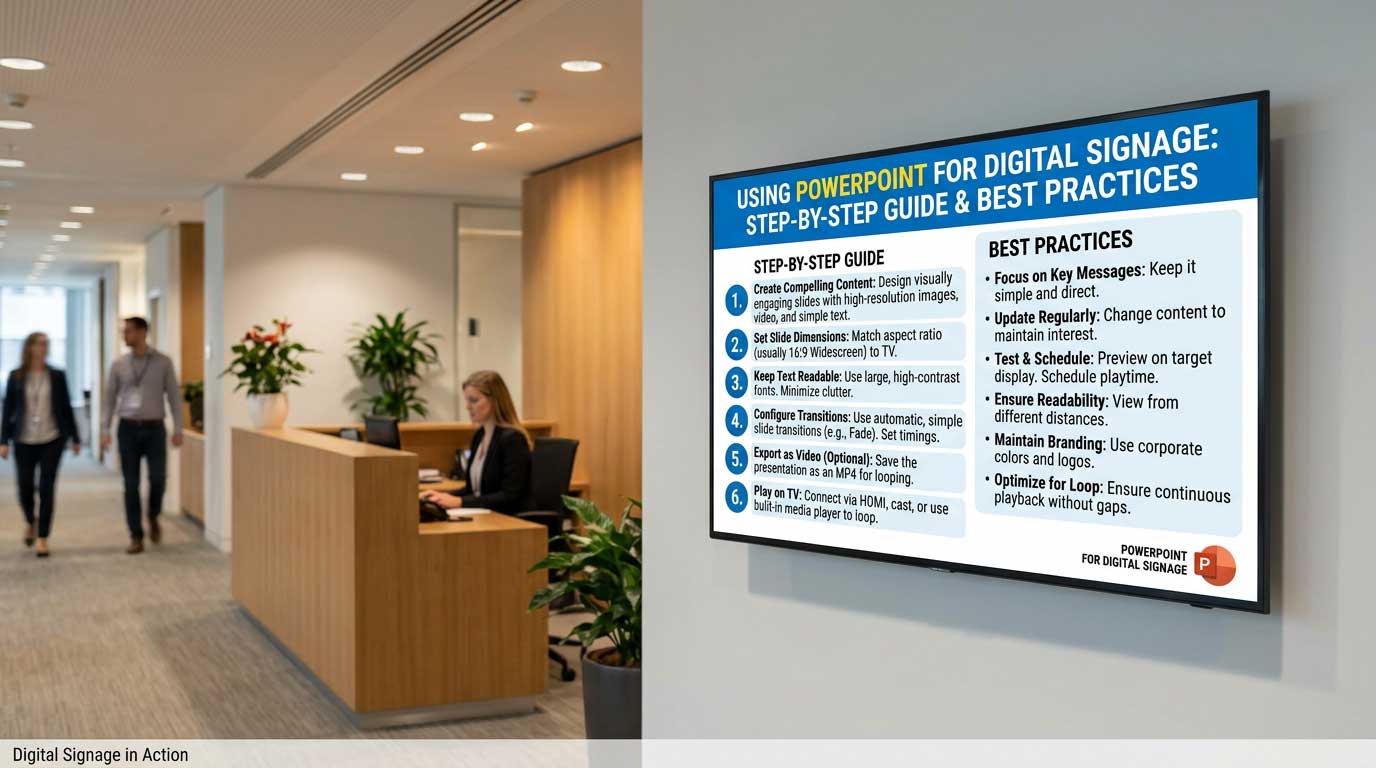
You likely already have a powerful content creation tool at your fingertips: Microsoft PowerPoint. While known for presentations, using PowerPoint for digital signage is a surprisingly effective and accessible solution for creating compelling digital signage. Many businesses overlook this familiar software, but with the right approach, it can help you design, update, and display dynamic content on your screens with minimal effort.
This guide is for business owners, marketers, and anyone looking to leverage PowerPoint for digital signage. Digital signage is a cost-effective way to communicate with your audience, and PowerPoint makes it accessible to everyone. Using PowerPoint for digital signage helps save time by leveraging tools you already know, streamlining your workflow and making it easier to manage and update content across multiple screens.
Microsoft PowerPoint is an effective and affordable tool for digital signage because it is widely accessible and requires minimal technical training. Its interface is familiar to almost everyone, making it easy to use for creating digital signage content.
This guide will show you how using PowerPoint for digital signage is a smart choice for your business. PowerPoint enables you to create digital signage efficiently as part of your existing workflow. We’ll cover its main benefits, offer practical design tips for creating screen-ready content, and explain how to take your presentations from a simple slideshow to an automated digital signage network with SignageTube, expanding on concepts from our PowerPoint digital signage 2026 guide.
Introduction to Digital Signage
Digital signage is a powerful communication tool that uses electronic displays to present dynamic content such as images, videos, text, and animations. It’s widely adopted in environments like schools, manufacturing floors, and retail stores to share information, promote products, and enhance the overall customer experience. With digital signage, organizations can quickly update and display relevant messages, making it an essential part of modern visual communications.
Microsoft PowerPoint is a popular choice for creating digital signage content thanks to its robust design tools, user-friendly interface, and extensive library of templates and features. PowerPoint comes with templates, color schemes, fonts, transitions, charts, and media import options, allowing users to easily create eye-catching slides with animations, images, and branded elements. This ensures a professional look for any digital signage project. When combined with a digital signage solution, PowerPoint becomes even more powerful—enabling users to design, deploy, and manage digital signage content efficiently across multiple screens and locations. This integration streamlines the process of creating and displaying dynamic content, making it accessible for users of all skill levels.
Now that you understand what digital signage is and how PowerPoint supports it, let’s look at why PowerPoint is an excellent choice for your digital signage needs.
Why Use PowerPoint for Your Digital Signage?
Familiarity and Ease of Use
PowerPoint is more than just a presentation tool; it’s a versatile platform perfect for beginners and seasoned designers alike. Its widespread availability and user-friendly interface make it an ideal starting point for businesses looking to explore digital signage without investing in complex design software or extensive training. Most office employees already know how to use PowerPoint, so it’s easy to repurpose their skills for digital signage. This familiarity eliminates the steep learning curve associated with specialized graphic design software. Your team can start creating content immediately, from promotional slides to internal announcements, without needing weeks of training. This accessibility empowers various departments to contribute content, ensuring your displays remain fresh and relevant.
Cost-Effective Content Creation
PowerPoint is often included in the Microsoft Office Suite, meaning your business probably already owns it. This removes the need to purchase additional expensive design software licenses. By leveraging an existing tool, you can allocate your budget toward other important aspects of your digital signage strategy, such as screen hardware or a reliable content management system.
Surprising Versatility and Built-In Features
Modern versions of PowerPoint are packed with features that are perfect for digital signage. PowerPoint comes with templates, color schemes, fonts, transitions, charts, and media import options. You can embed videos, add high-resolution images, create smooth animations, and use a wide range of fonts, including custom fonts, to enhance branding and visual appeal. PowerPoint also allows you to apply color schemes, ensuring visual consistency and supporting your brand identity. With features like slide transitions and looping, you can create a professional-looking display that runs continuously. You can even create content in portrait or landscape orientation to fit any screen.
Templates, File Types, and Integrations
PowerPoint templates make it easy to maintain branding and a professional look across all digital signage, allowing users to customize slides with logos, colors, and fonts. PowerPoint also allows users to display different content tailored to specific audiences or times, ensuring relevant information is shown on each screen. The platform offers strong support for various file types and integrates seamlessly with other Microsoft apps like Excel, enhancing productivity and content creation.
Apps and platforms such as Google Slides can also be used for digital signage, offering collaboration and web-based editing for teams. Businesses can access additional resources and support through the Microsoft website or explore our broader digital signage blog articles to ensure smooth operation and troubleshooting.
Now that you understand why PowerPoint is a strong choice, let’s explore how to design effective digital signage content.
How to Design Effective Digital Signage in PowerPoint
Creating content for a digital sign is different from designing a presentation for a meeting. The audience is often moving, and you only have a few seconds to capture their attention. Use design elements such as bold text, contrasting colors, and animations to focus viewers’ attention on the most important information or calls to action.
Here are essential tips for designing effective slides. Consider using static slides for straightforward announcements or informational displays, such as schedules or recognition boards, where motion or video is not required, or start from ready‑made digital signage templates tailored to your industry.
Set Up Your Slide Dimensions
Before you start designing, make sure your slide size matches your digital screen’s resolution and orientation. Optimizing slide dimensions for digital screens ensures clarity and brand consistency across all your displays. Most modern TV screens and digital signage displays have a 16:9 aspect ratio, which makes it straightforward to play PowerPoint presentations on TV using HDMI, media players, or cloud-based signage solutions.
Follow these steps to set your slide size:
-
Go to the Design tab.
-
Click on Slide Size > Custom Slide Size.
-
For a standard Full HD screen (1920×1080 px), set the width to 20 inches (50.8 cm) and the height to 11.25 inches (28.575 cm).
-
If your screen is in portrait mode, simply swap the width and height values.
This step ensures your content fills the entire screen without any black bars or distortion.
Prioritize Visuals Over Text
Digital signage is a visual medium. Use high-quality images, bold graphics, and even video to tell your story. Incorporating high-quality pictures can significantly enhance the visual appeal and effectiveness of your digital signage, making your message more engaging and memorable. You can also speed up production by starting with downloadable PowerPoint signage templates that are already optimized for screen layouts. A single, powerful image is far more effective than a paragraph of text. If you must use text, keep it short and impactful. Think of your slides as billboards—viewers should be able to grasp the message in three to five seconds.
Use Bold, Legible Fonts
Your content needs to be readable from a distance. Choose clear, sans-serif fonts like Arial, Helvetica, or Calibri. To ensure your text renders correctly across all devices, especially on displays running Windows, use Windows pre-installed fonts for maximum consistency and readability. Avoid decorative or script fonts that are difficult to read quickly. Ensure high contrast between your text and the background. White text on a dark background or black text on a light background works best.
Keep It Simple
A cluttered screen is an ineffective screen. Each slide should have a single, clear message. For example, if you are promoting a sale, one slide could announce the discount, and a subsequent slide could showcase a specific product. Don’t try to cram too much information onto one slide. White space is your friend—it helps draw attention to the most important elements.
Incorporate Your Branding
Maintain a consistent look and feel across all your slides. Use your company’s brand colors, logo, and fonts. This reinforces your brand identity and makes your signage instantly recognizable. Create a master template in PowerPoint with your logo and brand elements to ensure consistency, even when multiple people are creating content.
With your design foundation in place, the next step is to ensure your content is delivered to the right screens at the right time through scheduling and automation.
Scheduling and Automation
Efficient scheduling and automation are at the heart of any successful digital signage strategy. A modern digital signage solution typically includes a content management system (CMS) that empowers users to manage and update digital signage content across multiple screens and locations with ease. Cloud-based digital signage platforms make this even simpler by allowing remote updates and centralized control from any location.
With PowerPoint integration, users can create and upload PowerPoint files directly into the CMS, then schedule them to play at specific times or intervals—ensuring the right message reaches the right audience at the right moment.
Integrations with tools like Google Calendar and Outlook further simplify the scheduling process, allowing users to coordinate content updates and playback directly from their calendars. This level of automation saves time and reduces manual effort, keeping digital signage content fresh and relevant without constant oversight. Whether you’re managing a single screen or a network of displays, automated scheduling ensures your digital signage always delivers timely, engaging content to your audience.
Now that you know how to automate and schedule your content, let’s look at how to measure the success of your digital signage efforts.
Measuring Success and Analytics
To maximize the impact of your digital signage, it’s essential to measure its effectiveness using analytics and performance tracking. A comprehensive digital signage solution provides built-in tools that allow users to monitor key performance indicators such as viewer engagement, content playback frequency, and screen uptime. With PowerPoint integration, users can also track when and how often specific PowerPoint content is displayed, helping to refine content strategies and optimize messaging, especially when paired with automated data-driven digital signage that updates content based on live information.
Advanced analytics platforms, like Power BI, can be connected to your digital signage solution to create custom dashboards and detailed reports. These insights enable users to understand which content resonates most with viewers, identify trends, and make data-driven decisions to improve future campaigns. By leveraging analytics, organizations can ensure their digital signage content is always performing at its best and achieving their communication goals.
With analytics in place, it’s important to also consider the security and accessibility of your digital signage network.
Security and Accessibility
Security and accessibility are critical considerations when deploying digital signage across your organization. A robust digital signage solution should offer features such as user authentication, encryption, and access controls to safeguard your content and prevent unauthorized access. PowerPoint integration further enhances security by supporting password-protected files and secure upload protocols, ensuring that only authorized users can create and upload content to your screens.
Accessibility is equally important, as digital signage should be inclusive and usable by all audiences. Leading digital signage solutions comply with accessibility standards like WCAG 2.1, making it possible for users with disabilities to access and benefit from your content. Incorporating real-time digital signage ensures that the most current information is always available in accessible formats. By prioritizing both security and accessibility, organizations can create a safe, reliable, and inclusive digital signage environment that effectively communicates with every viewer.
With your digital signage network secure and accessible, you’re ready to take your PowerPoint content to the next level.
Taking PowerPoint to the Next Level with SignageTube
Designing slides in PowerPoint is just the first step. The real challenge is getting those presentations to play automatically and reliably on your screens as digital signs. How do you update content across multiple locations? How do you schedule different presentations for different times of the day? How do you ensure your exported formats work seamlessly with your digital signage setup?
This is where SignageTube transforms your simple PowerPoint slides into a powerful, automated digital signage network and positions you to adopt future PowerPoint digital signage trends such as AI-driven content and interactive displays.
Instead of manually loading a USB stick into each TV or using standalone media players and small devices, you can manage everything from a central, cloud-based dashboard. SignageTube connects directly to your PowerPoint files, allowing you to:
-
Automate Playback: Simply upload your PowerPoint presentation to your SignageTube account. Our software can convert your PowerPoint slides into video or image formats suitable for digital signs, ensuring compatibility with most signage devices. If you make changes to your presentation, just re-upload the updated file to keep your content current, and reach out via our SignageTube contact page if you need assistance with rendering or playback.
-
Export Options: Export your presentations as videos, images, or PDFs for use on various devices, including affordable media players and small devices that connect via HDMI. These export options help maintain animations, transitions, and fonts for effective visual communication.
-
Manage Content from Anywhere: Update promotions, change messages, or add new slides from any computer with an internet connection. Connect your devices to SignageTube for seamless updates—your changes are pushed to your screens automatically, streamlining your workflow.
-
Schedule Your Content: Plan your content to display at specific times. Show a breakfast menu in the morning, lunch specials in the afternoon, and happy hour promotions in the evening.
-
Control Multiple Screens: Whether you have one screen or hundreds across different locations, you can manage them all from a single dashboard. Group screens by location or function and send targeted content with ease.
Ready to get started? Here’s a quick summary of the main steps and best practices for using PowerPoint for digital signage.
PowerPoint for Digital Signage: Quick Checklist & Best Practices
-
Set Slide Size: PowerPoint’s default slide size is 16:9, which is suitable for most commercial displays and TVs used in digital signage. Adjust slide dimensions to match your screen’s resolution for optimal display.
-
Use Templates and Branding: Start with PowerPoint’s built-in templates, color schemes, and branding elements to ensure a professional and consistent look.
-
Prioritize Visuals: Use high-quality images and bold graphics. Limit text to five lines per slide and keep messages concise for quick comprehension.
-
Choose Readable Fonts: Use large, bold, sans-serif fonts (minimum 24-30pt) and high-contrast color combinations for maximum readability.
-
Export Formats: PowerPoint allows users to export presentations in various formats, including JPG, PNG, PDF, and MP4 video. Exporting as video or GIF preserves animations and transitions.
-
Automate Playback: Set your presentation to loop automatically (Kiosk Mode) and automate slide transitions to advance every 5-10 seconds.
-
Centralized Management: Upload PowerPoint files to a digital signage CMS for easy scheduling, remote updates, and management across multiple screens.
-
Schedule Content: Use your CMS or integrations with calendar tools to schedule different presentations for different times of day or locations.
-
Measure and Optimize: Use analytics tools to track engagement and refine your content strategy.
-
Ensure Security and Accessibility: Use password protection, secure uploads, and accessible design practices to keep your signage safe and inclusive.
Get Started with PowerPoint and SignageTube Today
PowerPoint is an excellent tool for creating digital signage content, offering a familiar and cost-effective way to get started. By following best practices for visual design, you can produce engaging content that captures attention.
When you’re ready to automate the process and unlock the full potential of your displays, SignageTube provides the missing link. Our software makes it simple to turn your PowerPoint presentations into a dynamic and remotely managed digital signage system.
Explore what SignageTube can do for your business. Start your free trial today and see how easy it is to bring your screens to life.