
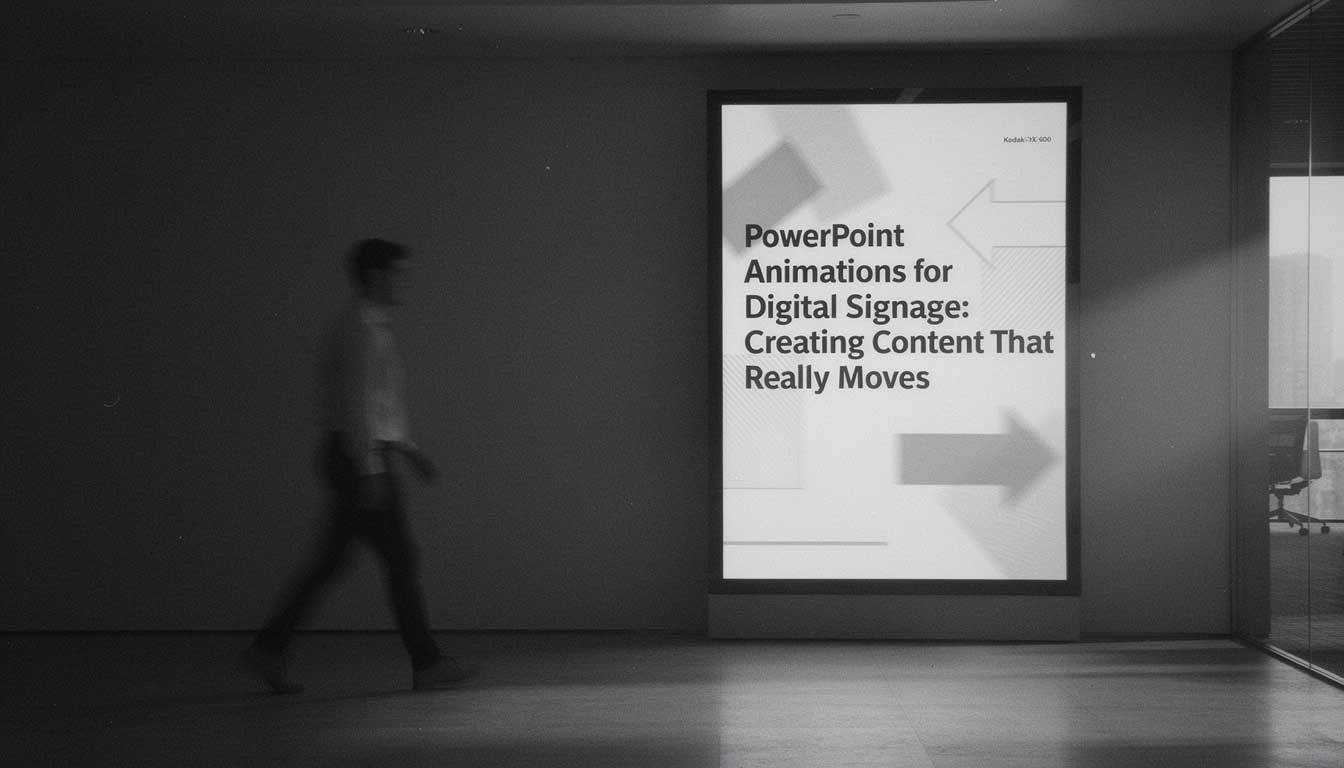
What transforms a simple screen on a wall into a captivating communication tool? Motion. A static poster can inform, but content that moves grabs attention, directs focus, and tells a story. Animation in digital signage is a powerful tool that enhances viewer engagement and communication effectiveness, making it more effective at capturing attention than static content. Digital signage animation refers to the use of animated graphics and motion content on digital displays to enhance viewer engagement and communication effectiveness. For businesses using digital signage, animation is not just decoration; it’s a powerful way to make a message stick. Animated content and video content are especially effective for digital signage, as they create visually captivating displays that enhance brand engagement and customer experience across various industries that are already leveraging real-time digital signage across multiple sectors. Many assume creating this movement requires specialized video editing or graphic design software, but the solution is likely already on your desktop: Microsoft PowerPoint.
Far from the cheesy, spinning text effects of the past, modern PowerPoint has a sophisticated animation engine capable of producing smooth, professional, and highly effective motion graphics. When used correctly, these features can elevate your digital signage from a simple slide show to a truly dynamic display that engages viewers and delivers information with impact.
This guide will show you how to harness PowerPoint’s animation capabilities to create content that really moves. PowerPoint also streamlines content creation for digital signage animation, making it easier to design engaging visuals and motion graphics without advanced technical skills. We will cover which animations work best, how to use them without overwhelming your audience, and provide practical examples to inspire your next digital sign.
Why Animation Matters in Digital Signage
In a busy environment like a retail store, office lobby, or waiting room, your audience is often distracted. You have only a few seconds to capture their attention. Animation is your secret weapon for cutting through the noise. Animation leads to better engagement in digital signage environments by maximizing viewer retention and interaction, especially when time and attention are limited.
-
It Grabs Attention: The human eye is naturally drawn to movement. A subtly animated headline or a smoothly transitioning slide is far more likely to be noticed than a static image.
-
It Directs Focus: Animation allows you to control the viewer’s journey. You can guide their eyes from the headline to the key benefit and finally to the call to action, all by timing how elements appear on the screen, while ensuring the content is relevant to the audience and context.
-
It Improves Comprehension: By revealing information sequentially, you prevent cognitive overload. Instead of presenting a wall of text, you can introduce one point at a time, making the message easier to digest and remember.
-
It Adds a Professional Polish: Well-executed animations make your content look high-end and modern. It shows a level of care and sophistication that reflects positively on your brand.
The most effective content for digital signage often includes dynamic animation and motion graphics, as these elements maximize the impact and value of your digital signage investment.
The “Less is More” Rule of Animation
Before diving into the “how,” it’s crucial to understand the most important principle of animation in a professional setting: less is more. The goal is to enhance your message, not to distract from it. Using subtle, purposeful animation in digital signage offers the benefits of drawing attention to key information, improving viewer engagement, and supporting a clear content strategy without overwhelming your audience. Over-the-top animations like “Bounce,” “Swivel,” or “Random Bars” can look amateurish and make your content difficult to read.
Stick to subtle, clean, and purposeful animations. Your motion should have a reason. Is it revealing new information? Guiding the eye? Creating a smooth transition? If the animation doesn’t serve the message, it shouldn’t be there.
Must-Use Animations for Professional Digital Signage
PowerPoint offers dozens of animations, but you only need to master a few to create professional-looking content. Here are the most effective ones for digital signage. Using templates can help you quickly create professional animations, and a variety of resources—such as design guides, case studies, and animation tutorials—are available to help you learn more about using PowerPoint for digital signage with step‑by‑step best practices.
1. The Fade: Your Go-To for Everything
If you only learn one animation, make it this one. Fade is the most versatile and professional effect in PowerPoint. It gently brings an element into view without any jarring movement. It’s perfect for text, images, and logos.
-
How to Use It: Select an object (like a text box), go to the Animations tab, and choose Fade.
-
Pro Tip: Use the Animation Pane to stagger the entrance of multiple items. For a promotional slide, have the headline fade in first, followed by the product image a half-second later, and then the price. This creates a controlled, elegant reveal that can be used to showcase featured products or messages on digital signage.
2. The Wipe: Perfect for Charts and Reveals
The Wipe animation reveals an object along a straight line. It’s clean and direct. While it can be used for text, it truly shines when used to animate data visualizations.
-
How to Use It: Select a bar chart, apply the Wipe animation, and then go to Effect Options. Choose “By Category” or “By Element.” This will make the bars of your chart “grow” into place one by one, creating a dynamic data story. The Wipe animation is especially effective for producing dynamic content that captures attention on digital signage.
-
Pro Tip: Change the direction of the Wipe to match the flow of your slide. For an object entering from the left, set the Wipe direction “From Left.”
3. The Float In: A Softer Entrance
Float In is a slightly more dynamic version of Fade. The object gently drifts into place from below, ending with a soft landing. It feels modern and smooth, adding a touch of sophistication.
-
How to Use It: Apply Float In to headlines or key images to give them a subtle, attention-grabbing entrance. It’s more noticeable than a simple Fade but still highly professional.
-
Pro Tip: In the Effect Options, you can change the float distance. A “Float Down” can be a great way to introduce a header at the top of a slide. Also, consider your background color and contrast to ensure the animation stands out and remains readable.
4. The Morph Transition: Your Cinematic Secret Weapon
While technically a transition (an effect between slides) rather than an animation, Morph is the single most powerful tool for creating cinematic motion in PowerPoint. Morph analyzes the difference between two slides and automatically animates the objects from their starting position to their ending position.
-
How to Use It: Duplicate a slide. On the second slide, resize, move, or change the color of an object. Apply the Morph transition to the second slide. PowerPoint will create a seamless animation between the two states.
-
Pro Tip: Create a “zoom” effect. On slide one, show a group of products. Duplicate the slide, and on slide two, make one of the product images much larger and move it to the center. Morph will create a professional zoom-in animation that highlights that specific product.
AI tools are also making advanced animation techniques, like those achieved with Morph, more accessible and efficient for digital signage content creators by streamlining production and reducing manual effort, and these shifts are part of broader future trends in PowerPoint digital signage for 2026.
Practical Examples of Animation in Action
Let’s apply these techniques to common digital signage scenarios. Animation techniques are widely used across various industries to enhance marketing efforts, deliver engaging promotional content, and highlight promotions, especially when combined with dynamic displays driven by real-time content, ensuring that digital signage captures attention and drives results in diverse business environments.
Example 1: A Digital Menu Board
For digital menu boards in a cafe setting, you want to draw attention to high-margin items or daily specials.
-
Static Content: List most menu items as static text for easy readability.
-
Animation: Use a subtle Fade animation on the “Chef’s Special” section to make it stand out. Or, apply a gentle “Pulse” emphasis animation to the price of a combo meal to subtly draw the eye.
Example 2: A Corporate Announcement
You’re welcoming a new team member on your office screens. Make sure the correct account settings are configured so the announcement displays on the appropriate screens.
-
Slide 1: A slide with the headline “Welcome to the Team!”
-
Slide 2: Duplicate the first slide. Add a professional headshot of the new hire and a text box with their name and title. Move the headline up.
-
Effect: Apply the Morph transition to Slide 2. The headline will smoothly slide up to make room for the photo and text, which will elegantly fade in. It’s a polished, multi-step animation created with just one click.
Example 3: A Retail Promotion
You’re advertising a “50% Off” sale on select items.
-
Animation Order:
-
The headline “Flash Sale!” floats in from the bottom.
-
An image of the product fades in.
-
The “50% Off” graphic appears with a quick Zoom animation to give it punch and importance.
-
Effect: This sequence guides the viewer’s eye through the most critical information in a logical order, ensuring the message is both seen and understood.
Using engaging videos and well-designed animations in your digital signage not only increases visibility and audience engagement but also ensures you get the best value for your money by maximizing the impact of your promotional investment, especially when you extend campaigns with QR codes to drive deeper audience engagement.
Measuring Effectiveness of Animated Digital Signage
Creating eye-catching animated digital signage content is only half the battle—knowing how well it performs is just as crucial. For businesses looking to maximize the impact of their digital signage network, measuring effectiveness ensures that every piece of content is working hard to engage your audience and achieve your goals.
The most effective digital signage content doesn’t just look good; it delivers measurable results. Key metrics to track include engagement rates (how many viewers interact or respond to your message), viewer retention (how long people watch your digital displays), and conversion rates (how many take the desired action, such as visiting a website or redeeming a promotion). These data points help you understand what resonates with your audience and where there’s room for improvement.
Modern digital signage software and cloud-based digital signage platforms, like SignageTube, make it easy to access these insights, and tools such as SignageTube Live for automated data-driven digital signage can centralize this across many screens. Built-in analytics tools allow you to monitor performance across multiple screens and locations, track proof of play, and see which animated digital signage content is driving the most engagement by revealing how real-time data becomes a digital signage secret weapon. With this data at your fingertips, your team can make informed decisions—refining content, adjusting scheduling, and experimenting with new animation styles to create the most effective digital signage content possible.
By regularly reviewing these metrics, businesses can ensure their digital signage solutions are not only visually appealing but also delivering real value, especially when paired with real-time digital signage that updates automatically from live data sources. In today’s fast-paced environments, leveraging data-driven insights is the key to creating content that truly moves your audience—and your bottom line.
Conclusion: Animate with Purpose
Animation is a tool, and like any tool, its effectiveness depends on how you use it. When deployed with a “less is more” mindset, PowerPoint’s animation features can transform your static slides into engaging, professional, and effective digital signage content.
Focus on subtle, clean movements that serve a clear purpose: to grab attention, guide the eye, and make your message easier to understand. Master the Fade, Wipe, and Float In animations for your individual slide elements, and use the powerful Morph transition to create seamless, cinematic flows between your key messages. By doing so, you’ll create content that not only looks great but also truly moves your audience.
To maximize the impact of your digital signage animation, use a digital signage platform to manage and schedule your animated content across all your displays, combining it with a practical PowerPoint digital signage guide on running slides on screens and drawing inspiration from SignageTube’s broader digital signage blog resources. This ensures your team can efficiently oversee updates and maintain a consistent content strategy.